EasyManua.ls Logo

JBL SDR-35 - User Manual

JBL SDR-35
49 pages
Print Icon
To Next Page IconTo Next Page
Loading...
QUICK START GUIDE
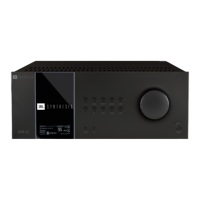
IMMERSIVE SURROUND SOUND PROCESSORS
SDR-35 / SDP-55

Questions and Answers

  • O
    owensdavidAug 17, 2025
    What to do if my JBL Recording Equipment unit responds erratically to the remote control?
    • Z
      zmilesAug 17, 2025
      If the unit responds erratically or not at all to the remote control, ensure there are fresh batteries in the remote control. Also, check that the front panel window is visible and you are pointing the remote control towards it.
  • P
    Peter LewisAug 20, 2025
    Why is there no sound coming from my JBL SDR-35 Recording Equipment?
    • D
      Dawn OdomAug 20, 2025
      If no sound is being produced, ensure that the correct input has been selected and the ‘audio source’ has been set correctly in the ‘input config.’ menu. Check that the source equipment is on, is operating normally, and is in ‘play’ mode if appropriate. Also, verify that the volume is turned up to a reasonable level and the receiver is not in mute mode.
  • B
    Brian ZunigaAug 22, 2025
    What to do if sound only comes from some of the speakers of my JBL SDR-35?
    • G
      Grant FowlerAug 22, 2025
      If sound only comes from some of the speakers, ensure that you have an appropriate surround source selected and playing. Check that the BD/DVD disc is encoded in the appropriate format, and the correct format has been selected in the disc start menu of the BD player (if applicable). Verify that the BD/DVD player has been set to output ‘bitstream’ audio on the digital output. Ensure the display window indicates that the disc you are playing is a multichannel recording. Confirm that all the speakers are correctly connected to the speaker terminals and are secure. Ensure that you have not selected ‘stereo’ as the decoding mode, your speaker balance is correct, and you have configured the receiver to include all the speakers in your system.
  • S
    Sara SmithAug 26, 2025
    What to do if my JBL SDR-35 has poor or distorted sound?
    • T
      Timothy HigginsAug 26, 2025
      If the sound is poor or distorted, ensure that you have not excessively increased the input sensitivity (i.e., reduced the maximum input signal voltage) in the input config. menu if an analog input is being used. Also, verify that you have selected the correct size of speakers to suit your system in the setup menu.
  • A
    Amber PerezAug 28, 2025
    How to fix no picture on JBL SDR-35 Recording Equipment?
    • S
      Stephanie WilliamsAug 28, 2025
      If no picture is being produced, ensure that your viewing device is turned on and switched to display your receiver. Test by pressing the button on the receiver or on the remote and look for the main menu screen on your display device. Verify that the correct video input is selected on the receiver and that the video source is on, is operating normally, and is in ‘play’ mode if appropriate.
  • A
    Amy WilliamsAug 31, 2025
    Why can't I select Dolby or DTS decoding modes on my JBL SDR-35?
    • H
      hopkinsalanAug 31, 2025
      The receiver can only apply Dolby and DTS decoding to sources which have been encoded in the same format. Check that a digital source is selected and connected. Ensure that the source is playing appropriately encoded material, that the BD/DVD disc is encoded in the appropriate format, and that the correct format has been selected in the disc start menu of the BD player (if applicable). Also, verify that the BD/DVD player has been set to output ‘bitstream’ audio on the digital output.
  • D
    Devin LeeSep 2, 2025
    How to fix bright edges or ghosts on the picture of my JBL SDR-35?
    • C
      Catherine BowmanSep 3, 2025
      If there are bright edges or ‘ghosts’ on the picture, ensure the ‘sharpness’ control on your display device is switched off or set to near minimum. For HDMI connections, try using a shorter cable or alternatively a different brand.
  • T
    Tyler PetersSep 5, 2025
    Why does my JBL SDR-35 AV selects Dolby Surround when playing a Dolby BD/DVD?
    • M
      meyernancySep 5, 2025
      If, when playing a Dolby BD/DVD, the AV selects Dolby Surround, ensure that you have a digital connection from your BD/DVD player. Sometimes Dolby BD/DVD discs contain material at either the beginning or the end of the main movie that is not in full 5.1 Format, but in two-channel.
  • P
    peggycampbellSep 8, 2025
    What to do if there are no lights on my JBL Recording Equipment unit?
    • A
      Amber DeckerSep 8, 2025
      If there are no lights on the unit, ensure the power cord is plugged into the receiver and into the AC power outlet, and that the power button is pressed in. If a red LED is present, the receiver is in standby mode. Press any button on the front panel or the standby button on the remote control.
  • G
    gillpatriciaSep 12, 2025
    What to do if the front panel display is blank on my JBL SDR-35 Recording Equipment?
    • H
      holtcourtneySep 12, 2025
      If the front panel display is blank, ensure that the display hasn’t been turned off. Press the button on the front panel or remote control.

Summary

Safety Guidelines

Important Safety Instructions

Essential guidelines for safe operation and handling of the apparatus.

Rear Panel Connections Overview

Network, USB, and Control Ports

Details on rear panel network, USB, trigger, serial, and IR connectors.

Audio and Video Input;Output Ports

Overview of HDMI, Dante, Digital Audio, and Preamplifier connectors.

Audio;Video Connections

HDMI and Dante Port Configuration

Connecting HDMI sources and utilizing Dante ports for professional audio networking.

Speaker System Configuration

Connecting and Assigning Speakers

Guidelines for connecting up to sixteen speakers and assigning amplification channels.

Speaker Placement and Calibration Importance

Importance of proper speaker placement and professional calibration for optimal surround sound.

Connecting Loudspeakers and Amplifiers

Standard Speaker Wiring Procedures

Step-by-step instructions for connecting speaker wires to terminals, ensuring correct polarity.

Advanced Speaker Wiring Techniques

Bi-amping front speakers and connecting active subwoofers for enhanced audio.

Receiver Operation and Controls

Basic Operation and Power Management

Operating the receiver, switching on/off, standby mode, and front panel display.

Universal Remote Control Features

Remote Control Capabilities and Usage

Overview of the universal remote's capabilities, including controlling multiple devices.

Essential Setup for Optimal Sound

Speaker Configuration Basics

Setting up speaker types, levels, and distances for optimal surround sound processing.

Speaker Level and Distance Calibration

Adjusting speaker levels and measuring distances for accurate audio reproduction.

Automatic Speaker Setup with Dirac Live

Dirac Live Bass Management Setup Procedure

Using the Dirac Live application for automatic speaker calibration and room equalization.

Navigating the Receiver Setup Menus

Entering and Using Setup Menus

How to access and navigate the receiver's setup menus via remote, front panel, or web interface.

Input Configuration Settings

Input Audio and Video Settings

Configuring specific settings for each input, including Mode, Bass/Treble, and Lip Sync.

Input and Speaker Configuration Details

Speaker Type and Subwoofer Setup

Setting speaker sizes, subwoofer usage, and channel assignments for accurate audio.

Speaker Levels and Zone Settings Management

Adjusting Individual Speaker Levels

Fine-tuning individual speaker volume levels using test tones or external sources.

Network and Bluetooth Connectivity Setup

Decoding Modes Explained

Digital and Analog Source Decoding Modes

Overview of various decoding modes for digital and analog audio sources.

Supported Audio Source Formats

Troubleshooting Common Receiver Issues

Power, Remote, and Display Problems

Solutions for issues like no lights, erratic remote response, or blank display.

Audio and Picture Output Troubleshooting

Troubleshooting steps for no picture, poor sound quality, or sound distortion issues.

Troubleshooting Connectivity and Interference

Product Specifications

SDP-55 Technical Specifications

Detailed technical specifications for the SDP-55 model, including power output and dimensions.

SDP-35 Technical Specifications

Detailed technical specifications for the SDP-35 model, including power output and dimensions.

JBL SDR-35 Specifications

General IconGeneral
TypeAV Receiver
HDMI Inputs7
HDMI Outputs3
Dolby AtmosYes
DTS:XYes
IMAX EnhancedYes
Roon ReadyYes

Related product manuals