Need help?
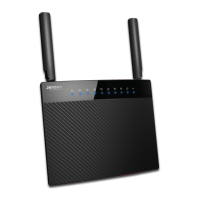
Do you have a question about the Jensen AIRLINK 1000AC and is the answer not in the manual?
This document serves as a comprehensive guide for the basic setup and optimization of your Jensen router, ensuring a stable and efficient wireless network experience. It covers essential steps from initial connection to advanced network management, aiming to address common user queries and enhance overall performance.
The Jensen router is a core component of a home network, designed to provide internet access to various devices wirelessly or via cable. It acts as a central hub, receiving internet from an internet modem (supplied by your service provider, connected via ADSL, Fiber, or cable TV) and distributing it to computers, smartphones, tablets, printers, and other network-enabled devices. The router supports both single-band (2.4GHz) and dual-band (2.4GHz and 5GHz) frequencies, offering flexibility in network setup and performance.
A key function of the Jensen router is its ability to create a "guest network." This feature allows the router to establish an additional wireless network specifically for guests. Devices connected to the guest network are granted internet access but are blocked from accessing local network resources such as hard drives, servers, printers, cameras, or other PCs. This enhances security by isolating guest devices from your primary network and its shared resources.
The router also incorporates an "Internet filter" function, enabling users to block access to specific web pages (URLs) for all devices connected to the Jensen router. This feature is useful for parental controls or managing internet usage within the household.
Furthermore, the Jensen router includes a "scheduler" function, which allows users to block internet access based on specific times and dates. This can be applied to all devices in the network or configured individually, providing granular control over internet availability.
For extending wireless coverage, some Jensen router models support a "Universal Repeater" mode. In this mode, the router receives signals from an existing wireless network and retransmits them, effectively expanding the network's range. This is particularly useful in larger homes or areas with weak signal strength.
Setting up the Jensen router involves a straightforward process. Users begin by connecting the internet modem to the router's blue "INTERNET" port and then connecting the power cable. Devices can be connected to the router via Ethernet cables (ports 1, 2, 3, or 4) or wirelessly.
Connecting to the wireless network is detailed for various operating systems, including Windows XP, Vista, 7, 8/8.1, 10, Mac OS X, Android, and iOS. The process typically involves searching for available wireless networks, selecting the Jensen router's network name (SSID), and entering the encryption key (password), which can be found on the router itself.
The router's settings can be accessed through a web browser by entering a specific IP address (http://192.168.38.1). This interface allows users to manage various network parameters.
Users can customize their wireless network by changing the network name (SSID) for both 2.4GHz and 5GHz bands. The 5GHz network name is automatically adjusted based on the 2.4GHz selection. It is recommended to change the password simultaneously for easier network management.
The encryption key (password) for the wireless network can also be changed through the router's menu. This is a crucial security measure, and the guide provides clear steps for updating it.
The guest network feature is easy to set up. Users can enable the guest network, assign a name (SSID), and set a password. The 5GHz guest network name is automatically generated based on the 2.4GHz guest network name.
The Internet filter allows users to add specific URLs to a block list. This is done by entering the desired address and clicking "Add." Addresses can also be deleted from the list.
The scheduler function enables users to define time-based internet access rules. This involves activating the scheduler, selecting the device(s), choosing the valid day(s), and setting start and end times for internet blocking. Multiple rules can be added for different devices.
The manual provides guidance on improving wireless network performance. This includes recommendations for router placement, such as positioning it high up in a central location and adjusting antenna angles for optimal signal strength. It also advises against placing the router in drawers, near reflective surfaces (windows, mirrors, metal cabinets), or close to other 2.4GHz equipment (cordless phones, baby monitors) to minimize interference.
To address unstable Wi-Fi connections or poor performance, the guide suggests changing the wireless channel on the router. It recommends using software or apps (such as Acrylic WiFi, inSSIDer, WiFi Inspector for Windows; WiFi Analyzer, inSSIDer for Android; NetSpot, WiFi Scanner for Mac) to identify channels with less traffic, thereby improving coverage and performance. For dual-band routers, setting the channel bandwidth to 20MHz (one channel) for 2.4GHz and 20MHz or 40MHz for 5GHz can help reduce interference.
Firmware upgrades are an important maintenance aspect, ensuring the router operates with the latest features and bug fixes. The Jensen router models support automatic firmware upgrades. Users can check for new firmware by logging into the router menu, where a green update icon will indicate availability. The upgrade process, which can take up to 30 minutes, requires the router to remain powered and connected.
In cases of router malfunction or persistent problems, a factory reset is recommended. This restores all settings, including network name and password, to their factory defaults. The reset is performed by pressing and holding the RESET/WPS button for a specified duration (10 seconds for most models, 30 seconds for AirLink 1000AC). After a reset, users will need to reconnect to the router using the default network name and password found on the product label.
The manual also includes a "Frequently asked questions" section to troubleshoot common issues, such as no internet access, inability to access the router's graphical user interface (GUI), unstable wireless connections, devices failing to connect, or inability to connect to a 5GHz network. These sections often refer back to the detailed setup and maintenance steps provided earlier in the document.
For additional support, Jensen Scandinavia offers phone support and email assistance. Users are encouraged to provide specific information, such as the Jensen product model, other products used in combination, and a full description of the problem, to facilitate effective troubleshooting.
 General
| Brand | Jensen |
|---|---|
| Model | AIRLINK 1000AC |
| Category | Wireless Router |
| Language | English |

 To Next Page