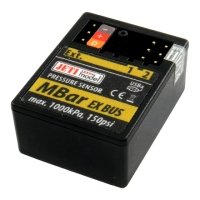
User Manual: MBar EX
Connection to the Ext. socket of the receiver with the possibility to connect other sensors
Connect the three-wire extension cable with JR plugs to the Ext. socket of the MBar EX sensor. The other
end of the cable is to be connected to the Duplex EX receiver (marked Ext.). In such a case the MBar EX sensor
is configured this way: Ext1 Mode (Expander), Ext2 Mode (Expander). Now other JETI model sensors can be
connected to free sockets of the MBar EX sensor. MBar EX gets its power supply from the receiver and other
sensors from the MBar EX.
Connection to the Ext. socket of the receiver with the possibility of logical levels detection and
transmission of the values via telemetry
Connect the three-wire extension cable with JR plugs to the Ext. socket of the MBar EX sensor. The other
end of the cable is to be connected to the Duplex receiver (marked Ext.). In such a case the MBar EX sensor is
configured this way: Ext1 Mode (Logical input), Ext2 Mode (Logical input). Now the sockets of the MBar EX
can be connected in such a way that logical level of the applied voltage is detected on the signal (yellow) wire.
Based on this value it is possible to report alarms or perform another action in the transmitter.
Note: Modes of Ext1 and Ext2 sockets can be arbitrarily combined, e.g. a sensor connected to the Ext1 and Ext2. as a
logical input.
5. Setting via JETIBOX
The parameters can be set and the data can be displayed via JETIBOX. After connecting to the MBar sensor,
the welcome screen appears and shows the sensor identification and measured pressure in MPa and psi. If the D
button is pressed, you get to the MBar EX main menu. If you press the button on the right, you get to the
Expander menu (if any of the Ext1/2 outputs are set to the Expander mode).
5.1 The MBar EX sensor menu:
MBAR MENU: ACTUAL VAUES - by pressing the D button (arrow down) selects the display of actual
measured values
Pressure – pressure measured in units of hPa and psi.
Temperature – shows actual temperature of the sensor.
MBAR MENU: MIN/MAX - – by pressing the D button (arrow down) selects the display of extremes that
occurred during the measurements
Pressure MIN/MAX – shows the minimum and maximum measured pressure.
Temperature MIN/MAX - shows the minimum and maximum temperature of the sensor.
Reset MIN/MAX – manual reset of the maximums and minimums. Pushing R and L arrows (right and left)
together for several seconds deletes the extremes of all measured parameters
MBAR MENU: SETTING - by pressing the D button (arrow down) you get to the basic settings of the Mbar
EX sensor.
-5-


 To Next Page