54
EASYCONNECTION PROPERTY
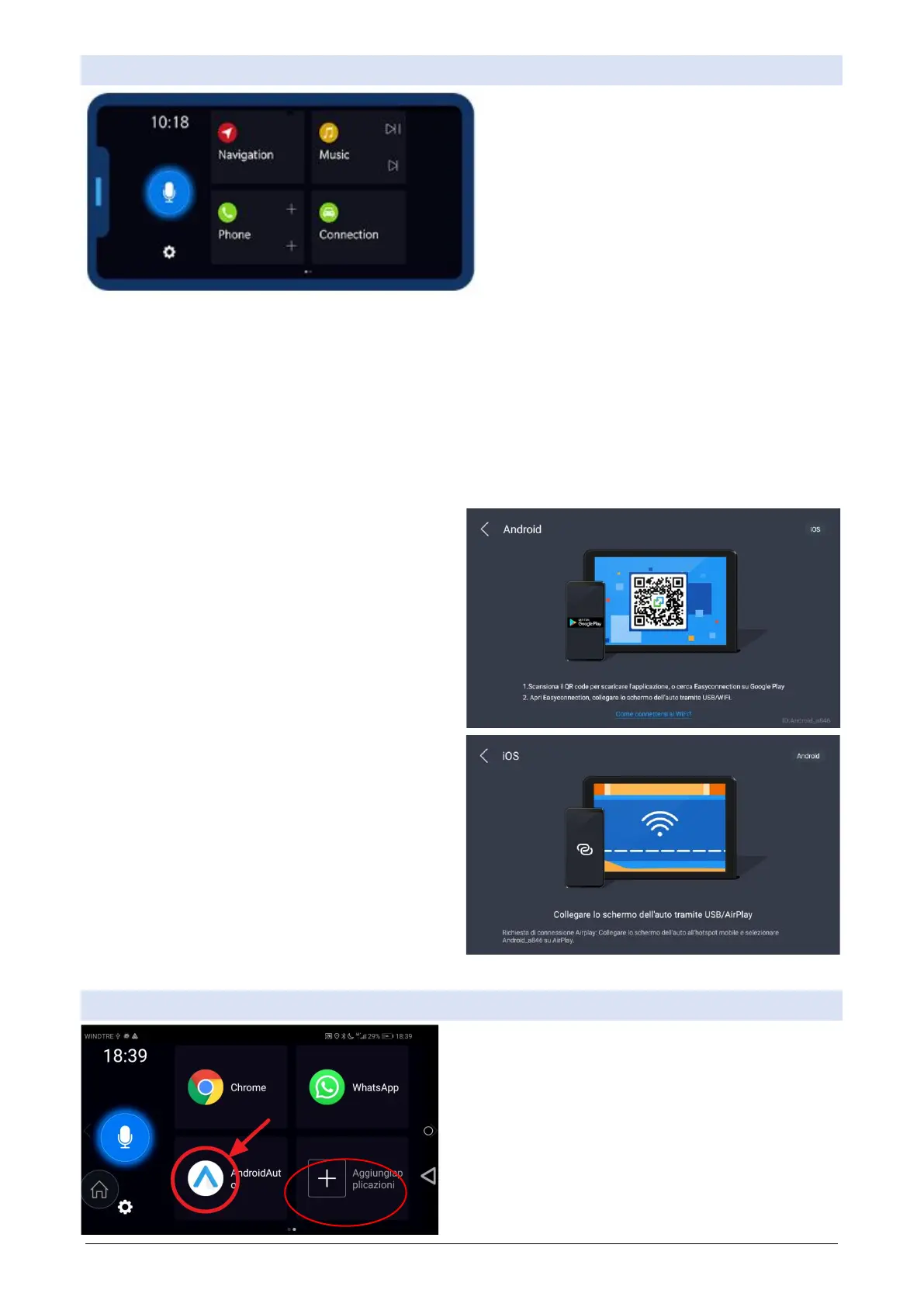
The EasyConnection application gives the user the
ability to connect their phone to the radio. Using
easyconnection's customizable control panel or
(exiting (uscendo the easyconnection screen)
using your phone in mirror function. The mirror
function is one-way (the radio cannot change the
phone) for Android WIFI and iPhone while the An-
droids connected with USB are two-way.
ANDROID PHONE PREPARATION:
8. Open PlayStore, and installand Easyconnention on your phone
9. Open your phone’s settings
10. Open phone info usually called Info Software
11. press the build number entry 7 times in a row and return to the previous page
12. Now we can notice the presence of the entry {developer options}, enter this section
13. if the first item in the list asks you to enable the set on option ON
14. Set the USB DEBUG entry to ON, and then exit the settings
On some phones the procedure may be different, see the instructions of the phone.
ANDROID USB: press Android USB and follow the in-
structions on the radio video. Be careful to make sure
that the cable is a DATA cable and that the USB con-
nection of the phone is data type and not just charge
or photo.
ANDROID WiFi: 1. open a hotspot network on your
phone and connect the radio wifi to hotspot 2. de-
bug your phone USB (seeabove) 3. press Android
WiFi and follow the instructions on the radio video.
IPHONE WiFi: 1. open a hotspot network on your
phone and connect the radio wifi to the phone
hotspot 2. press the iPhone WiFi button and follow
the instructions on the radio video.
FOR MORE PRACTICAL AND FASTER USE WE RECOMMEND USING APPLICATIONS DIRECTLY ON THE RADIO
ANDROID CAR
To use AndroidAuto of your phone you must first
install it on the phoneor, then add the icon on the
Easyconnection page (pressing on the + button),
and launch it on Easyconnection. Remember that
usb connection is required for proper use of this
feature.



 To Next Page
 Loading...