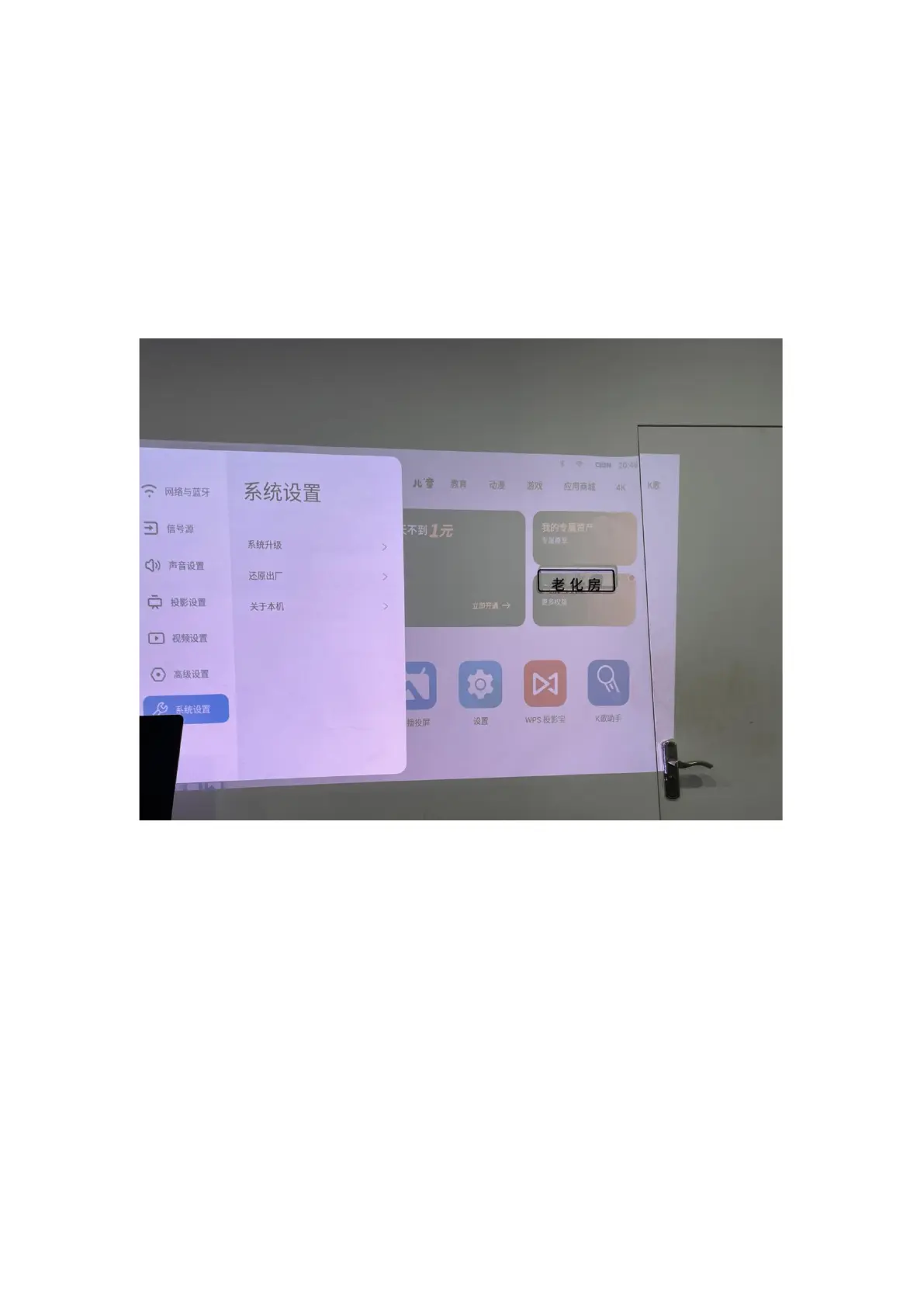
Online Update: Head to Settings > System > Update Version. The system will automatically
detect if your software is up-to-date. You will receive a prompt if the software is already the latest
version. If your software is out-of-date, you will be asked if you wish to update it.
Local Update: Download the software update package from the JMGO website, copy the file to
the root directory of a hard disk or USB, then insert the hard disk or USB into the USB port on the
projector body. Head to Settings > System > Update Version, then select Local Update. The
system will automatically detect and install the update package.
2) Network Settings
This product supports both wired and Wi-Fi networking.
a) To use a wired connection, simply insert the network cable directly into the projector.
b) To connect to Wi-Fi, go to Settings > Network/Bluetooth, then select an available network to
connect. After you’ve successfully connected, a Wi-Fi icon will be displayed on the upper
right corner of the screen.
下方线稿右侧为国内系统的页面,请注意替换


 To Next Page