EasyManua.ls Logo

Johnson Controls York Smart Equipment SC-EQUIP - User Manual

Johnson Controls York Smart Equipment SC-EQUIP
52 pages
Print Icon
To Next Page IconTo Next Page
Loading...
INSTALLATION INSTRUCTIONS Supersedes: 450.50-N1 (1117) Form 450.50-N1 (819)
Issue Date:
August 19, 2019
REV.8
YVWA
YK
035-25087-000
SC-EQ
COMMUNICATION CARD
(Also Contains Relevant SC-AP Information)
YMC
2
YZ

Table of Contents

Questions and Answers

Summary

IMPORTANT! READ BEFORE PROCEEDING!

GENERAL SAFETY GUIDELINES

General safety guidelines for handling complex equipment and potential hazards.

SAFETY SYMBOLS

Explains the meaning of DANGER, CAUTION, WARNING, and NOTE symbols used in the document.

CHANGEABILITY OF THIS DOCUMENT

ASSOCIATED LITERATURE

SECTION 1 - INTRODUCTION

OVERVIEW

Introduces the SC-EQ Communication Card for BAS network connectivity for YORK equipment.

EMISSIONS COMPLIANCE

Details compliance with FCC and Canadian regulations for digital devices.

SECTION 2 - INSTALLATION

WIRING

Provides warnings and instructions for electrical connections, including grounding.

PROTECTION OF COMMUNICATION PORTS

Explains measures to protect communication ports from electrical disturbances.

SECTION 2 - INSTALLATION

HIGH NOISE ENVIRONMENTS

Discusses managing electrical noise and RFI for reliable communication.

TYPES OF COMMUNICATION PORTS

Describes RS-485 and RS-232 communication protocols used by the SC-EQ.

NETWORK TERMINATION

Explains the importance and method of EOL termination for RS-485 networks.

SECTION 2 - INSTALLATION

MEDIA ACCESS CONTROL (MAC) ADDRESS

Instructions on setting the SC-EQ's MAC address using DIP switches.

SECTION 2 - INSTALLATION

BAS NETWORK WIRING

Diagrams and notes for 3-wire and 2-wire BAS network wiring configurations.

SECTION 2 - INSTALLATION

MOUNTING

Safety warning related to mounting and electrical shock.

OPTIVIEW PANEL INSTALLATION

Step-by-step guide for installing the SC-EQ in an OptiView panel.

SECTION 2 - INSTALLATION

SMALL TONNAGE PANEL INSTALLATION

Instructions for installing the SC-EQ in small tonnage panels.

SECTION 2 - INSTALLATION

SCROLL CHILLER PANEL INSTALLATION

Diagram and instructions for scroll chiller panel installation.

YMAA, YCAE, AND YCWE-E PANEL INSTALLATION

Step-by-step guide for installing SC-EQ on YMAA, YCAE, and YCWE-E chillers.

SECTION 2 - INSTALLATION

SC-EQ TO YMAA, YCAE, AND YCWE CONNECTIONS

Detailed wiring diagram for connecting SC-EQ to YMAA, YCAE, and YCWE units.

SECTION 2 - INSTALLATION

YVWE AND YVWH PANEL INSTALLATION

Step-by-step guide for installing SC-EQ on YVWE and YVWH chillers.

YEWS AND YGWE SINGLE PANEL INSTALLATION

Instructions for installing SC-EQ on YEWS and YGWE single panels.

SECTION 2 - INSTALLATION

SC-EQ TO YEWS CONNECTIONS

Wiring diagram for connecting SC-EQ to YEWS units.

OTHER CHILLER PANEL INSTALLATION

General instructions for installing SC-EQ in other chiller panel types.

SECTION 2 - INSTALLATION

MOUNTING ON A MICRO PANEL

Instructions and diagrams for mounting the SC-EQ enclosure on a Micro Panel.

SECTION 2 - INSTALLATION

WALL MOUNTING

Instructions for mounting the SC-EQ enclosure on a wall.

APPLYING POWER

Instructions on how to supply power to the SC-EQ enclosure.

SECTION 2 - INSTALLATION

SC-EQ COMPONENT LOCATIONS

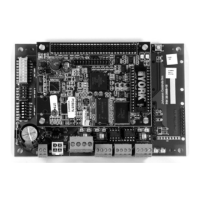
Diagram identifying components and connection points on the SC-EQ board.

SECTION 2 - INSTALLATION

EQUIPMENT CONFIGURATION

Overview of configuration requirements for communication with SC-EQ.

SETTING THE ROTARY SWITCH ON CHILLER PANELS

Instructions for setting rotary switches for YORK Talk II address.

SECTION 2 - INSTALLATION

SC-EQ COMM CARD TO YORKTALK II EQUIPMENT CONNECTIONS

Wiring diagrams for connecting SC-EQ to YORKtalk II equipment.

SECTION 2 - INSTALLATION

SC-EQ COMM CARD TO YORKTALK II EQUIPMENT CONNECTIONS

Wiring diagrams for connecting SC-EQ to YORKtalk II equipment.

SECTION 2 - INSTALLATION

SC-EQ COMM CARD TO YORKTALK II EQUIPMENT CONNECTIONS

Wiring diagrams for connecting SC-EQ to YORKtalk II equipment.

SECTION 2 - INSTALLATION

SC-EQ COMM CARD TO OPTIVIEW EQUIPMENT CONNECTIONS

Wiring diagrams for connecting SC-EQ to OptiView equipment.

SECTION 2 - INSTALLATION

SC-EQ COMM CARD CONNECTIONS FOR CHILLERS WITH THE 02478 MICROBOARD

Wiring diagrams for SC-EQ connections with 02478 microboards.

SC-EQ COMM CARD CONNECTIONS FOR CHILLERS WITH THE 03478 MICROBOARD

Wiring diagrams for SC-EQ connections with 03478 microboards.

SECTION 2 - INSTALLATION

SC-EQ COMM CARD CONNECTIONS FOR CHILLERS WITH THE 02550 MICROBOARD

Wiring diagrams for SC-EQ connections with 02550 microboards.

SC-EQ COMM CARD CONNECTIONS TO YPAL (EC02)

Wiring diagrams for SC-EQ connections to YPAL (EC02).

SECTION 2 - INSTALLATION

SC-EQ COMM CARD CONNECTIONS TO YEWS-D1;YEAS;YGAS

Wiring diagrams for SC-EQ connections to YEWS-D1/YEAS/YGAS.

SECTION 3 - TROUBLESHOOTING

LED INDICATORS

Explains the function of SC-EQ LEDs for diagnosing communication status.

BAS Network LED Behavior

Describes BAS network LED behavior for different protocols.

Connected Services Network LED

Explains the CS BUS LED behavior for communication status.

Power LED Status

Details the Power LED status and what it indicates.

SECTION 3 - TROUBLESHOOTING

Equipment Network LEDs

Explains EQ BUS, ERX, and ETX LEDs for equipment communication.

Fault LED Status

Describes the Fault LED status during initialization, operation, and updates.

MULTIMETER CHECKS OF THE BAS PORT

Provides steps for using a multimeter to check BAS port voltage.

SECTION 3 - TROUBLESHOOTING

UPDATING THE FIRMWARE AND SOFTWARE

Instructions for updating the SC-EQ firmware.

SECTION 3 - TROUBLESHOOTING

REPAIR INFORMATION

Information on replacing the SC-EQ Comm Card if it fails.

SECTION 4 - SC-AP GATEWAY

SC-AP OPTIVIEW MOUNTING

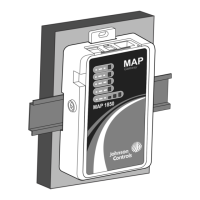
Instructions for mounting the SC-AP using DIN rail or velcro.

OptiView DIN Rail Panel Mount

Detailed steps for mounting the SC-AP on a DIN rail in OptiView panels.

SECTION 4 - SC-AP GATEWAY

DIN RAIL & Velco Panel Mount (Contd)

Continues mounting instructions for SC-AP, including cable management.

SECTION 4 - SC-AP GATEWAY

USING THE SC-AP FOR TROUBLESHOOTING

Explains how to use SC-AP for diagnosing communication issues.

SC-AP DEVICE LIST

Shows the SC-AP device list screen and its details.

SECTION 4 - SC-AP GATEWAY

To Change the Device Instance

Instructions on changing the SC-EQ Device Instance using SC-AP.

E-LINK REPLACEMENT

Addresses issues when replacing E-Link with SC-EQ and handling offline points.

SECTION 4 - SC-AP GATEWAY

MANUALLY SETTING THE CHILLER MODEL

How to manually set the chiller model using SC-AP for older YorkTalk2 chillers.

SECTION 5 - TECHNICAL SPECIFICATIONS

SECTION 6 - LON PROTONODE

OVERVIEW

Introduces the LON ProtoNode for YORK chiller LON network connectivity.

SECTION 6 - LON PROTONODE

INSTALLATION

Instructions for installing the LON ProtoNode into chiller control panels.

JUMPER SETTINGS

Details the factory settings for LON ProtoNode jumpers.

SWITCH SETTINGS

Details the factory settings for LON ProtoNode switches.

SECTION 6 - LON PROTONODE

PROTONODE TO SC-EQ RS485 WIRING

Wiring diagram for connecting ProtoNode to SC-EQ RS485.

POWER CONNECTIONS

Instructions and tables for connecting power to the ProtoNode.

SECTION 6 - LON PROTONODE

PROTONODE LON NETWORK CONNECTION

Instructions for connecting the ProtoNode to the LON FTT10 network.

PROTONODE NEURON ID

Explains the Neuron ID for binding the ProtoNode to the network.

SECTION 6 - LON PROTONODE

PROTONODE LED FUNCTIONALITY

Explains the diagnostic LEDs on the ProtoNode.

BINDING THE POINTS USING THE.XIF FILE

Steps to retrieve and use the .XIF file for binding points.

SECTION 6 - LON PROTONODE

TECHNICAL SPECIFICATIONS

Lists technical specifications for the LON ProtoNode.

INSTRUCTIONS FOR THE BAS CONTRACTOR

BAS Wiring Connections

Details the BAS port (J12) on the SC-EQ and its wiring.

Setting the MAC Address

Instructions for setting the SC-EQ MAC address via DIP switches.

Johnson Controls York Smart Equipment SC-EQUIP Specifications

General IconGeneral
CategoryGateway
ManufacturerJohnson Controls
ModelYork Smart Equipment SC-EQUIP
Communication ProtocolBACnet, Modbus
Ethernet Ports1
Operating Temperature-40°C to 70°C
Power Supply24 VAC
Humidity Range5% to 95% RH non-condensing

Related product manuals