EasyManua.ls Logo

JoinTech JT600 - Page 23

JoinTech JT600
40 pages
Print Icon
To Next Page IconTo Next Page
To Previous Page IconTo Previous Page
Loading...
- 23 -
Item
Parameter(e.g.)
Explain
Note
ID
1 to 64
Click this record and Get the
Geo-Fence on Google map.
Double Click this record and
begin to edit this fence.
Please Load the Google
Map at right side.
Read All
Geo-fence
Read all Geo-fence settings
Please Load the Google
Map at right side.
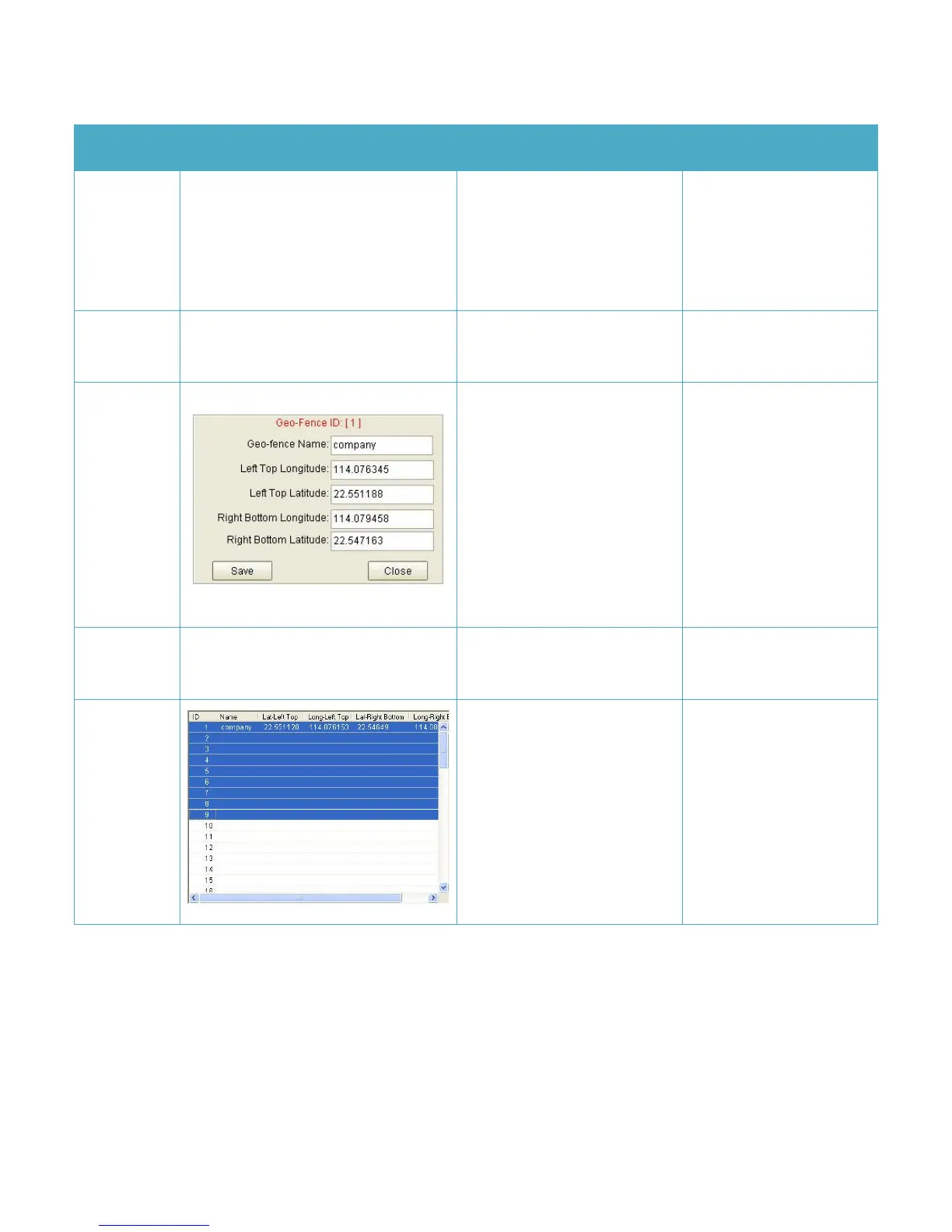
Edit
Edit selected Geo-fence
Click Save button to set
Geo-fence to tracker.
Click Close button: Cancel the
changing and Close this
window.
1) You can input the
Geo-fences latitude
and longitude
manually.
2) Click the map
twice ,and Get latitude
and longitude from
Google map.
Disable
Click this button to disable the
selected Geo-fence.
Write
selected
Geo-fence
CTRL +A ,you can choose all
records.
Shift choose some of
records.
Its useful when you need
the same Geo-fence
setting for another tracker.