EasyManua.ls Logo

JVC 0705TNH-II-IM - User Manual

JVC 0705TNH-II-IM
68 pages
Print Icon
To Next Page IconTo Next Page
Loading...
Important Note:
In the spaces below, enter the model and serial number of your television (located at the
rear of the television cabinet). Staple your sales receipt or invoice to the inside cover of this
guide. Keep this user’s guide in a convenient place for future reference. Keep the carton
and original packaging for future use.
LCT1827-001B-A
0705TNH-II-IM
Model Number:
Serial Number:
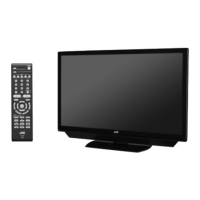
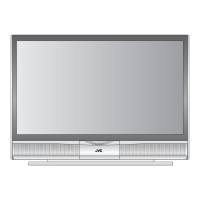
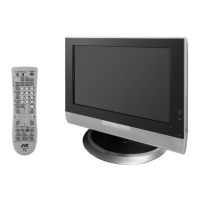
Illustration of LT-32X576 and RM-C1257G
For Models:
LT-32X576
LT-26X576
LCD Flat Television Users Guide
LCT1827-001B-A ENG 1 7/25/05, 9:13:08 AM

Table of Contents

Questions and Answers

  • T
    Thomas HinesAug 18, 2025
    Why is there no picture or sound on my JVC 0705TNH-II-IM?
    • E
      erussoAug 19, 2025
      If your JVC Flat Panel TV has no picture or sound, the antenna might be disconnected. Check if the input mode is set correctly and that the tuner (Auto Tuner Setup) is properly configured. The TV station itself may be experiencing difficulties; try tuning to other channels to verify.
  • C
    Cassidy RomeroAug 21, 2025
    Why is the picture snowy on my JVC 0705TNH-II-IM?
    • V
      Victoria SmithAug 21, 2025
      If the picture on your JVC Flat Panel TV is snowy, your antenna may be damaged, disconnected, or improperly positioned.
  • N
    Nancy SmithAug 23, 2025
    Why is my JVC Flat Panel TV remote control not working?
    • K
      Kevin CollinsAug 23, 2025
      If the remote control for your JVC Flat Panel TV isn't working, first ensure the batteries are working and correctly installed. Also, make sure there's a clear path between the remote and the TV, and that you're within 23 feet (7 meters). Check that the TV/CATV switch is in the correct position.
  • S
    Sherri WilsonAug 26, 2025
    What to do if my JVC Flat Panel TV turns off by itself?
    • S
      susansimmonsAug 26, 2025
      If your JVC Flat Panel TV turns off by itself, ensure the power cord hasn't become unplugged. It's also possible the On/Off Timer or the Sleep Timer has been activated.
  • D
    Darrell PinedaAug 27, 2025
    How to improve color quality on JVC 0705TNH-II-IM?
    • T
      Travis FernandezAug 28, 2025
      If the color quality on your JVC Flat Panel TV is poor, the Tint and Color settings may be improperly adjusted. Also, the Video Status mode may be set to the wrong setting.
  • B
    Brandon PollardAug 30, 2025
    How to enable stereo sound on JVC Flat Panel TV?
    • D
      david42Aug 30, 2025
      If you can't hear stereo or bilingual programs on your JVC Flat Panel TV, ensure that the MTS settings are configured correctly.
  • T
    tblackwellSep 1, 2025
    Why are there lines across the picture on my JVC 0705TNH-II-IM?
    • D
      Donna CurrySep 1, 2025
      Lines across the picture on your JVC Flat Panel TV could be due to interference from another electrical appliance, such as a computer, another TV, or a VCR.
  • A
    Arthur ConwaySep 4, 2025
    Why is the picture spotted on my JVC Flat Panel TV?
    • P
      Patrick ScottSep 4, 2025
      Spotted picture on your JVC Flat Panel TV could be caused by interference from a high-wattage appliance, such as a hairdryer or vacuum cleaner, operating nearby.
  • A
    Alexander ButlerSep 6, 2025
    Why are there double pictures (ghosts) on my JVC 0705TNH-II-IM?
    • D
      Dana HerreraSep 6, 2025
      Double pictures (ghosts) on your JVC Flat Panel TV can occur when a building or passing airplane reflects the original signal, creating a second, slightly delayed image.
  • M
    Morgan WalkerSep 8, 2025
    Why is the screen 40% black on my JVC 0705TNH-II-IM?
    • H
      Heather MasonSep 8, 2025
      If the screen on your JVC Flat Panel TV is 40% black, the Closed Caption Text mode is likely turned on.

Summary

Important Safety Precautions

Warnings

Quick Setup

Getting Started: Stand and Cable Holder

Instructions for adjusting the TV stand and using the cable holder.

Connecting External Devices

Instructions for removing terminal covers and connecting external devices.

V1 Smart Input AV Receiver Connection

Connecting an AV Receiver via V1 Smart Input for multiple device inputs.

Digital TV Receiver Connection

Connecting a DTV decoder using HDMI to DVI cable for digital picture.

HDMI Compatible Device Connection

Connecting HDMI devices for high-definition digital picture and audio.

Interactive Plug-In Menu

Introduction to the interactive plug-in menu for initial TV setup.

Automatic Clock Setup

Instructions for setting the TV clock automatically via XDS signal.

Connection Diagrams Overview

Flow chart and diagrams for connecting various devices like Cable TV, VCR, DVD.

Manual Clock Setup

Instructions for setting the TV clock manually.

Remote Programming

Cable and Satellite Remote Setup

Guide to programming the remote for cable box and satellite operation.

VCR Remote Programming Codes

List of codes to program the remote for VCR control.

DVD Player Remote Programming Codes

List of codes to program the remote for DVD player control.

Remote Search Codes Function

Instructions for using search functions to program remote for various devices.

Onscreen Menus

Picture Adjust Menu Options

Details on Picture Adjust menu settings like Tint, Color, Brightness.

Sound Adjust Menu Options

Details on Sound Adjust menu settings like Bass, Treble, Balance.

Clock;Timers Menu Options

Details on Clock/Timers menu settings like Set Clock, On/Off Timer.

Initial Setup

Auto Tuner Setup

How to perform an automatic scan for active TV channels.

US V-Chip Ratings Explained

Details on US parental rating systems and content types.

Setting US V-Chip Ratings

How to set US V-Chip ratings to block specific content categories.

Set Lock Code

How to change the four-digit lock code for channel guard and V-Chip.

Channel Summary and Labeling

Customizing channel line-up, labels, and channel lock features.

V-Chip Technology Overview

Explanation of V-Chip for blocking content based on ratings.

Setting Movie Ratings

How to block viewing of movies based on MPAA rating.

Setting Canadian V-Chip Ratings

How to set Canadian V-Chip ratings to block specific content categories.

Picture Adjust

Sound Adjust

Clock;Timers

Setting the TV Clock

Instructions for setting the TV clock automatically or manually.

On;Off Timer Function

How to program the TV to turn on or off automatically.

Button Functions

Troubleshooting Common Issues

JVC 0705TNH-II-IM Specifications

General IconGeneral
Screen Size70 inches
Smart TVYes
Operating SystemAndroid TV
Refresh Rate60 Hz
USB Ports2
BluetoothYes
Resolution4K UHD (3840 x 2160)
HDRHDR10
Built-in Wi-FiYes
Weight56.2 lbs

Related product manuals