No. 52023
V-21DMT3/AV-21D3
V-2135TEE/AV-2135EE
V-21DMG3
28
Item
Measuring
instrument
Test point Ad justment part Description
●
●●
● When the v ertical linea rity ha s bee n dete riorated
rem arkably, perform the following steps.
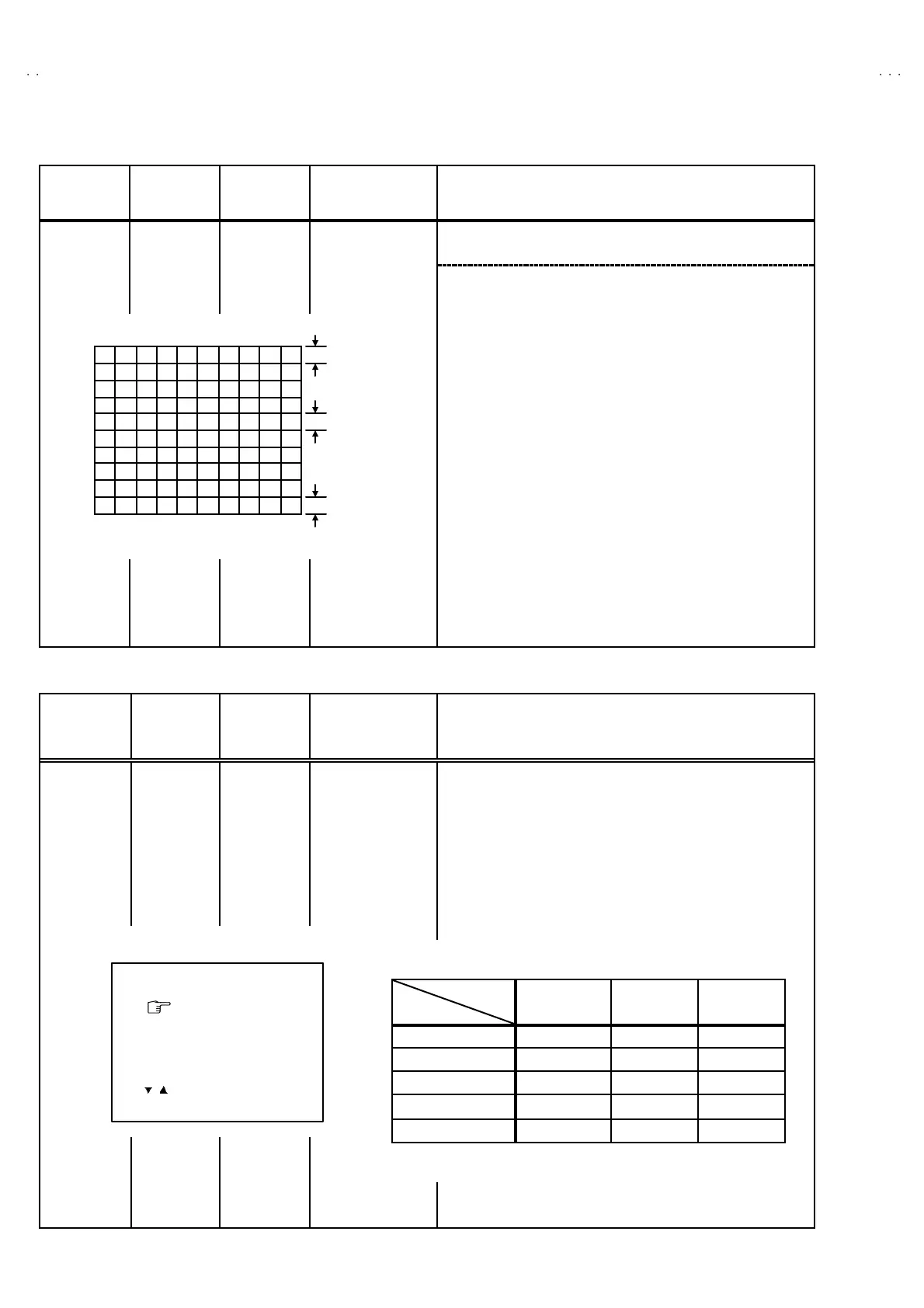
15 . Input a cross -hatch sign al.
16. Sele ct 4. VER. LIN. with the MENU
▼
/
▲
key.
17. Set the initial setting value of 4. VER LIN. with the MENU - / +
key.
18. Sele ct 5. VER. SCURV E with the MENU
▼
/
▲
key.
19. Set the initial setting value of 5. VER. SCURV E wi t h th e ME NU
- / + key.
20. Adju st 4. VER. LIN. and 5. VER. SCURVE so t hat th e sp ace s
of each lin e as sh own in Fig. 3 o n TOP, CENTER and
BOTTOM become uniform.
.
Ad just ment
of VER. LIN.
& VER.
SCURVE
Signal
generator
Remote
control unit
4. VER. L IN.
5. VER. S CURVE
Make su re th at the a djust me nt is pr o perly do ne on t he scre en of
60 Hz mode .
[NOTE]
"
Adjust to make both 50Hz & 60Hz are the same v. size and
fine straight line.
"
When ad just aga in, adju st 50Hz mod e fir st.
"
When adjust in 60Hz mode, only 60Hz mode is adjust.
VSM PRESET SETTING
Item
Measuring
instrument
Test point Ad justment part Description
Setting of
VS M
PRES ET
Remote
control unit
TINT
COLOUR
BR IG HT
CONT .
SHARP
1. En ter th e SERVICE MENU.
2. Select 4. VS M PRESE T from the SERVICE MENU.
3. Select BRIG HT with the PICTURE MODE key.
4. Ad just t he MENU
▼
/
▲
and MENU - / + ke y to b ring the s et
valu es of TINT
~
~~
~
SHARP to the values shown in the below
table.
5. Respectively select the VSM PRES ET mode f or SOFT and
STANDARD, and make similar adjustment as in 3 above.
TOP
CEN TER
BOTTOM
Fig.3
BRIGHT
TINT
COLOUR
BRIGHT
CONT.
SHARP
- / + : OPERATE DISP : EXIT
**
**
**
**
**
/ :SELECT
•
••
• VS M PRE SET
VS M
Setting It em
BRIGHT STANDARD SOFT
TINT +15
←
←
COLOUR +15
←←
BRIGHT +15
←←
CONT +30 +15 +11
SHARP +15
←
+12





 To Next Page