3
1 2 3
Repeat step 2 if necessary.
• To return to the previous menu, press
BACK
.
• To exit from the menu, press
DISP
or
MENU
.
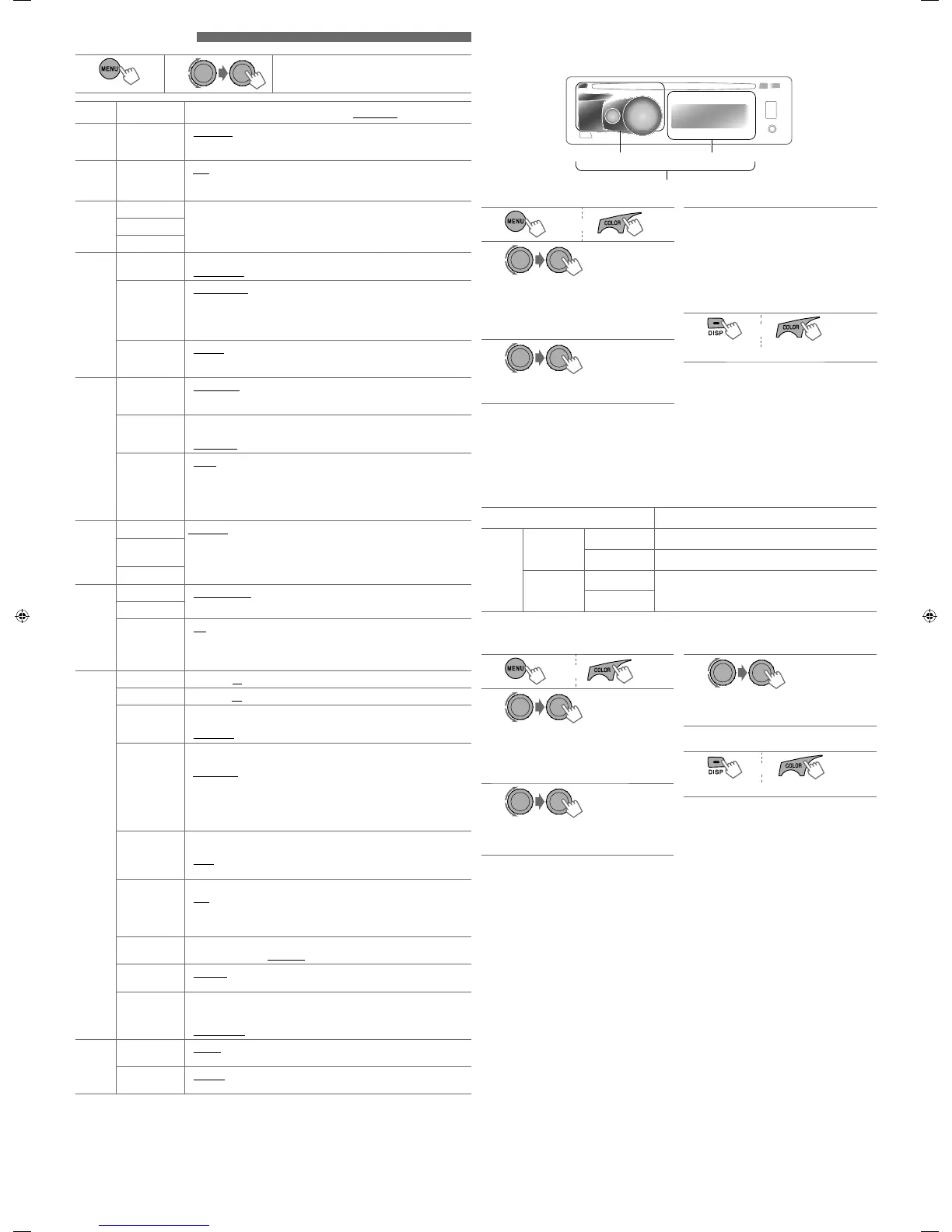
Category Menu item Selectable setting, [
Initial: Underlined
]
DEMO
DEMO • DEMO ON
• DEMO OFF
: Display demonstration will be activated automatically if
no operation is done for about 20 seconds.
: Cancels.
CLOCK
CLOCK SET [ 1:00 ] : Adjust the hour, then the minute.
PRO EQ
BASS — : For settings, see “Storing your own sound mode” on
page 2.
MIDDLE
TREBLE
DISPLAY
DIMMER • DIMMER ON
• DIMMER OFF
: Dims the display and button illumination.
: Cancels.
SCROLL *
1
• SCROLL ONCE
• SCROLL AUTO
• SCROLL OFF
: Scrolls the displayed information once.
: Repeats scrolling (at 5-second intervals).
: Cancels.
Pressing
DISP
for more than one second can scroll the display regardless of
the setting.
TAG DISPLAY
• TAG ON
• TAG OFF
: Shows the Tag information while playing MP3/WMA
tracks.
: Cancels.
TUNER
SSM *
2
• SSM 01 – 06
• SSM 07 – 12
• SSM 13 – 18
: For settings, see page 2.
MONO *
2
• MONO ON
• MONO OFF
: Activate monaural mode to improve FM reception, but
stereo effect will be lost. (See page 2.)
: Restore the stereo effect.
IF BAND
• AUTO
• WIDE
: Increases the tuner selectivity to reduce interference
noises between adjacent stations. (Stereo effect may be
lost.)
: Subject to interference noises from adjacent stations,
but sound quality will not be degraded and the stereo
effect will remain.
COLOR
BUTTON ZONE COLOR 01 —
COLOR 29, USER
: For settings, see the right column.
DISP ZONE
Display zone
ALL ZONE
COLOR SETUP
DAY COLOR • BUTTON ZONE
• DISP ZONE
: For settings, see the right column.
NIGHT COLOR
MENU COLOR • ON
• OFF
: Changes the display and buttons (except for
EQ/BASS-TRE
/
DISP
) illumination during menu, list search and
playback mode operations.
: Cancels.
AUDIO
FADER *
3
R06 – F06 [ 00 ] : Adjust the front and rear speaker output balance.
BALANCE *
4
L06 – R06 [ 00 ] : Adjust the left and right speaker output balance.
LOUD
• LOUD ON
• LOUD OFF
: Boost low and high frequencies to produce a well-
balanced sound at a low volume level.
: Cancels.
VOL ADJUST
VOL ADJ –05 —
VOL ADJ +05
[ VOL ADJ 00 ]
: Preset the volume adjustment level of each source
(except FM), compared to the FM volume level. The
volume level will automatically increase or decrease
when you change the source.
• Before making an adjustment, select the source you
want to adjust.
• “VOL ADJ FIX” appears on the display if “FM” is selected
as the source.
L/O MODE
• SUB.W
• REAR
: Select if the REAR LINE OUT terminals are used for
connecting a subwoofer (through an external amplifier).
: Select if the REAR LINE OUT terminals are used for
connecting the speakers (through an external amplifier).
SUB.W FREQ *
5
• LOW
• MID
• HIGH
: Frequencies lower than 72 Hz are sent to the subwoofer.
: Frequencies lower than 111 Hz are sent to the
subwoofer.
: Frequencies lower than 157 Hz are sent to the
subwoofer.
SUB.W LEVEL *
5
SUB.W 00 —
SUB.W 08
: Adjust the subwoofer output level.
[ SUB.W 04 ]
BEEP
• BEEP ON
• BEEP OFF
: Activates the keypress tone.
: Deactivates the keypress tone.
AMP GAIN *
6
• LOW POWER
• HIGH POWER
: VOLUME 00 – VOLUME 30 (Select if the maximum power
of each speaker is less than 50 W to prevent damaging
the speakers.)
: VOLUME 00 – VOLUME 50
SRC
SELECT
AM *
7
• AM ON
• AM OFF
: Enable “AM” in source selection.
: Disable “AM” in source selection.
AUX IN *
8
• AUX ON
• AUX OFF
: Enable “AUX IN” in source selection.
: Disable “AUX IN” in source selection.
*
1
Some characters or symbols will not be shown correctly (or will be blanked) on the display.
*
2
Displayed only when the source is “FM.”
*
3
If you are using a two-speaker system, set the fader level to “00.”
*
4
This adjustment will not affect the subwoofer output.
*
5
Displayed only when <L/O MODE> is set to <SUB.W>.
*
6
The volume level automatically changes to “VOLUME 30” if you change to <LOW POWER> with the volume level
is set higher than “VOLUME 30.”
*
7
Displayed only when any source other than “AM” is selected.
*
8
Displayed only when any source other than “AUX IN” is selected.
Menu operations
[Hold]
Selecting the variable buttons and display color illumination
You can select your preferred color for buttons illumination (except for
EQ/BASS-TRE
/
DISP
) and display color
separately.
1
or
2
]
<COLOR>
]
<BUTTON ZONE> / <DISP
ZONE> / <ALL ZONE>
• Pressing
COLOR
in step 1 will enter zone
selection menu (BUTTON ZONE /DISP ZONE
/ ALL ZONE) directly.
3
]
Select your preferred color from one of the
29 preset colors or <USER> color.
Button zone
All zone
Display zone
[Hold]
4
Repeat steps 2 and 3 to select a different zone
and your preferred color.
• If <ALL ZONE> is selected in step 2, the
buttons and display illumination changed
to the current/selected <BUTTON ZONE>
color.
You can also change the <ALL ZONE> color
to one of your preferred color by performing
step 3.
5
or
]
Exit from the setting.
1
or
2
]
<COLOR SETUP>
]
<DAY COLOR>
]
<BUTTON ZONE>
• Pressing
COLOR
in step 1 will enter zone
selection menu (BUTTON ZONE / DISP
ZONE) directly.
3
]
Select a primary color.
RED
j
GREEN
j
BLUE
j
(back to the
beginning)
[Hold]
4
]
Adjust the level of the selected primary
color.
00 to 31
5
Repeat steps 3 and 4 to adjust other primary
colors.
6
or
]
Exit from the setting.
If “00” is selected for all the primary colors (as in step
4) for <DISP ZONE>, nothing appear on the display.
Creating your own day and night colors—USER
You can create your own colors for <DAY COLOR> and <NIGHT COLOR> to apply to button zone and display
zone.
• <DAY COLOR> Displayed when <DIMMER> is set to <DIMMER OFF>.
• <NIGHT COLOR> Displayed when <DIMMER> is set to <DIMMER ON>.
Menu hierarchy Operation
COLOR
SETUP
DAY COLOR
• BUTTON ZONE Follow example below.
• DISP ZONE Press
BACK
after step 5, then select DISP ZONE in step 2.
NIGHT COLOR
• BUTTON ZONE Press
BACK
after step 5, then select NIGHT COLOR in step 2.
• DISP ZONE
Ex.: Creating <USER> color for <BUTTON ZONE> in <DAY COLOR>.
[Hold]


 To Next Page