EasyManua.ls Logo

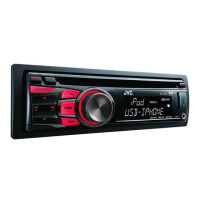
JVC KD-A535 - User Manual

JVC KD-A535
30 pages
Print Icon
To Next Page IconTo Next Page
Loading...
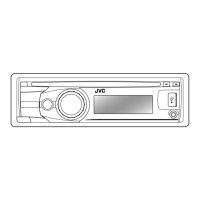
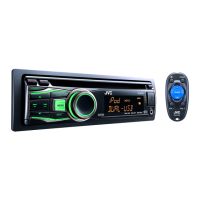
CD RECEIVER / RECEPTOR CON CD / RÉCEPTEUR CD
For canceling the display demonstration, see page 4. /
Para cancelar la demostración en pantalla, consulte la página 4. /
Pour annuler la démonstration des affichages, référez-vous à la page 4.
ENGLISH
ESPAÑOL
FRANÇAIS
INSTRUCTIONS
MANUAL DE INSTRUCCIONES
MANUEL D’INSTRUCTIONS
GET0769-001A
[J]
KD-R538/KD-A535/KD-R530
KD-R438/KD-R430
For installation and connections, refer to the separate manual.
Para la instalación y las conexiones, refiérase al manual separado.
Pour l’installation et les raccordements, se référer au manuel
séparé.
For Customer Use:
Enter below the
Model No. and Serial
No. which are located
on the top or bottom
of the cabinet. Retain
this information for
future reference.
Model No.
Serial No.


Other manuals for JVC KD-A535

Questions and Answers

  • J
    Justin DavisSep 7, 2025
    How to fix 'SET UP PANDORA ON YOUR DEVICE' on JVC Car Receiver?
    • B
      brittanybondSep 7, 2025
      If the JVC Car Receiver displays 'SET UP PANDORA ON YOUR DEVICE', connect the iPod/iPhone to this unit after completing the setup in your iPod/iPhone.
  • R
    Rebecca MartinezAug 22, 2025
    How to fix 'PLEASE' and 'EJECT' alternating on JVC Car Receiver?
    • A
      Amber HughesAug 22, 2025
      If the JVC Car Receiver displays 'PLEASE' and 'EJECT' alternately, press the [?] button, then correctly insert the disc.
  • H
    Howard MartinSep 4, 2025
    Why JVC Car Receiver doesn't play tracks in the order I want?
    • O
      ortegashirleySep 5, 2025
      If tracks/folders are not played back in the order you intended on the JVC Car Receiver, note that the playback order is determined by the file name (when using USB) or the order in which files were recorded (when using a disc).
  • W
    William HarrisSep 3, 2025
    What to do if JVC KD-A535 displays 'IN DISC'?
    • J
      Joseph McknightSep 3, 2025
      If the JVC Car Receiver displays 'IN DISC', ensure that nothing is blocking the loading slot.
  • C
    Christine WhitakerSep 2, 2025
    What to do if JVC Car Receiver keeps flashing 'READING'?
    • W
      williemolinaSep 2, 2025
      If 'READING' keeps flashing on the JVC Car Receiver display, it may indicate that a longer readout time is required. To resolve this, avoid using too many hierarchical levels and folders. If the issue persists, try reloading the disc or reattaching the USB device.
  • D
    David LeonAug 31, 2025
    How to fix 'NOT SUPPORT' error on JVC KD-A535 Car Receiver?
    • U
      underwoodkristenAug 31, 2025
      If the JVC Car Receiver displays 'NOT SUPPORT' and the track skips, verify that the track is in a playable file format.
  • V
    Victor Sanchez DVMAug 30, 2025
    Why my iPod/iPhone does not turn on or work with JVC Car Receiver?
    • J
      Jillian FreyAug 30, 2025
      If your iPod/iPhone isn't turning on or working with the JVC Car Receiver, first check the connection between the unit and your device. If the connection is good, try detaching and resetting your iPod/iPhone using a hard reset. Also, ensure that the setting is appropriate for your device.
  • C
    Courtney EllisAug 29, 2025
    What to do if JVC KD-A535 Car Receiver shows 'CANNOT PLAY'?
    • A
      Alyssa Ayers DVMAug 29, 2025
      If the JVC Car Receiver displays 'CANNOT PLAY', it could be due to several reasons. First, verify that the connected device is compatible with the unit. Second, ensure the device contains files in a supported format, especially if the unit cannot detect it. If these steps don't resolve the problem, try reattaching the device.
  • J
    Jason CookAug 27, 2025
    What to do if “PLEASE” and “EJECT” appear on JVC KD-A535?
    • C
      Christopher PhillipsAug 27, 2025
      If “PLEASE” and “EJECT” appear alternately on the display of your JVC Car Receiver, press [?], then insert the disc correctly.
  • J
    Jacob ZamoraAug 27, 2025
    Why JVC KD-A535 Car Receiver cannot detect the connected device?
    • A
      Alexis GonzalezAug 27, 2025
      If your JVC Car Receiver cannot detect the connected device: * Ensure that the device contains files in a supported format. * Try reattaching the device.

Summary

Product Overview and Customer Information

Model Identification

Identifies the JVC CD Receiver models KD-R538/KD-A535/KD-R530/KD-R438/KD-R430.

Customer Record Keeping

Section for customer to record Model No. and Serial No. for future reference.

Safety and Regulatory Information

FCC Compliance Statement

Details compliance with FCC rules for Class B digital devices and interference correction.

Class 1 Laser Product Safety

Crucial safety warnings for laser products, including opening the unit precautions.

Operating Procedures and Maintenance

Control Panel Handling

Instructions on how to attach and detach the control panel from the main unit.

Unit Reset and Disc Ejection

Procedures for resetting the unit and forcibly ejecting a disc.

Manual Guidance and Cleaning

Guide to understanding the manual and basic unit cleaning.

Initial Setup and Basic Operations

Canceling Display Demonstration

Step-by-step guide to disable the unit's display demonstration mode.

Setting the Clock

Instructions for setting the current time on the unit's clock.

Display Information Management

How to change and scroll through the information displayed on the unit's screen.

Control Panel and Remote Operations

Control Panel Button Functions

Detailed explanation of buttons and controls on the unit's front panel.

Remote Controller Usage

Explanation of how to use the remote controller for various operations.

Radio Functions

Station Search Methods

Guides on how to search for radio stations using auto or manual methods.

Storing and Selecting Stations

Instructions for manually presetting and selecting stored radio stations.

Radio Timer Setup

How to set the radio timer to tune in to a preset station at a specific time.

CD and USB Media Playback

Playing CD and USB Devices

Information on playing CD and USB devices, including file compatibility.

Folder and Track Navigation

How to navigate and select folders and tracks on CD/USB devices.

Playback Mode Selection

Details on selecting playback modes like repeat and random for CD/USB sources.

iPod;iPhone Integration

iPod;iPhone Playback Modes

Instructions for playing iPod/iPhone, including control mode selection.

Track Selection and List Browsing

How to select tracks and navigate through lists when using iPod/iPhone.

iPod;iPhone Playback Options

Explanation of available playback modes for iPod/iPhone, such as repeat and shuffle.

Pandora Internet Radio

Pandora App Preparation

Steps to prepare for Pandora® use, including app installation and account setup.

Listening to Pandora Radio

Guide on connecting the device and starting Pandora® internet radio playback.

Pandora Station Search and Bookmarking

How to search stations and bookmark song/artist information in Pandora®.

External Components and Bluetooth

Connecting External Audio Sources

Instructions for connecting external audio devices via Front/Rear AUX inputs.

Bluetooth Adapter Setup

Guide to prepare for Bluetooth connectivity using the KS-BTA100 adapter.

Illumination Color Customization

Selecting Preset Illumination Colors

How to select preset colors for different illumination zones (Button, Display, All).

Customizing Illumination Colors

Steps to store custom day and night illumination colors for zones.

Brightness and Sound Settings

Adjusting Unit Brightness

How to select and adjust brightness levels for button and display zones.

Preset Sound Mode Selection

Guide to selecting preset sound modes suitable for various music genres.

Easy Equalizer Customization

Instructions to adjust subwoofer and tone levels for personalized sound.

Remote Controller Management

Remote Controller Preparation

Initial setup steps for the remote controller, including insulation sheet removal.

Lithium Battery Replacement

Instructions and warnings for replacing the lithium coin battery in the remote.

Menu Operations and Settings

Navigating the Unit Menu System

Guide to accessing and operating various menu settings on the unit.

Dimmer and Display Settings

Details on adjusting dimmer, scroll, and tag display settings.

Audio and Source Selection Settings

Configuration options for audio (fader, balance, loudness) and source selection.

Advanced Menu Configurations

Subwoofer and Filter Settings

Configuration for subwoofer output, low-pass filter, and level adjustments.

Tuner and Source Selection Options

Settings for tuner (area, mono, IF band) and source selection (AM, AUX, BT).

Media Compatibility and USB Usage

Disc Formats and Handling

Information on playable and unplayable discs, and proper handling procedures.

Audio File Format Support

Details on supported audio file formats, bit rates, and sampling frequencies.

USB Device Connectivity Guidelines

Information and limitations for connecting and using USB devices with the unit.

iPod;iPhone Compatibility and Legal Notices

Compatible iPod;iPhone Models

List of compatible iPod/iPhone models and operational notes.

Trademark and License Information

Notices regarding trademarks and licenses for software and brands used.

Troubleshooting Guide

General Troubleshooting Steps

Solutions for common issues like no sound, unit not working, or display errors.

Media Playback Troubleshooting

Troubleshooting steps for CD, USB, iPod/iPhone, and Pandora® playback issues.

Technical Specifications

Audio and Tuner Specifications

Detailed specifications for the audio amplifier and FM/AM tuner sections.

CD Player and USB Interface Specs

Technical details for the CD player and USB interface capabilities.

General Unit Specifications

General electrical, dimensional, and weight specifications for the unit.

Customer Support and Assistance

Troubleshooting Assistance and Reset

Guidance on resetting the unit and contact information for further assistance.

Online Support Resources

Provides the JVC website for additional help and support.

JVC KD-A535 Specifications

General IconGeneral
TypeCar Receiver
Channels4
Preamp Outputs2
Tuner BandsAM/FM
TunerYes
Cassette PlaybackNo
CD PlayerYes
CD-R/RW PlaybackYes
MP3 PlaybackYes
WMA PlaybackNo
USB PortNo
Front AUX InputNo
BluetoothNo
Detachable FaceplateYes
Display TypeLCD
DIN Size1 DIN
Maximum Power200 W

Related product manuals