EasyManua.ls Logo

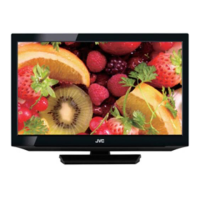
JVC LT-32A4 - User Manual

JVC LT-32A4
22 pages
Print Icon
To Next Page IconTo Next Page
Loading...
INSTRUCTIONS
LT-32A4
LT-40Z40
LCD TV
LT-40Z40
3IZ0101A_EN.indd 13IZ0101A_EN.indd 1 9/21/11 5:29:58 PM9/21/11 5:29:58 PM

Other manuals for JVC LT-32A4

Questions and Answers

JVC LT-32A4 Specifications

General IconGeneral
Screen Size32 inches
Resolution1366 x 768
Display TypeLCD
HDMI Ports2
USB Ports1
Aspect Ratio16:9
Resolution TypeHD
Input PortsComponent, Composite
Weight4.5 kg (without stand)

Summary

Safety Precautions

Positioning and Stability

Ensuring the TV is placed securely to prevent falling and potential injuries.

Rodents and Electric Flexes

Warning about rodents damaging cables, leading to fire hazards or electric shock.

Headphone Warning

Advises against listening at high volumes through headphones to prevent irreversible hearing damage.

Wall Mounting Installation

Recommends professional installation for wall-mounted TVs to avoid injury.

Adverse Effects on LCD Screen

Explains the risk of permanent image retention on LCD screens from static images.

Saving Electricity

Suggests adjusting backlight brightness for energy efficiency and comfortable viewing.

How to Attach the Stand

Dismantling the Base

Instructions for removing the TV stand, typically for wall mounting purposes.

Location of Controls

Indicators and Controls Description

Details the function of the TV's buttons, remote sensor, and power indicator.

Remote Control Operations

Install the Batteries

Guide for correctly inserting batteries into the remote control handset.

Optimal Operation Distance

Explains the optimal distance and conditions for remote control signal transmission.

Automatic Setup

Quick Menu Navigation Guide

Provides essential steps for navigating the TV's menu system.

Selecting Input Sources

Explains how to choose different video input signals for connected devices.

On-screen Language Selection

Programme Edit

Channel Setup

Basic Operation

Channel Selection and Control

Guides on changing channels, accessing the channel list, and muting.

Picture and Sound Features

Describes the still picture function and sound muting capabilities.

Teletext

Fastext;TOPtext Features

Explains enhanced teletext with color buttons for quick page navigation.

Teletext Operation Guide

Covers switching, page selection, subpages, enlargement, and quiz answers.

Stereo Reception in Analogue TV

Picture Format Adjustment

Picture Size Adjustment

How to adjust aspect ratio for different content types.

Automatic Picture Format

Automatic format adjustment based on WSS signal for optimal display.

Other Picture Formats

Details available formats like 4:3, 16:9, Cinema, and Real.

Selectable Picture Modes

Lists available picture modes applicable to different input sources.

Convenience Functions - Picture

Picture Settings Customization

Customizing picture modes, contrast, color, sharpness, temperature, and backlight.

Sound Settings Customization

Adjusting sound modes, treble, bass, balance, volume, and surround sound.

Convenience Functions - System

Timer and Sleep Settings

Configuring sleep timer and auto sleep functions for power management.

Option Settings Management

Managing OSD language, aspect ratio, key lock, and initial setup.

Screen Adjustment Settings

Auto adjustment for PC input, horizontal/vertical positioning, and line interference removal.

Media Operation

Media Browser and File Selection

Navigating and selecting media files (photos, music, movies) from a USB device.

Playback Files Guide

Instructions for playing photos, music, and movie files from USB storage.

Operation Window

Playable File Types

PC Connection

Supported PC Resolutions

List of resolutions compatible with the TV's PC input for optimal display.

HDMI and DVI Device Connection

Connection to Other Equipment (Part 1)

Connect to a Receiver;Set-Top Box

Guide for connecting a receiver or set-top box using component video.

Connect to a VCR

Instructions for connecting a VCR using AV input cables.

Connecting a Video Camera or Games Console

How to connect video cameras or game consoles via AV input.

Connection to Other Equipment (Part 2)

Connect DVD Player via Component Video

Connecting a DVD player using component video for enhanced picture quality.

Connect to Audio System

Outputting TV sound to external stereo equipment using audio jacks.

Troubleshooting Table

License Information

Specifications

Related product manuals