20
Operation
Loading a Scene File
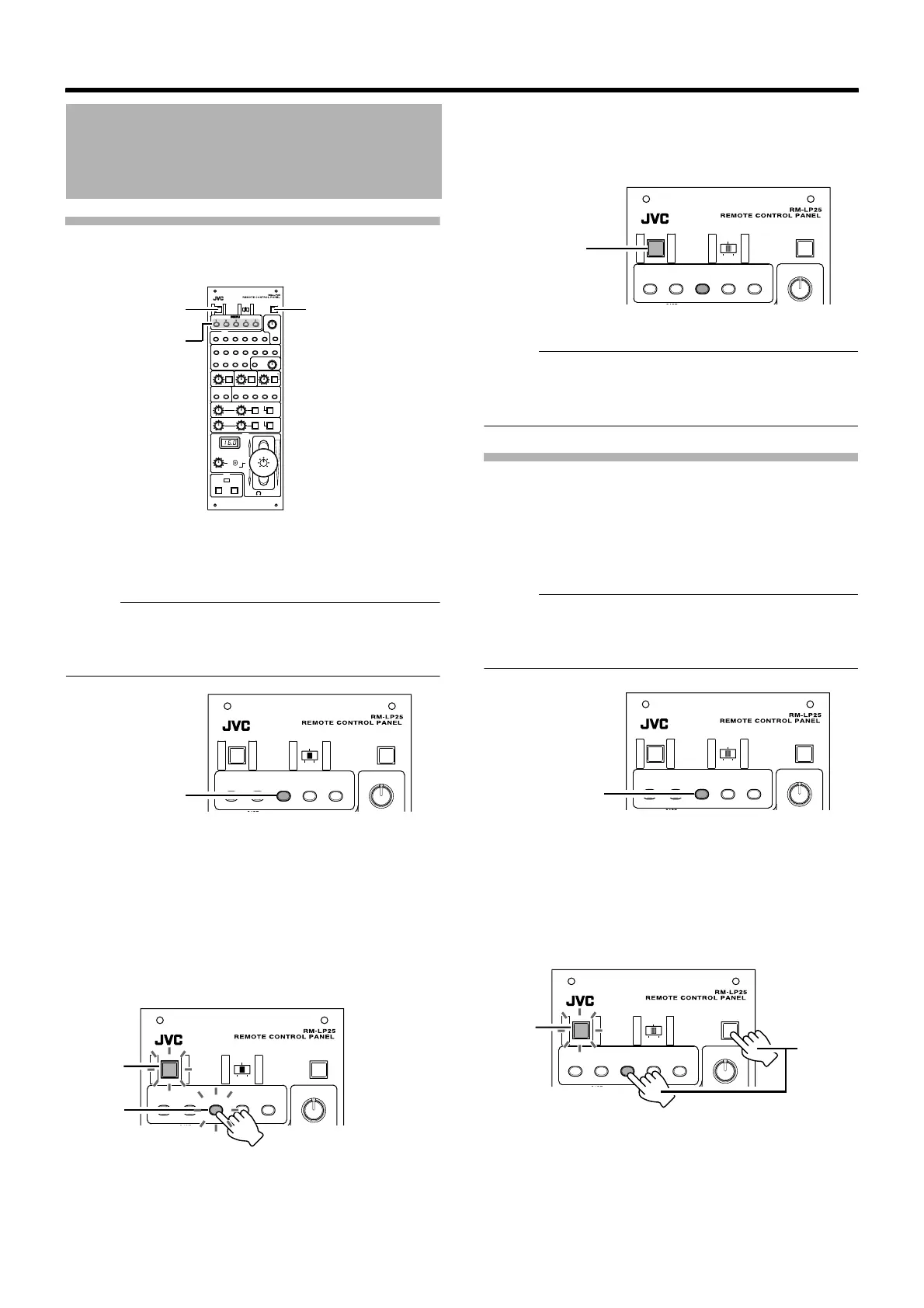
To call a preset scene file:
1 Check to ensure that the [SCENE FILE] button
that contains the settings you want to recall is
Alit in greenB .
Memo:
● No setting is stored in the scene file if the light of the
corresponding [SCENE FILE] button is not lit. In this case,
the following operation is disabled.
2 Press the [SCENE FILE] button that contains the
settings you want to recall.
● The [SCENE FILE] button and the [OPERATE] button
blink in orange, and loading starts.
● After loading, initial communication with the camera is
performed. During communication with the camera, the
[SCENE FILE] button lights up in orange, while the
[OPERATE] button blinks in orange. The light of all other
buttons and indicators are automatically turned off.
3 Loading is complete.
● The [OPERATE] button switches back to a solid orange
light, and the buttons and indicators of all other features
are also lit according to their preset status.
Memo:
● If another [SCENE FILE] button is already lit in orange
when you are loading a scene file, this button switches to
a solid green light.
Clearing a Scene File
To delete a preset scene file:
1 Check to ensure that the [SCENE FILE] button
that contains the settings you want to clear is
Alit in orangeB or Alit in greenB.
Memo:
● No setting is stored in the scene file if the light of the
corresponding [SCENE FILE] button is not lit. In this case,
the following operation is disabled.
2 Press and hold (for at least two seconds) the
[SCENE FILE] button for which you want to clear
the settings as well as the [BARS] button at the
same time.
● The [SCENE FILE] button and the [OPERATE] button
blink in orange, and clearing starts.
Scene File (continued)
-
3
d
B
-
6
d
B
A
L
C
L
O
L
U
X
V
A
R
I
A
B
L
E
L
E
V
E
L
L
E
V
E
L
L
E
V
E
L
G
A
M
M
A
D
E
T
A
I
L
K
N
E
E
P
O
I
N
T
A
U
T
O
K
N
E
E
B
L
A
C
K
C
O
M
P
R
E
S
S
S
T
R
E
T
C
H
W
H
I
T
E
B
A
L
A
N
C
E
M
O
D
E
W
H
I
T
E
P
A
I
N
T
R
R
B
L
A
C
K
P
A
I
N
T
B
B
P
A
I
N
T
P
A
I
N
T
A
U
T
O
W
H
I
T
E
A
U
T
O
B
L
A
C
K
A
U
T
O
O
V
E
R
O
P
E
N
U
N
D
E
R
C
L
O
S
E
M
A
S
T
E
R
B
L
A
C
K
T
A
L
L
Y
C
A
L
L
P
R
E
V
I
E
W
O
P
E
R
A
T
E
B
A
R
S
L
O
C
K
P
A
R
T
O
F
F
F
U
L
L
SCENE FILE
S
P
E
E
D
V
A
R
I
A
B
L
E
P
A
R
T
S
H
U
T
T
E
R
N
O
R
M
A
L
1
/
1
0
0
1
/
1
2
0
1
/
2
5
0
1
/
5
0
0
1
/
1
0
0
0
1
/
2
0
0
0
G
A
I
N
1
8
d
B
0
d
B
3
d
B
6
d
B
9
d
B
1
2
d
B
1
5
d
B
M
A
N
U
A
L
P
R
E
S
E
T
F
A
W
A
W
A
A
W
B
P
A
R
T
P
R
E
S
E
T
L
E
V
E
L
I
R
I
S
M
O
D
E
F
U
L
L
P
R
E
S
E
T
F
U
L
L
[OPERATE]
Button
[SCENE FILE 1 to 5]
Button
[BARS] Button
1
OPERATE BARSLOCK
SCENE FILE
2 3 54
SPEED
PART
OFF FU LL
Lights up in
green
1
OPERATE BARSLOCK
SCENE FILE
2 3 54
SPEED
PART
OFF FU LL
Press
Blinking
Blinking
1
OPERATE BARSLOCK
SCENE FILE
2 3 54
SPEED
PART
OFF FU LL
Lights up in
orange
1
OPERATE BARSLOCK
SCENE FILE
2 3 54
SPEED
PART
OFF FU LL
Lit in orange or
green
1
OPERATE BARSLOCK
SCENE FILE
2 3 54
SPEED
PART
OFF FU LL
Press
and
hold
Blinking


 To Next Page