11
10
English
English
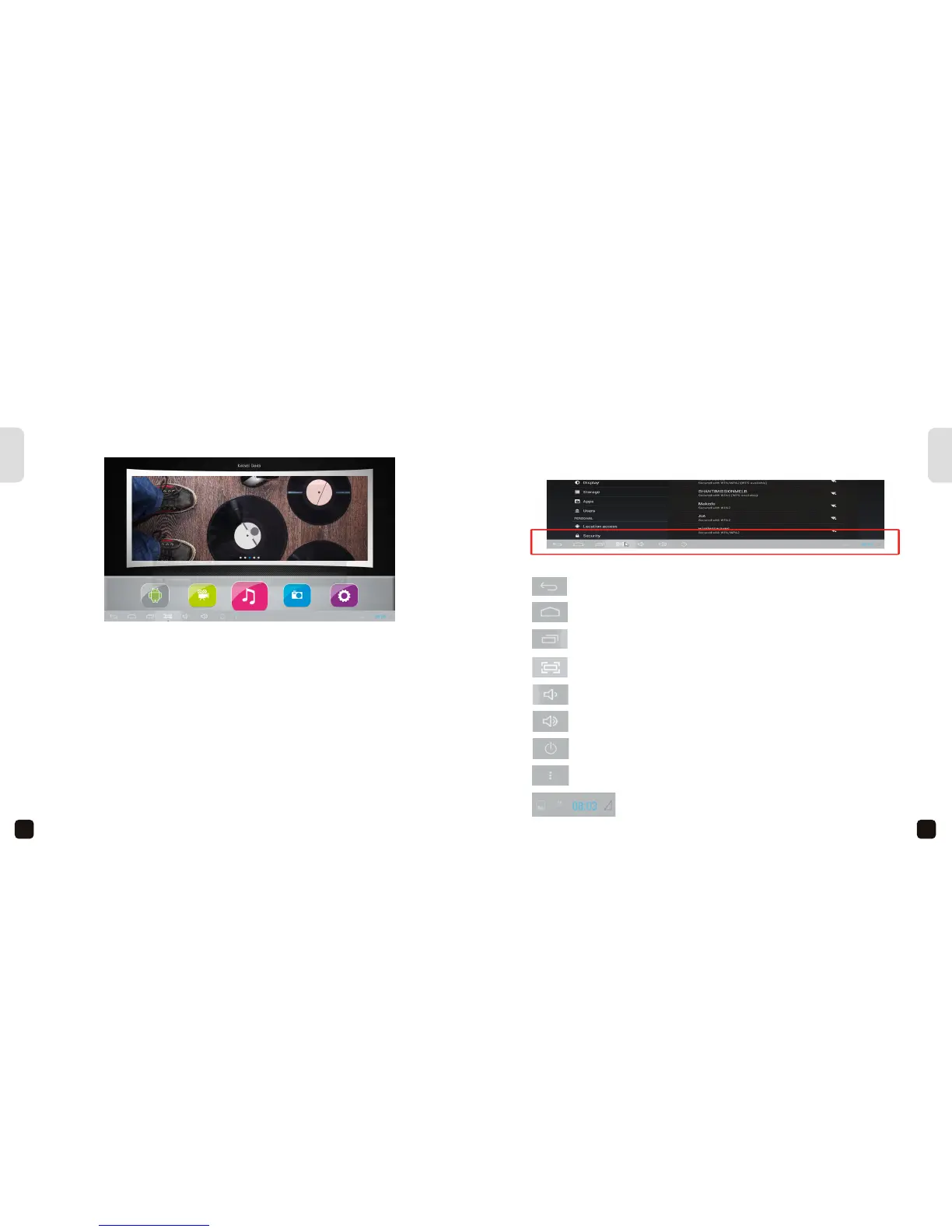
MAIN MENU INTERFACE
Apps: Select to access the apps screen, where you can browse through apps and use
Play Store etc to access more apps or media.
Movies: Select to open the default movie player app “MX Player”. Here you can
browse your storage device or local drive to watch video files.
Music: Select to open the default music player app “Win amp”. Here you can browse
your storage device or local drive to play music files.
Photos: Select to open the default photo viewer app “Quick Pic”. Here you can browse
your storage device or local drive to view picture files.
Settings: Takes you to the Smart setup menu for accessing settings for the Smart
Media Player – including WiFi setup, languages, time/date and more.
For more information on how to use Android apps, please visit www.android.com
MAIN MENU INTERFACE
Below is a screenshot of the Android OS menu bar.
Reading in order from left to right are descriptions of the Android OS menu bar icons
Back: to go backwards one step (same function as on Remote)
Home: to return to the Main Interface menu (same function as on
Remote)
Task Bar: to view any apps running in the background. Tip: this is
useful for closing down apps running in the background
Screen Shot: capture a photo of the screen (Screen Shots are
stored in local memory://Pictures/Screenshots)
Volume Down: to adjust volume lower
Volume Up: to adjust volume higher
Power: to put the Smart Media Player on standby (same function as
on Remote)
More: for further options related to the application
These icons represent tasks or apps that may be running -
including email, wifi connection, clock, notifications and more.
For more information on how to use Android OS, please visit www.android.com


 To Next Page