CG3000 Quick Installation Guide
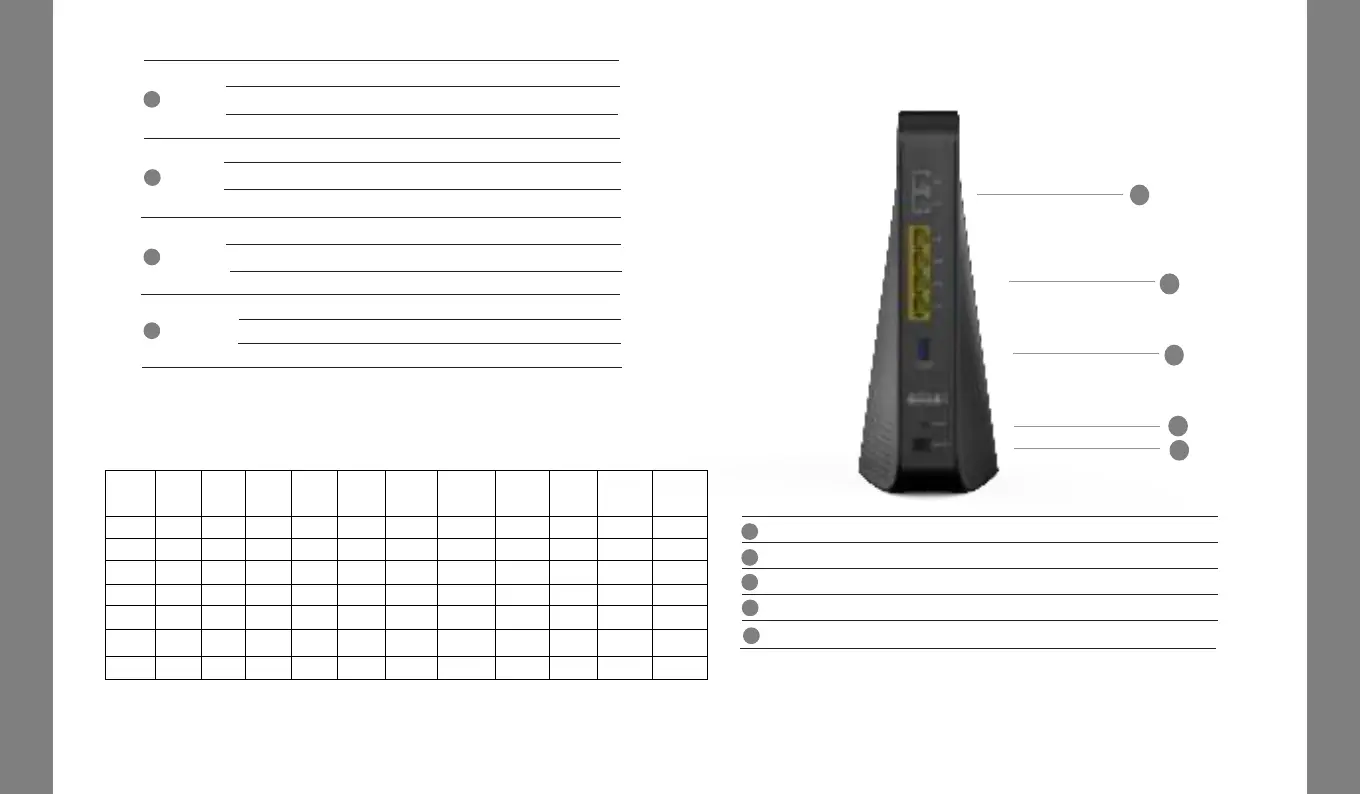
3. Rear Panel
CG3000 Quick Installation Guide
3
2.4G
Off
2.4G WiFi I nter face disabled.
On
2. 4G WiFi I nt erface enabled.
5G
5
6
7
8
Off 5G WiFi I nt er face disabled.
Flashing 5G WiFi is sending or receiving data.
On 5G WiFi I nt er face enabled.
Flashing
2. 4G WiFi is sending or receiving data.
3
2
1
4
5
2. LED Status
LED
Pow er
up
I nit ial
DS
scan
DS
lock in g
US
ranging
Request
CM I P
Request
CM
con fig
CMTS
reg ist er
Com ple te
Request
MTA I P
Request
MTA
con fig
Rest art
Voice
service
Regist er
com plet e
Pow er On On On On On On On On On On On
DS Blink ing Blink ing On On On On On On On On On
US Blink ing Off Off Blink ing On On On On On On On
ONLI NE Blink ing Off Off Off Of f Blink ing On On On On On
2.4G/ 5G Off On/ Off On/ Off On/ Off On/ Off On/ Off On/ Off On/ Off On/ Off On/ Off On / Off
ETH1~ 4 Off On/ Off On/ Off On/ Off On/ Off On/ Off On/ Off On/ Off On/ Off On/ Off On/ Off
TEL1~ 2 Of f Off Of f Off Off Off Off Blin kin g Blin king Blinking On
PHONE1-2
Off
The t elephony service is not av ailable.
Flashing
The t elephony line is in use.
On
The t elephony serv ice is available.
WPS
Off
The WPS I nt er face enabled.
Flashing
On The LAN por t is connected.
PG2141 Quick Installation Guide
PG2141 Quick Installation Guide
USB 3.0
Pin-hole for factory reset .
I n t er n et
RJ45 Et her net por t s to connect your PC or hom e netw ork devices.
Reset But t on
3
2
1
4
Ether net
RJ11 Telephone por ts t o connect your phone or fax .
5
12VI N
Connect s t he unit to DC 12V power.
The WPS I nt er face in use.
USB 3.0 Por t to connect with USB



 To Next Page