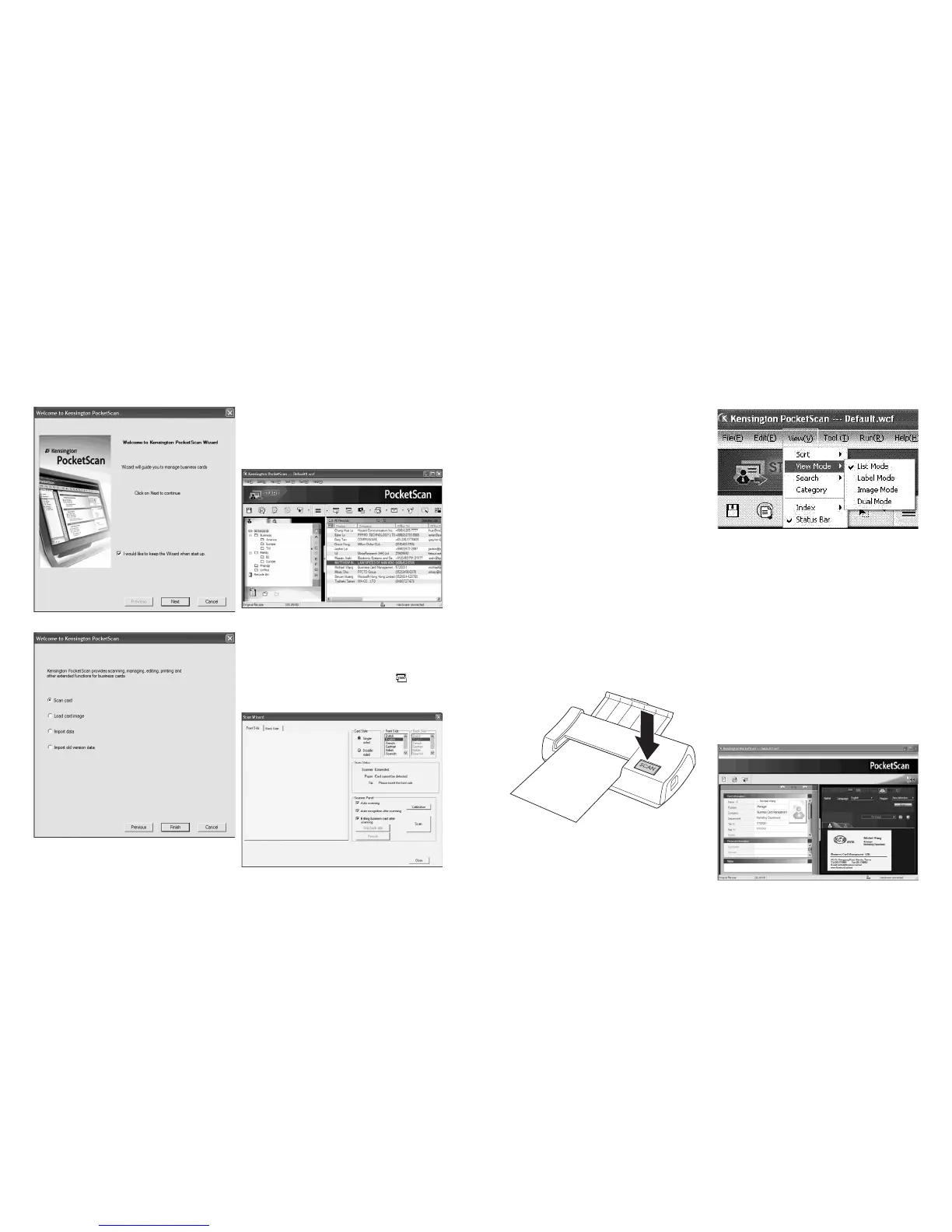
Start-Up Wizard
Start your PocketScan software by double-
clicking the PocketScan icon. After the
PocketScan Application opens, the Start-Up
wizard will appear. The Wizard can help you
quickly do the following:
Scan Card: allows you to add a business card to
your file.
Load Card Image: allows you to take an existing
picture of a business card and add it to your file.
Import data: allows you to import data from
sources such as Access, Excel, Outlook and
Outlook Express etc.
Import Old Version Data: allows you to import
the previous version of PocketScan file into your
new PocketScan File.
2 Getting Started
User Interface
Scanning Business Cards
PocketScan provides three methods to scan
business cards:
A Scan Wizard: Select Scan/Capture from
the Tool bar.
1. The Scan Wizard will open.
2. Select if the business card is single or double-
sided.
3. Select the language of the business card. If the
card is double-sided, select the languages for
both sides.
4. Insert the business card into your PocketScan
Scanner and place the business card against
the side with the mark.
5. In the Scanner Panel frame:
- Select Auto Scanning, if you want the
scanner to automatically scan when the
business card is inserted.
- Select Auto Recognition after scanning,
if you want the card information to be
automatically recognized and added to your
file.
- Click Scan to scan the business card. If the
business card is double-sided, flip the card
to the other side.
6. In the Capture Panel frame, click Capture to
capture business card image. If the business
card is double-sided, turn to another side to
capture the image of back side.
7. Select Close to check the scanned business card
information.
NOTE: To scan the business card, insert business
card in the PocketScan scanner with the
information side facing down.
B Start-Up Wizard:
When selecting Scan card
from Start-Up Wizard, it will guide you to open
the Scan Wizard.
C Scan/Capture Button: Launches the Scan
Wizard.
Viewing Contacts
PocketScan provides List mode, Label mode,
Image mode and Dual Mode. The default setting
is List mode. To select other modes, you may
select View\View Mode or click the pull down
menu of the Mode button from the Tool bar.
Editing Window
PocketScan Editing window allows you to edit
the information of an individual business card.
To select the PocketScan Editing window, simply
double click on any card record in the Card
Window.
TIP: You may click a record, press Ctrl or Shift key,
and then click another record for multiple record
selections.
Editing Contacts
The Editing window allows you to verify and
edit the individual contact information. Once
the editing window is opened for a card, the
following screen containing information will be
presented.



 To Next Page