EasyManua.ls Logo

Kenwood DDX3048 - User Manual

Kenwood DDX3048
75 pages
Print Icon
To Next Page IconTo Next Page
Loading...
DDX418
DDX4048BT
DDX318
DDX3048
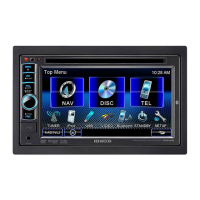
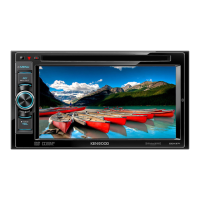
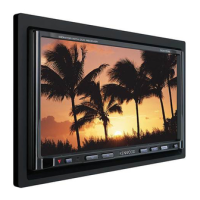
MONITOR WITH DVD RECEIVER
INSTRUCTION MANUAL
LVT2199-001A (KN/RN)
© 2010 Kenwood Corporation All Rights Reserved.
Take the time to read through this instruction manual.
Familiarity with installation and operation procedures will help you obtain the best
performance from your new DVD Receiver.
For your records
Record the serial number, found on the back of the unit, in the spaces designated on the warranty
card, and in the space provided below. Refer to the model and serial numbers whenever you call
upon your Kenwood dealer for information or service on the product.
Model DDX418/DDX4048BT/DDX318/DDX3048 Serial number
US Residence Only
Register Online
Register your Kenwood product at www.Kenwoodusa.com
Cov_DDX_America_EN.indd 2 10/12/17 12:56


Table of Contents

Other manuals for Kenwood DDX3048

Questions and Answers

  • C
    Christy RiveraSep 12, 2025
    Why are tracks not played back as intended on my Kenwood Car Video System?
    • K
      kennedywayneSep 13, 2025
      If tracks are not played back as you intended on your Kenwood Car Video System, the playback order may differ from the one played back using other players.
  • U
    ustoneAug 25, 2025
    What to do if my Kenwood Car Video System displays 'No Signal'?
    • M
      Mackenzie SilvaAug 25, 2025
      If your Kenwood Car Video System shows a “No Signal” message: * Start playback on the external component connected to the AV-IN input terminal. * Check the cords and connections. * The signal input may be too weak.
  • R
    Robert PerezAug 25, 2025
    Why is there static noise while listening to the radio on my Kenwood Car Video System?
    • H
      Heather CruzAug 26, 2025
      If you are experiencing static noise while listening to the radio on your Kenwood Car Video System, make sure the antenna is firmly connected.
  • J
    johnsonkennethSep 23, 2025
    How to fix echo or noise occurring on Kenwood Car Video System?
    • S
      Stephanie BensonSep 23, 2025
      If echo or noise occurs on your Kenwood Car Video System, adjust the microphone unit position.
  • J
    Jessica SmithSep 13, 2025
    Why is there no picture on the screen of my Kenwood Car Video System?
    • H
      Holly GainesSep 13, 2025
      If no picture appears on the screen of your Kenwood Car Video System: * Turn on the video component if it is not on. * Connect the video component correctly.
  • M
    michelle89Sep 22, 2025
    Why can't the connected audio player be controlled on my Kenwood Car Video System?
    • S
      Sarah BennettSep 22, 2025
      If the connected audio player cannot be controlled on your Kenwood Car Video System, check whether the connected audio player supports AVRCP (Audio Video Remote Control Profile).
  • M
    Megan VargasSep 6, 2025
    Why does my Kenwood Car Video System display 'Hung Up Error'?
    • S
      Sara PearsonSep 6, 2025
      If your Kenwood Car Video System displays “Hung Up Error”, the call has not ended yet. Park your car and use the connected mobile phone to end the call.
  • J
    Joshua HallSep 7, 2025
    Why does my Kenwood Car Video System display 'Pick Up Error'?
    • D
      dfreemanSep 7, 2025
      If your Kenwood Car Video System displays “Pick Up Error”, the unit has failed to receive a call.
  • Z
    zbatesSep 23, 2025
    Why doesn't my Bluetooth device detect the Kenwood Car Video System?
    • C
      chandlerjohnSep 23, 2025
      If your Bluetooth device does not detect the Kenwood Car Video System: * Check whether the Bluetooth adapter (KS-UBT1) is inserted correctly. * Search from the Bluetooth device again.
  • T
    Terry BentleyAug 30, 2025
    How do I resolve a 'Connection Error' on my Kenwood Car Video System?
    • T
      Taylor ThomasAug 31, 2025
      If your Kenwood Car Video System displays a “Connection Error”, connect the registered device.

Summary

Before Use

How to Reset Your Unit

Procedure to restore the unit to its factory default settings.

INTRODUCTIONS

Initial Settings

Configuration steps for initial setup and security function activation.

Component Names and Functions

Identification and explanation of unit's buttons, controls, and terminals.

Common Operations

Basic functions: power, volume, screen on/off, and standby modes.

Switching Screens

Navigating between different display screens and menus on the unit.

AV SOURCE OPERATIONS

Selecting the Playback Source

Choosing the desired audio or video input source for playback.

Disc Operations

Instructions for inserting, ejecting, and playing discs.

Playable Disc Types

Lists supported disc formats and their compatibility with the unit.

Playback Operations

Controls for playing media from discs, USB, and other sources.

USB Operations

Connecting and managing USB devices for audio and video playback.

Listening to the iPod;iPhone

Connecting and playing content from an iPod or iPhone.

Listening to the Radio

Tuning AM/FM stations and utilizing radio features.

Using Other External Components

Connecting AV-IN sources and navigation units.

Sound Adjustment

Customizing audio settings like equalizer and crossover.

Changing the Display Design

Customizing background and panel color settings.

Setting for Video Playback

Adjusting picture quality, brightness, contrast, and sharpness.

Using a Rear View Camera

Activating and displaying the rear view camera feed.

Setting Menu Items

Configuring various system settings like audio and display.

BLUETOOTH OPERATIONS

Information for Using Bluetooth Devices

General precautions and essential information for Bluetooth connectivity.

Bluetooth Device Management

Connecting, pairing, and managing Bluetooth-enabled devices.

Bluetooth Mobile Phone Functions

Handling calls, contacts, and messages via Bluetooth connection.

Bluetooth Audio Player Operations

Connecting and controlling audio playback from Bluetooth devices.

Bluetooth Settings

Configuring various Bluetooth operational parameters and preferences.

USING THE REMOTE CONTROLLER

Overview

Introduction to the remote control unit and its primary functions.

Operations from the Remote Controller

Detailed explanation of using the remote for various unit functions.

REFERENCE

Maintenance

Guidance on cleaning the unit and proper handling of discs.

More About This Unit

Information on supported file formats and playback capabilities.

Troubleshooting

Solutions for common problems, error messages, and their remedies.

Specifications

Technical details and performance characteristics of the unit.

Kenwood DDX3048 Specifications

General IconGeneral
BrandKenwood
ModelDDX3048
CategoryCar Video System
LanguageEnglish

Related product manuals