EasyManua.ls Logo

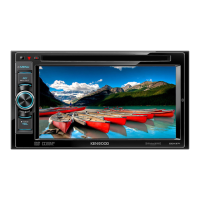
Kenwood DDX318 - User Manual

Kenwood DDX318
75 pages
Print Icon
To Next Page IconTo Next Page
Loading...
DDX418
DDX4048BT
DDX318
DDX3048
MONITOR WITH DVD RECEIVER
INSTRUCTION MANUAL
LVT2199-001A (KN/RN)
© 2010 Kenwood Corporation All Rights Reserved.
Take the time to read through this instruction manual.
Familiarity with installation and operation procedures will help you obtain the best
performance from your new DVD Receiver.
For your records
Record the serial number, found on the back of the unit, in the spaces designated on the warranty
card, and in the space provided below. Refer to the model and serial numbers whenever you call
upon your Kenwood dealer for information or service on the product.
Model DDX418/DDX4048BT/DDX318/DDX3048 Serial number
US Residence Only
Register Online
Register your Kenwood product at www.Kenwoodusa.com
Cov_DDX_America_EN.indd 2 10/12/17 12:56

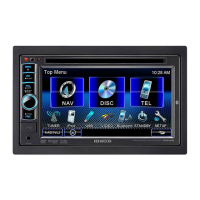
Table of Contents

Other manuals for Kenwood DDX318

Questions and Answers

  • T
    Timothy BuchananSep 12, 2025
    Why are tracks not played back as intended on my Kenwood Car Video System?
    • L
      lauren37Sep 13, 2025
      If tracks are not played back as you intended on your Kenwood Car Video System, the playback order may differ from the one played back using other players.
  • C
    costaandrewAug 25, 2025
    What to do if my Kenwood Car Video System displays 'No Signal'?
    • A
      Adrian PattersonAug 25, 2025
      If your Kenwood Car Video System shows a “No Signal” message: * Start playback on the external component connected to the AV-IN input terminal. * Check the cords and connections. * The signal input may be too weak.
  • E
    Eric TorresAug 25, 2025
    Why is there static noise while listening to the radio on my Kenwood Car Video System?
    • M
      Michelle SimpsonAug 26, 2025
      If you are experiencing static noise while listening to the radio on your Kenwood Car Video System, make sure the antenna is firmly connected.
  • D
    darren33Sep 23, 2025
    How to fix echo or noise occurring on Kenwood Car Video System?
    • S
      Sheri LoveSep 23, 2025
      If echo or noise occurs on your Kenwood Car Video System, adjust the microphone unit position.
  • J
    Jamie HamiltonSep 13, 2025
    Why is there no picture on the screen of my Kenwood Car Video System?
    • A
      Amy ObrienSep 13, 2025
      If no picture appears on the screen of your Kenwood Car Video System: * Turn on the video component if it is not on. * Connect the video component correctly.
  • T
    Tyler PerezSep 22, 2025
    Why can't the connected audio player be controlled on my Kenwood Car Video System?
    • B
      Brett WintersSep 22, 2025
      If the connected audio player cannot be controlled on your Kenwood Car Video System, check whether the connected audio player supports AVRCP (Audio Video Remote Control Profile).
  • T
    Tammy SuttonSep 6, 2025
    Why does my Kenwood Car Video System display 'Hung Up Error'?
    • S
      sheilamillsSep 6, 2025
      If your Kenwood Car Video System displays “Hung Up Error”, the call has not ended yet. Park your car and use the connected mobile phone to end the call.
  • A
    Andrew WilliamsSep 7, 2025
    Why does my Kenwood Car Video System display 'Pick Up Error'?
    • V
      Victoria WareSep 7, 2025
      If your Kenwood Car Video System displays “Pick Up Error”, the unit has failed to receive a call.
  • E
    Edwin VegaSep 23, 2025
    Why doesn't my Bluetooth device detect the Kenwood Car Video System?
    • M
      Misty SmithSep 23, 2025
      If your Bluetooth device does not detect the Kenwood Car Video System: * Check whether the Bluetooth adapter (KS-UBT1) is inserted correctly. * Search from the Bluetooth device again.
  • T
    Timothy MckenzieAug 31, 2025
    How do I resolve a 'Connection Error' on my Kenwood Car Video System?
    • J
      Joshua DanielsAug 31, 2025
      If your Kenwood Car Video System displays a “Connection Error”, connect the registered device.

Summary

Before Use

How to Reset Your Unit

Procedure to reset the unit to factory settings.

Introductions

Initial Settings

Guide to initial setup procedures like language, AV input, and panel color.

Activating the Security Function

Steps to activate the security indicator to protect the receiver.

Component Names and Functions

Common Operations

Power Management and Screen Control

Procedures for turning the unit on/off, standby, and controlling the screen.

Volume Adjustment

How to adjust audio volume and attenuate sound.

AV Source Operations

Selecting the Playback Source

Guide to choosing different audio/video sources like NAV, DISC, USB, iPod, TUNER, VIDEO, Bluetooth.

Disc Operations

Playback Operations

CD;MP3;WMA;WAV;AAC Playback

Video Menu Operations

USB Operations

Playing a USB Device

How to play files from a USB mass storage device.

Connecting and Disconnecting USB Devices

Steps for connecting a USB device and safety precautions.

Listening to the iPod;iPhone Device

Connecting and Preparing iPod;iPhone

Connecting the iPod/iPhone and required cables.

iPod;iPhone Playback Operations

Listening to the Radio

Radio Operations

Using the External Navigation Unit

Sound Adjustment

Sound Equalization

Adjusting sound equalization using preset modes or manual customization.

Precise Sound Adjustment

Setting for Video Playback

Video Display Settings

Using a Rear View Camera

Camera Activation and Display

Steps to activate the rear view camera and how it is displayed.

Setting Menu Items: Audio

Setting Menu Items: Input & System

Setup Management

Bluetooth Operations

Bluetooth Device Information

General information and precautions for using Bluetooth devices.

Connecting Bluetooth Devices

Managing Registered Bluetooth Devices

Using the Bluetooth Mobile Phone

Making Calls and Using Phone Book

Phone Book Management

Using the Bluetooth Audio Player

Using the Remote Controller

Remote Controller Operations

DVD;VCD Mode Operations

Disc Media Operations (AUD Mode)

Radio, iPod, and USB Operations (AUD Mode)

Troubleshooting

Troubleshooting Error Messages

Solutions for common problems and error messages like "No Signal" or "Connection Error".

Troubleshooting Common Issues

Bluetooth and USB Troubleshooting

Specifications

Monitor, DVD Player, USB, and Bluetooth Specs

Technical details of the display, DVD player, USB, and Bluetooth interfaces.

Tuner, Video, Audio, and General Specifications

Installation Manual

Installation Procedure

Installation Precautions

Important warnings and advice for safe and correct installation.

Connecting Wires to Terminals

Unit Installation and Removal

Unit Removal and Microphone Installation

Warranty Information

Kenwood DDX318 Specifications

General IconGeneral
Display Size6.2 inches
Resolution800 x 480 pixels
TouchscreenYes
DVD PlayerYes
USB Port/InputYes
BluetoothYes
iPod/iPhone CompatibilityYes
Rear View Camera InputYes
Audio Formats SupportedMP3, WMA, AAC
AM/FM TunerYes
Steering Wheel Control CompatibleYes
Preamp Outputs3 (Front, Rear, Subwoofer)
Power Output50 Watts x 4
RMS Power Output22W x 4
Peak Output50W x 4
Video Formats SupportedMPEG-1, MPEG-2, DivX

Related product manuals