EasyManua.ls Logo

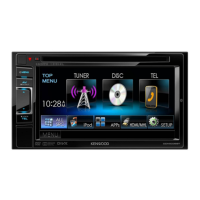
Kenwood DDX775BH User Manual

Kenwood DDX775BH
80 pages
To Next Page IconTo Next Page
Page #1 background imageLoading...
Page #1 background image
DDX795 (Region 1 – DVD Region Code 1 Area)
DDX775BH (Region 1 – DVD Region Code 1 Area)
DDX6018BT (Region 4 – DVD Region Code 4 Area)
DDX5018BT (Region 4 – DVD Region Code 4 Area)
DDX595 (Region 1 – DVD Region Code 1 Area)
DDX575BT (Region 1 – DVD Region Code 1 Area)
DDX718WBTL (Region 4 – DVD Region Code 4 Area)
B5A-2145-10 (KN/RN)
ENGLISH
This instruction manual is used to describe the models listed above. Model availability and features (functions) may differ depending on the country and
sales area.
Take the time to read through this instruction manual.
Familiarity with installation and operation procedures will help you obtain the best performance from your new receiver.
For your records
Record the serial number, found on the back of the unit, in the spaces designated on the warranty card, and in the space provided below. Refer to the model and
serial numbers whenever you call upon your Kenwood dealer for information or service on the product.
Model DDX795/DDX775BH/DDX6018BT/DMX6018BT/DDX5018BT/DDX595/DDX575BT/DDX718WBTL/DMX718WBTL Serial number
US Residents Only
Register Online
Register your Kenwood product at www.kenwood.com/usa/
© 2017 JVC KENWOOD Corporation
DMX6018BT
DMX718WBTL
MONITOR WITH DVD RECEIVER MONITOR WITH RECEIVER
INSTRUCTION MANUAL
ENDDX2018TCKR.indb1ENDDX2018TCKR.indb1 2017/11/3015:342017/11/3015:34
Question and Answer IconNeed help?

Do you have a question about the Kenwood DDX775BH and is the answer not in the manual?

Kenwood DDX775BH Specifications

General IconGeneral
Screen Size6.95 inches
Display TypeLCD
Display Resolution800 x 480
TouchscreenYes
BluetoothYes
Apple CarPlayYes
Android AutoYes
USB Ports1
USB InputYes
AUX InputYes
RMS Power Output22 watts
Peak Power Output50 watts
Number of Channels4
Radio TunerAM/FM
HD RadioYes
SiriusXM ReadyYes
Satellite Radio ReadyYes
Backup Camera InputYes
Rear Camera InputYes
CD PlayerYes
DVD PlayerYes
Built-in AmplifierYes
Steering Wheel Control CompatibleYes
Preamp Outputs3 Pairs (Front, Rear, Subwoofer)

Summary

Important Notice

Cautions

Advice on caring for the unit and monitor.

Basic Operations

Turning On the Power

Instructions on how to turn the unit on.

Putting the Unit in Standby

Steps to put the unit into standby mode.

Adjusting the Volume

How to adjust audio volume using buttons or knobs.

Getting Started

Initial Settings

Configuration steps upon first power-on.

Setting the Security Function

Registering a security code to protect the receiver.

Various Screens and Operations

Home Screen

The main screen for accessing sources and functions.

Disc

Inserting a Disc

Step-by-step guide to insert a disc.

Ejecting a Disc

How to safely remove a disc from the unit.

Video

Video Playback Information on the Source Control Screen

Key elements displayed during video playback.

Video Menu Control Operations

Controlling video playback using the on-screen menu.

Adjusting the Picture

How to fine-tune picture settings like brightness and contrast.

USB

Connecting a USB Device

How to connect USB storage devices.

Playback Operations

Controlling playback of files from a USB device.

HD Radio™ Tuner

Listening to the HD Radio™ Broadcast

How to tune into and enjoy HD Radio stations.

Storing Preset Stations in the Memory

Saving favorite radio stations.

Radio

Listening to the Radio

Basic steps to tune into radio stations.

SiriusXM® Satellite Radio

Connecting the SiriusXM Connect Vehicle Tuner

Installing the necessary hardware for SiriusXM.

Activating Subscription

Steps to activate a SiriusXM subscription.

Listening to the SiriusXM® Satellite Radio

How to tune into SiriusXM channels.

Other External Components

View Camera

Installation and operation of front and rear view cameras.

Bluetooth®

Settings

Audio Settings

Adjusting sound parameters like equalizer and speaker settings.

Camera Settings

Configuring rear and front camera display options.

Bluetooth Settings

Managing Bluetooth connections and phone settings.

Installation and Connection

Warnings

Critical safety precautions during installation.

Precautions on Installation and Connection

General safety and installation guidelines.

Wiring Connection

Detailed wiring diagram for connecting the unit.

Installing the Unit

Steps for physically mounting the unit in the car.

Troubleshooting

General

Troubleshooting common issues like no sound or picture.

Discs

Troubleshooting problems related to disc playback.

USB

Troubleshooting issues with USB device connectivity and playback.

iPod/iPhone

Troubleshooting steps for iPod/iPhone connectivity and playback.

Related product manuals