EasyManua.ls Logo

Kenwood KDC-MP372BT - User Manual

Kenwood KDC-MP372BT
128 pages
Print Icon
To Next Page IconTo Next Page
Loading...
Data Size: B6L (182 mm x 128 mm)
Book Size: B6L (182 mm x 128 mm)
For your records
Record the serial number, found on the back of the unit, in the spaces designated on the warranty card, and in the space provided below.
Refer to the model and serial numbers whenever you call upon your Kenwood dealer for information or service on the product.
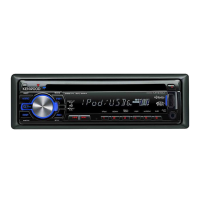
Model KDC-X302/KDC-BT372U/KDC-BT340U/KDC-BT32/KDC-BT272U/KDC-BT22/KDC-MP372BT/KMR-D372BT
Serial number
US Residents Only
Register Online
Register your Kenwood product at http://www.kenwood.com/usa/
B5A-2095-00 (KN)© 2017 JVC KENWOOD Corporation
KDC-X302
KDC-BT372U
KDC-BT340U
CD-RECEIVER
INSTRUCTION MANUAL
AMPLI-TUNER LECTEUR DE CD
MODE D’EMPLOI
REPRODUCTOR DE DISCOS COMPACTOS RECEPTOR DE FM/AM
MANUAL DE INSTRUCCIONES
KDC-BT32
KDC-BT272U
KDC-BT22
KDC-MP372BT
KMR-D372BT
JS_KWD_KDC_X302_KN_C_7.indd 1JS_KWD_KDC_X302_KN_C_7.indd 1 5/29/2017 8:50:04 AM5/29/2017 8:50:04 AM


Table of Contents

Questions and Answers

  • C
    Christopher ChambersAug 19, 2025
    What to do if my Kenwood Car Receiver sound cannot be heard?
    • D
      doylesarahAug 19, 2025
      If you cannot hear any sound from your Kenwood Car Receiver, try these solutions: First, adjust the volume to make sure it's at an audible level. Next, inspect the cords and connections to ensure they are properly connected. Finally, clean the connectors to remove any dirt or debris that might be interfering with the sound.
  • S
    Sylvia MasonAug 21, 2025
    What to do if Bluetooth pairing cannot be made on Kenwood Car Receiver?
    • W
      Walter NewmanAug 21, 2025
      If you're having trouble pairing a Bluetooth device with your Kenwood Car Receiver: * Ensure you've entered the same PIN code on both devices. * Try deleting the pairing information from both the receiver and the Bluetooth device, and then attempt the pairing process again.
  • R
    richardbarberAug 23, 2025
    What to do if setting/deleting the remote control ID is unsuccessful on Kenwood Car Receiver?
    • M
      Margaret BurgessAug 23, 2025
      If setting or deleting the remote control ID is unsuccessful and you see “SET ERROR” or “DEL ERROR” on your Kenwood Car Receiver, turn the power off, then turn it back on, and try the operation again.
  • C
    Charles CarrollAug 26, 2025
    Why does my Kenwood Car Receiver say 'MISWIRING CHECK WIRING THEN PWR ON'?
    • B
      Brianna BrownAug 26, 2025
      If your Kenwood Car Receiver displays the message “MISWIRING CHECK WIRING THEN PWR ON”, turn the power off. Then, check to ensure the terminals of the speaker wires are properly insulated. Turn the power back on.
  • B
    Brent LarsonAug 27, 2025
    What does “CHECK ANTENNA” mean on my Kenwood Car Receiver and how to fix it?
    • P
      Patricia AndersonAug 28, 2025
      If your Kenwood Car Receiver displays “CHECK ANTENNA”, it means you should check that the antenna and its connection are in good condition.
  • R
    Richard HorneAug 30, 2025
    What to do if my Kenwood Car Receiver disc cannot be ejected?
    • M
      Mary PooleAug 30, 2025
      If the disc cannot be ejected from your Kenwood Car Receiver, press and hold the M button to forcibly eject the disc, being careful not to drop it. If this does not solve the problem, reset the unit.
  • E
    Emily GarciaSep 1, 2025
    Why does my Kenwood Car Receiver say “NO SIGNAL”?
    • B
      baileystevenSep 1, 2025
      If your Kenwood Car Receiver displays “NO SIGNAL”, make sure the antenna is mounted outside the vehicle.
  • R
    Robert MurphySep 3, 2025
    What does “NO MUSIC” mean on Kenwood Car Receiver?
    • S
      Stacy KingSep 3, 2025
      If your Kenwood Car Receiver displays “NO MUSIC”, connect a USB device that contains playable audio files.
  • F
    fburnettSep 6, 2025
    How to fix echo or noise during a phone conversation on my Kenwood Car Receiver?
    • W
      William BrownSep 6, 2025
      If you experience echo or noise during phone conversations using your Kenwood Car Receiver, try the following: 1. Adjust the microphone unit’s position. 2. Check the [ECHO CANCEL] setting.
  • T
    Tommy WalshSep 8, 2025
    What does “USB HUB IS NOT SUPPORTED” mean on Kenwood Car Receiver?
    • V
      Valerie GonzalezSep 8, 2025
      If your Kenwood Car Receiver displays “USB HUB IS NOT SUPPORTED”, it means that the unit cannot support a USB device connected via a USB hub.

Summary

Before Use and Important Information

Safety Warnings and Precautions

Warns against distracted driving and hazards of battery ingestion, especially for children.

Basics of Operation

Faceplate Controls Overview

Identifies controls on the unit's front panel for power, volume, source selection, and display.

Remote Control and Battery Replacement

Describes the remote control, its sensor, and provides instructions for replacing its battery.

Getting Started Guide

Display Language and Demo Setup

Guides setting display language and disabling the demonstration mode for initial setup.

Setting Clock and Date

Explains how to adjust the clock format (12H/24H) and set the current date.

Initial Settings Configuration

Details how to configure initial settings like Audio Control and Preset Type.

Radio Operation Basics

Searching for Radio Stations

Explains how to search for stations manually, automatically, or via presets using BAND and SEEK.

Advanced Radio Settings

PTY Search Functionality

Explains how to search for radio stations by Program Type (PTY) and language.

Connecting and Playing Media

CD Playback

Instructions for playing audio CDs, including playback controls like pause, track selection, and repeat.

USB Device Playback

Guides connecting USB devices for playing MP3/WMA/AAC/WAV/FLAC files and managing tracks.

iPod;iPhone and Android Connectivity

Details connecting iPod/iPhone and Android devices for playback and control via USB.

Media File Management

Advanced File Searching

Describes Quick, Skip, and Alphabet searches for locating media files efficiently.

Pandora Music Service

Pandora Setup and Playback

Instructions for preparing, connecting, and starting Pandora playback via USB.

Managing Pandora Stations

Guides creating, saving, searching, and deleting Pandora stations.

iHeartRadio Service

iHeartRadio Setup and Playback

Steps to prepare, connect, and begin listening to iHeartRadio via USB.

Spotify Music Service

Spotify Setup and Playback

Instructions for preparing, connecting, and starting Spotify playback via USB.

SiriusXM Radio Service

SiriusXM Radio Setup

Steps for connecting the tuner, checking Radio ID, and activating subscription.

SiriusXM Radio Listening

How to select channels, browse, and use direct access tuning for SiriusXM.

SiriusXM Radio Features

SiriusXM Keymode Operations

Explains channel and replay keymodes for controlling SiriusXM, including stored channels.

SmartFavorites and TuneStart

Details features for storing favorite channels and starting songs from the beginning.

SiriusXM Radio Settings

Channel Lock and Passcode

Covers locking channels, setting passcodes, and editing channel locks for parental control.

Bluetooth Connectivity

Supported Bluetooth Features

Lists supported Bluetooth profiles (HFP, A2DP) and codecs (SBC, AAC) for device compatibility.

Initial Bluetooth Pairing

Steps to pair a Bluetooth device with the unit for the first time using Secure Simple Pairing.

Bluetooth Phone Operations

Auto Pairing and Incoming Calls

Describes automatic pairing upon connection and handling incoming calls.

Bluetooth Call Management

Bluetooth Calling Features

Making Calls

Guides making calls from call history, phonebook, number dial, or voice commands.

Phonebook and Dialing

Details accessing the phonebook, searching contacts, and dialing numbers.

Bluetooth Memory and Settings

Voice Recognition and Memory Storage

Activating voice recognition and storing contacts in memory for quick dialing.

Bluetooth Device Management

Covers device connection modes, selecting audio devices, and deleting paired devices.

Bluetooth Audio Playback

Bluetooth Test Mode

Checks connectivity of Bluetooth profiles between device and unit.

Audio Player Connectivity

Instructions for connecting and playing audio from a Bluetooth device.

Bluetooth Remote App and Streaming

KENWOOD Remote App Setup via Bluetooth

Guides setting up the app for iPhone/iPod or Android via Bluetooth.

Bluetooth Audio Streaming

How to listen to iPhone/iPod music or internet radio via Bluetooth.

Audio Settings Configuration

Advanced Audio Adjustments

Audio System Tuning

Digital Time Alignment (DTA)

Guides setting speaker delay and gain based on listening position and car type.

Steering Remote Control Setup

Troubleshooting Common Issues

Troubleshooting Media Playback

Troubleshooting Service and Bluetooth

Bluetooth Connectivity Problems

Guides on resolving Bluetooth pairing, call quality, and device detection issues.

Media Compatibility and Services

Installation and Connection Guide

Unit Installation Procedures

Wiring Connection Guide

Connecting External Components

Technical Specifications - Tuner and Player

Technical Specifications - Audio and General

Kenwood KDC-MP372BT Specifications

General IconGeneral
BrandKenwood
ModelKDC-MP372BT
TypeCar Receiver
BluetoothYes
USB PortYes
Aux InputYes
CD PlaybackYes
Radio TunerAM/FM
Display TypeLCD
Subwoofer ControlYes
Preset EQYes
Remote ControlYes
Max Power Output50W x 4
RMS Power Output22W x 4
Media PlaybackMP3, WMA
EQ Settings13-Band Graphic EQ

Related product manuals