KETRON • AUDYA 69
Drum Mixer
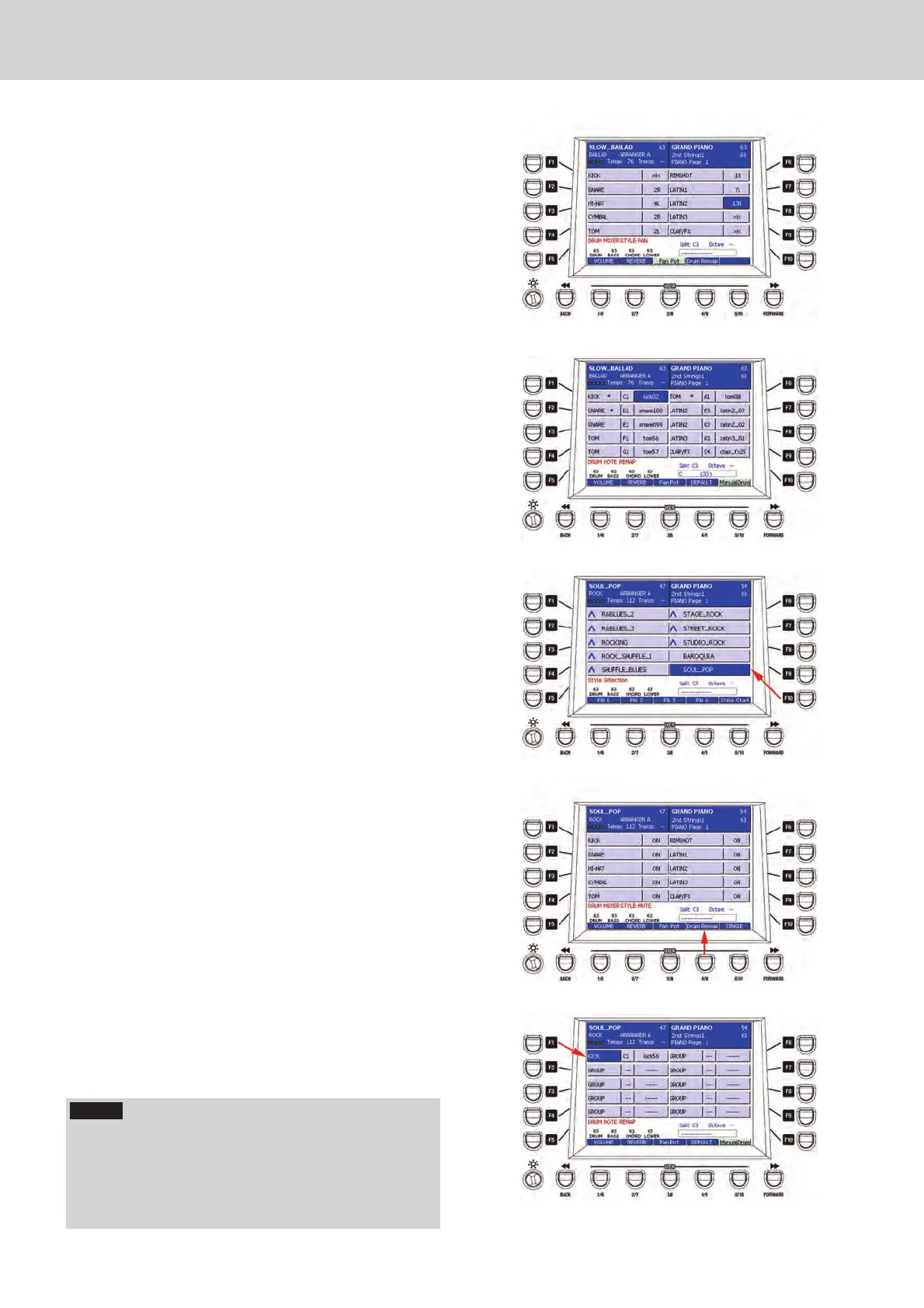
The available values are from 64L to >|< and
to 63R, that is totally to the left, in the centre and
totally to the right
(
Figure 176). By pressing the
CURSOR
Ó Á
buttons together you set the PAN
value in the centre (>|<).
▀ DRUM REMAP (USER 4)
By pressing DRUM REMAP, you can access
the window where to set a custom map for the
percussive parts of the drum. By using the F1-F10
buttons you can select the percussion and then
assign the instrument directly to one note of the
keyboard. By using the DATA/VALUE wheel or
the CURSOR
Ó Á
buttons
you can select the
available drum sound
(
Figure 177). Please note
that when the assigned instrument changes, an
asterisk appears after the name of the instrument.
The USER 5 button enables/disables the MANUAL
DRUM function, that is the manual playing of the
drum directly from the keyboard.
Drum Remap
The Drum Remap function has effect only on the MIDI
drum. So, for the following example, a MIDI style is
chosen.
Kick remapping
Select the “Soul_Pop” style from Rock user style 1.
category (Figure 178).
Press DRUM MIXER and press the USER 4 button 2.
(Drum Remap) as shown by the arrow on Figure
179. Start the style to listen immediately to the
changes you make.
Select the Variation A of the Arranger.3.
If you to “remap” the kick of the drum, press F1 to 4.
select the first Drum Remap slot.
Press the note corresponding to the kick of the 5.
style. In our example is C1.
The display will show the sound on that key 6.
(Figure 180).
Figure 176
Figure 177
Figure 178
Figure 179
Figure 180
Drum Mixer
NOTE
Please note that the Drum Remap applies to the style
and to each Variation (A B C D). So, if you select the
B Variation, the Drum Remap screen will be empty.
In this way, you have the possibility to remap all the
Variations of the style independently.
E_Audya_PRINT.indd 69 14/07/2009 7.10.19



 To Next Page