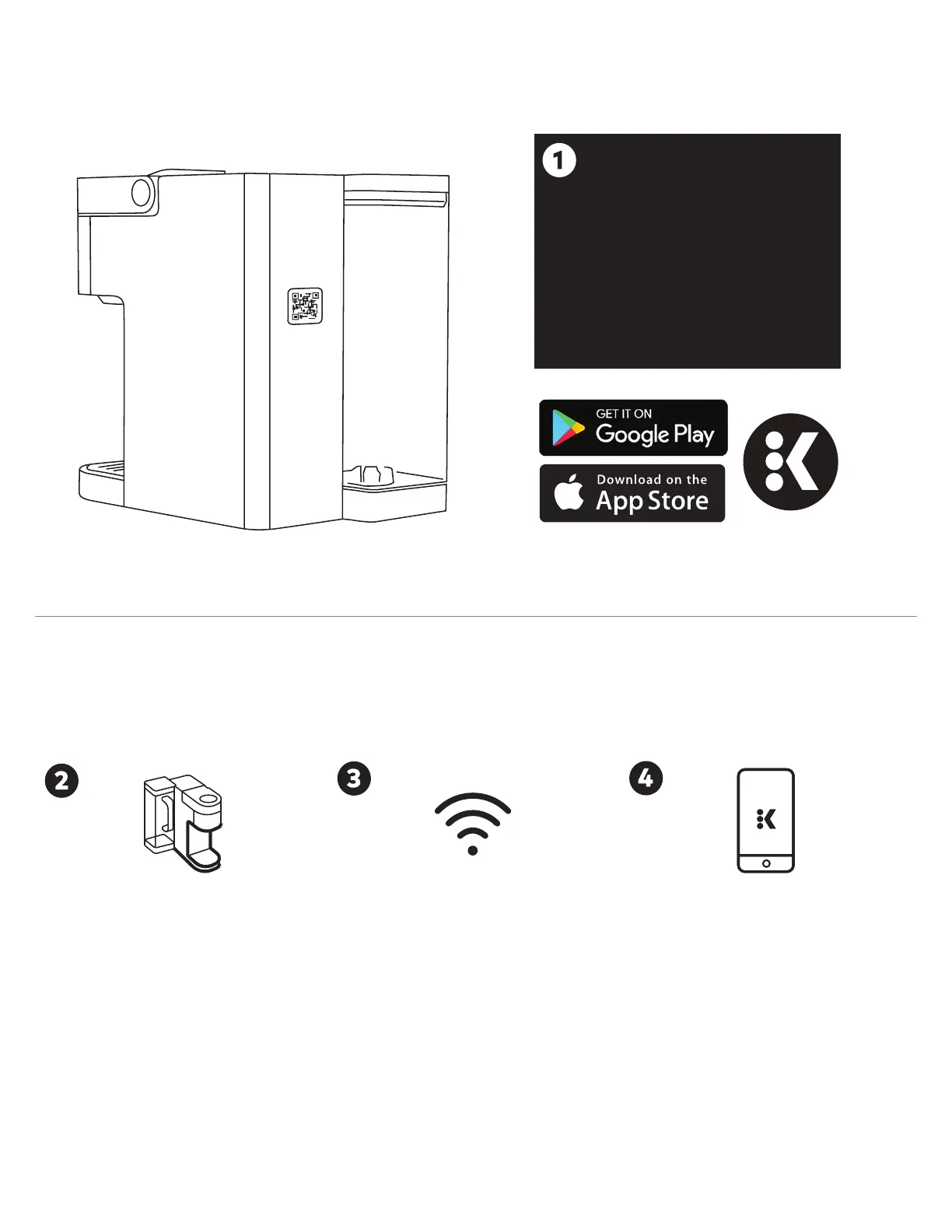
Get connected with the Keurig® app.
You will need this to set up and
control your brewer.
SCAN
The QR code
on the back of the brewer:
Use the camera on your
smartphone to scan the
QR code to download
the app and get started;
or download the Keurig® app
in the App Store.
App Store® is a service mark of Apple Inc.
Google Play and the Google Play logo are trademarks of Google LLC.
Connect Your Brewer
GET CONNECTED
Open the Keurig® app
and select Get Connected,
then create an account.
Once completed, press the
right arrow on the brewer
to Connect.
PLUG IT IN
Remove packing tape
from brewer and plug into a
grounded outlet. The brewer
will automatically power on,
you can also press any button
on the brewer to power on.
Make sure you have your
home Wi-Fi® password ready.
SET UP
Follow the instructions in the app
to link the brewer to your
smart phone, then to connect to
your home Wi-Fi®. You will see a
message that says SUCCESS!
Press OK. You will also see a
message on the brewer that says
Wi-Fi® Connected, press FINISH.
Wi-Fi® is a registered trademark of Wi-Fi Alliance®




 To Next Page