20
2.4GHz / Cable / Bluetooth Mode (Mode Toggle Switch)
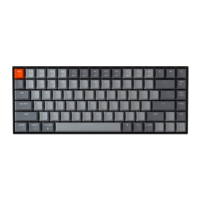
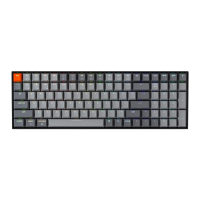
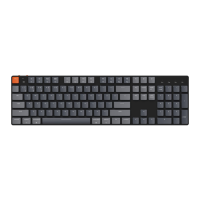
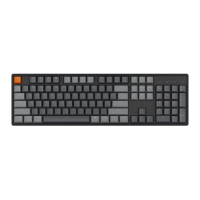
The Keychron K8 Max keyboard offers multiple connectivity options, including 2.4GHz, Bluetooth,
and a cable mode, giving users the flexibility to choose the method that best suits their needs. To
switch between modes, toggle the designated switch on the keyboard to the desired option.
2.4GHz Mode
• Plug the 2.4GHz receiver into an available USB port on your device.
• Slide the mode toggle switch to the 2.4GHz position. The keyboard will automatically detect
and connect to the receiver.
• If the keyboard does not connect automatically, press the key combination "fn" + "4" to
enter the forced pairing mode. During this process, keep the keyboard within a 20cm range
of the receiver for optimal pairing success.
It is recommended to maintain close proximity between the keyboard and the receiver while pairing
to ensure a stable connection.
Bluetooth Mode
• Switch the mode toggle switch to the Bluetooth position.
• When Bluetooth mode is activated, the keyboard’s backlighting will automatically turn on,
indicating that the mode is active.
• To pair the keyboard with your device, press and hold "fn" + "1" for approximately 4
seconds. The Bluetooth indicator will begin flashing rapidly, signaling that the keyboard is in
pairing mode. This flashing will continue for 3 minutes to allow the keyboard to detect
nearby devices.
• On your device, search for the Bluetooth device labeled "Keychron K8 Max" in your
Bluetooth settings. Select it to establish the connection. Once the pairing process is
complete, the Bluetooth indicator will turn off.
• This keyboard supports pairing with up to three Bluetooth devices simultaneously. To switch
between paired devices, use the key combinations "fn" + "1", "fn" + "2", and "fn" + "3"
respectively.
• The Bluetooth indicator will flash continuously during the pairing window, which lasts for 3
minutes. After this time, the keyboard will exit pairing mode if no device is connected.
• Note: Connection issues may arise due to differences in Bluetooth versions or device
settings. Ensure all relevant settings on your device are correctly configured to enable
seamless pairing.



 To Next Page