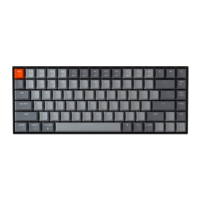
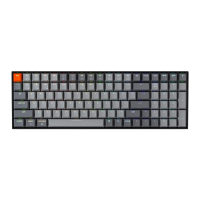
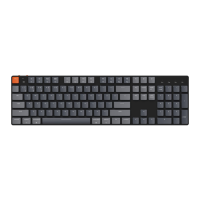
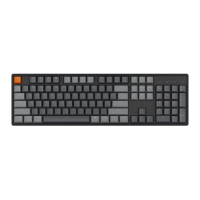
9
5. The Backlight
The backlight feature on your keyboard adds both aesthetic appeal and functional convenience,
especially in low-light environments.
6. Adjust the Backlight Brightness
Brightness control allows you to fine-tune the intensity of the backlight, ensuring it's comfortable for
your eyes and suited to your environment.
7. Adjust the Backlight Speed
The backlight effects on your keyboard can add a dynamic and customizable look. If the default
animation speed feels too fast or too slow, you can adjust it with the following steps.
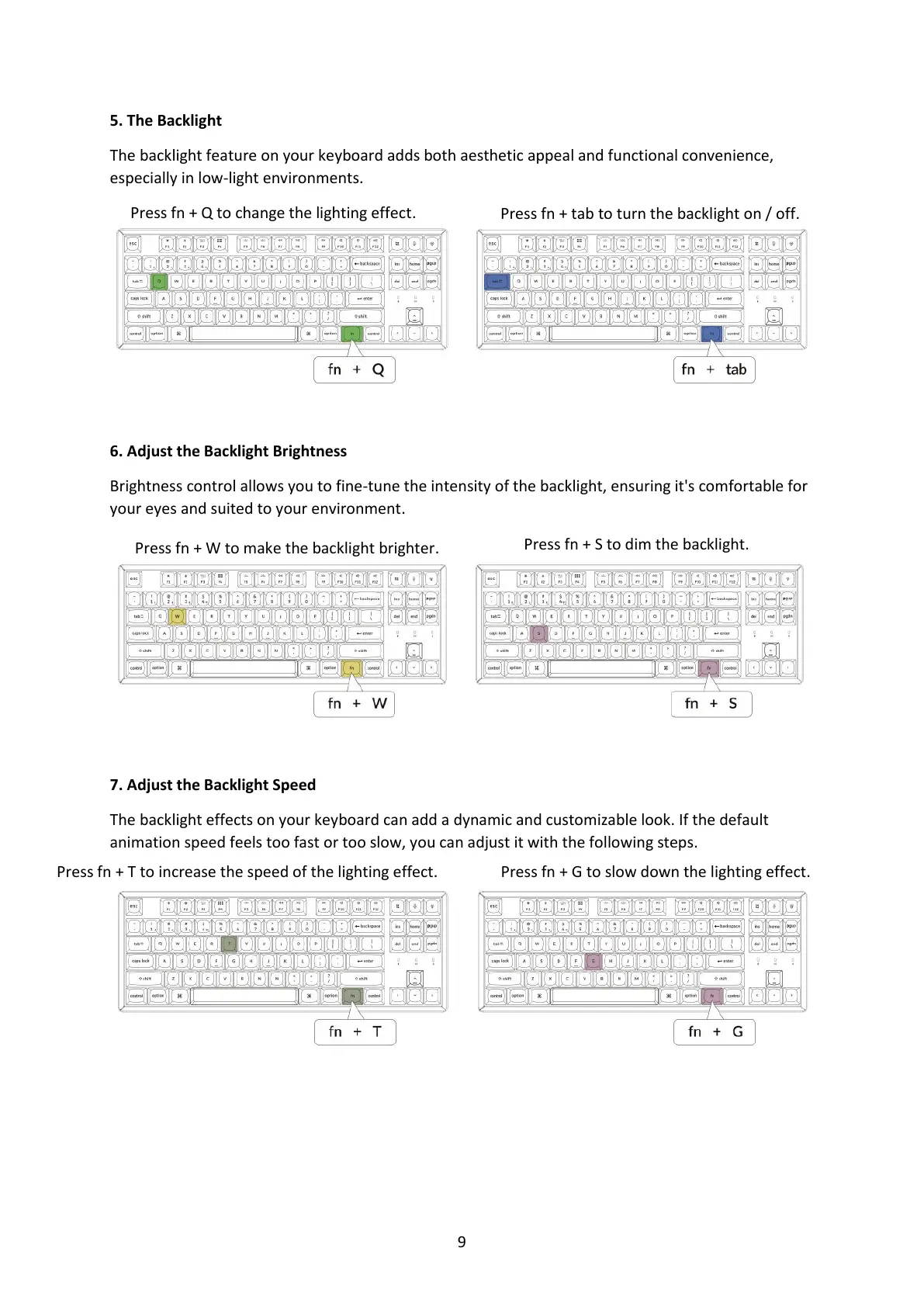
Press fn + Q to change the lighting effect.
Press fn + tab to turn the backlight on / off.
Press fn + W to make the backlight brighter.
Press fn + S to dim the backlight.
Press fn + T to increase the speed of the lighting effect.
Press fn + G to slow down the lighting effect.



 To Next Page