Need help?
Do you have a question about the Kia Forte 2023 and is the answer not in the manual?
Tips for improving voice recognition performance with phone contacts.
Steps and tips for pairing a phone with the vehicle's Bluetooth system.
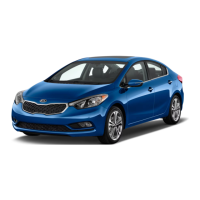
This document provides a comprehensive guide to the features and functionalities of the 2023 Kia Forte, covering various aspects from voice recognition and smartphone connectivity to advanced driver-assistance systems and comfort features.
The vehicle's voice recognition (VR) system allows for hands-free control of certain functions. To optimize VR performance, it's recommended to use full names in phone contacts (e.g., "John Smith" instead of "Dad"), avoid special characters, emojis, hyphenated names, acronyms, and all-caps words. Users should spell words completely and wait for the beep before speaking commands. Speaking in a natural, moderate tone with clear pronunciation is crucial for accurate recognition. Environmental factors like open windows, sunroof, or high A/C fan speeds can interfere with VR accuracy. The system may also have difficulty understanding certain accents or uncommon names. A "Help" command can provide a list of available commands.
For Bluetooth® pairing, users should select "Device Connections" on the infotainment display or use the "Call" button on the steering wheel. Accepting all requests for phonebook download and future auto-connection during the pairing process is essential. For pairing additional phones, users should refer to the vehicle's manuals. Troubleshooting auto-connection issues involves rebooting the phone, updating its operating system, deleting and re-pairing the device from both the infotainment system and the phone, and ensuring Bluetooth® is activated on the phone. If contacts are not downloading, users should verify correct entry and storage under supported categories (HOME, MOBILE, WORK, iPhone®3). The system may partially download contacts if the maximum number is exceeded. Only the "phone contact list" should be selected for download, not social media or email lists. Phone operating systems change frequently, affecting compatibility; for further assistance, users can contact their Kia dealer or Kia Consumer Assistance. Bluetooth® reception is influenced by carrier coverage and the phone itself. When streaming audio, the device's listening volume should be turned up.
The Kia Forte supports Apple CarPlay®3 and Android Auto™4.
Kia Access App*5 The Kia Access App (formerly UVO link) requires a cellular network connection with good signal strength for remote commands to execute properly. For Remote Start or Remote Start with Climate Control, all doors, hood, and trunk/liftgate must be closed and locked. These features operate for approximately 10 minutes. The quickest way to get an accurate vehicle status is by pressing the refresh icon in the app or customer web portal. Activating Remote Start or Remote Start with Climate Control a few minutes before vehicle entry allows the interior to reach a desired temperature. To preserve vehicle battery, Kia Connect will not work seven days after the ignition was last turned on, requiring a key fob restart to re-enable the service.
Accessory Mode with a Smart Key* For Smart Key-equipped vehicles, accessory mode can be activated without starting the engine by pushing the ENGINE START/STOP button once without pressing the brake pedal. This illuminates ACC in AMBER. If left in ACC for over an hour, the button automatically turns off to prevent battery discharge.
Smart Trunk* For vehicles with a Smart Key, if the fob is in close proximity to the vehicle's rear, the hazard warning lights will blink and a chime will sound for about 3 seconds before the Smart Trunk opens. This alert sequence repeats two more times before opening. The Smart Trunk feature is OFF by default and can be enabled via User Settings in the LCD Instrument Cluster modes. Manual opening is possible by pressing and holding the trunk button A or using the release button under the rear view camera. If the unlock button on the Smart Key was pressed, users should press the lock button before walking away to ensure the vehicle is fully locked. The Smart Trunk function can be deactivated by pressing any Smart Key button during the Detect and Alert stage.
Smart Key Interference* The Smart Key's functionality can be affected by radio frequency interference from mobile phones, especially if placed in close proximity to the Smart Key or near the door handle while the key is stored farther away. To avoid communication errors, the Smart Key should not be placed on top of or next to a phone or another Smart Key in the same compartment while driving. If issues arise, users should check that the key fob is not near other transmitting radio frequency sources.
Manual Climate Control* To defrost the windshield (Outside and Inside), users should set the fan speed to the highest position, temperature to the highest setting, and turn the Mode Selection knob to the Defrost-Level setting. Air Flow Modes can be selected by turning the Mode Selection knob to Face-Level, Bi-Level, Floor-Level, Floor/Defrost-Level, or Defrost-Level. Quick Tips: Maintaining glass cleanliness is crucial for defrost performance and preventing fogging. "AUTO A/C" mode (MAX) automatically engages recirculated air for highest performance. Defrost mode engages the Fresh Air Vent to dehumidify the air and maximize defroster performance. Warm air may flow through vents if the Recirculated Air button is not OFF. Maintaining the Climate Control Air Filter is crucial for system performance; refer to the Owner's Manual for maintenance schedule.
Smart Cruise Control (SCC) with Stop and Go*7 SCC maintains a predetermined distance from vehicles ahead by automatically adjusting driving speed. With SCC activated, the system can slow or stop the vehicle in traffic. If the vehicle ahead stops for more than 3 seconds, SCC must be re-engaged by depressing the accelerator pedal or operating the [+], [-] or B switch. To engage SCC and set/adjust speed: Press the Driving Assist button A to turn the system ON and set to the current speed. The CRUISE indicator, set speed, and vehicle distance will illuminate on the Instrument Cluster. Speed can be increased/decreased using the [+] or [-] switch B. To pause or resume SCC operation: Press the pause/resume button B. The SCC indicator on the Instrument Cluster display will turn OFF. To set the vehicle-to-vehicle distance: Press the Vehicle Distance button D on the steering wheel. The image on the LCD screen will change when scrolling through settings. To turn SCC system OFF: Press the Driving Assist button A. To adjust the sensitivity of SCC: Press the mode button on the Steering Wheel. With the OK button F, select Driver Assistance, then SCC Response or go to settings in the infotainment system. Then select Fast, Normal, or Slow.
Blind-Spot Collision-Avoidance Assist (BCA)7 BCA alerts the driver before changing lanes using a front-view camera and rear-corner radar sensors. It provides warnings and can temporarily apply braking if an approaching vehicle is detected in the driver's blind spot. To turn BCA on, with the vehicle at a standstill, go to User Settings by pressing the Mode button on the Steering Wheel or Vehicle Settings in the infotainment system. Select Driver Assistance > Blind-Spot Safety. Then select Active Assist, Warning Only, or Off. BCA Modes:
The LKA system detects lane markers and provides steering inputs to help keep the vehicle in its lane. Press the Lane Driving Assist button A to turn LKA on or off, when first enabled in User Settings in the Instrument Cluster or Vehicle Settings in the infotainment system. The Instrument Cluster indicator illuminates WHITE initially, and remains WHITE below 40 mph or when lane markers are not detected. It illuminates GREEN when lane markers are detected and steering assistance is active. If the vehicle moves outside its lane, the vehicle crossing lane indicator will blink, an audible warning will sound, and an LDW alert will display. If the vehicle continues to move out of the lane, LKA can apply slight steering adjustments. Conditions for operation: Vehicle speed exceeds 40 mph, LKA detects both sides of lane markers, and the vehicle is between lane markers. LKA Function Change: The driver can change LKA to LDW or switch between Standard LKA and Active LKA via User Settings in the Instrument Cluster. This is done by placing the ignition switch in ON, pressing the Mode button B on the Steering Wheel to toggle to User Settings, then pressing the OK button up/down to Driver Assistance and Lane Safety. Standard LKA is the default. LKA Modes:
LFA helps keep the vehicle centered in its lane A by monitoring lane markings and adjusting steering. The Instrument Cluster indicator illuminates WHITE initially, and on some vehicles, remains WHITE when lane markers are not detected. It illuminates GREEN B when lane markers are detected and steering assistance is active. LFA can be enabled/disabled via the LFA button when enabled in User or Vehicle Settings. LFA operates when: LKA recognizes both sides of lane markers, and vehicle speed is less than 95 mph. LFA User Settings: To access User Settings in the Instrument Cluster, press the Mode button on the Steering Wheel when the vehicle is at a standstill, gear shift in Park, and with the ignition on or the ENGINE START/STOP button* in the ON position, then select User Settings. To enable LFA, in User Settings, press the Move (OK) button up/down and Select Driver Assistance then Driving Assist, Select Lane Following Assist. Press the OK button E. Some models access settings through Vehicle Settings in the infotainment system (SETUP hard key, then VEHICLE on screen). Warning Timing: In the Driver Assistance menu, select Warning Timing and choose:
*Forward Collision-Avoidance Assist (FCA)7 / Forward Collision Warning (FCW)7 FCA and FCW systems detect slowing or stopped traffic ahead and can apply brakes to help avoid or reduce collision effects. FCW provides an audible warning and visual alert on the Instrument Cluster A. Alert settings (Early, Normal, Late) or ON/OFF can be adjusted in User Settings in the Instrument Cluster. FCA/FCW becomes active when: ENGINE START/STOP button is ON, vehicle speed is more than 6 mph, and Electronic Stability Control (ESC) is ON. FCA Modes:
Rear Cross-Traffic Collision Avoidance Assist (RCCA)7 RCCA warns the driver and can activate ESC and temporarily apply braking if cross traffic is detected when the vehicle is in Reverse A. RCCA sounds a warning, illuminates indicators on the outside rearview mirrors, and displays a message on the Instrument Cluster LCD B. If collision risk increases, the system automatically applies brakes to reduce speed and minimize collision effects. RCCA operates when: Gear shift is in Reverse, and vehicle speed is less than 6 mph. RCCA User Settings: To access User Settings in the Instrument Cluster, press the Mode button C on the Steering Wheel when the vehicle is at a standstill, gear shift in Park, and with the ignition on or the Engine Start/Stop button in the ON position, then select User Settings. To turn RCCA on, in User Settings, press the Move (OK) button up/down, select Driver Assistance, Parking Safety, Rear Cross-Traffic Safety, then press OK D. To set initial warning activation time, go to Driver Assistance, Warning Time, and press the OK button. There are 2 settings:
To adjust the seat:
Seat Warmers / Ventilated Seats*9 Pressing the top/bottom of the button once activates the high setting (3 LEDs lit), a second time for medium (2 LEDs lit), a third time for low (1 LED lit), and again to turn OFF. With the seat warmer switch ON, the heating system automatically adjusts based on selected seat temperature. Wet or moist clothing may affect seat condition/operation.
Drive Mode Integrated Control System* Drive modes A (NORMAL, SPORT, SMART) are available for selection via the DRIVE MODE button B. The selection displays on the Instrument Cluster and media screen.
To lift the wipers for cleaning, blade replacement, or in snow/ice conditions, move them to the service position A. With the ignition ON, turn the engine OFF, then move the wiper switch to the MIST position within 20 seconds and hold for over 2 seconds until the blades are fully up. To return to normal, turn the ignition ON, then activate MIST.
USB Ports and Use of Cables* Vehicle may contain USB port(s) for data transfer or music playback from a compatible media device A, as well as USB port(s) designed for fast charging B. Devices only charge when the vehicle is in ACC/ON/Start positions. If a USB device is difficult to plug in, change its orientation. Always use manufacturer-certified USB charging cables; aftermarket cables are not recommended due to potential impact on functionality. If USB ports (power outlets) are inoperable in ACC/ON/Start positions, inspect the "Power Outlet" 20A fuse (refer to Owner's Manual for location).
Wireless Smartphone Charging System*10 Charge a compatible smartphone wirelessly by placing it on the tray A at the front of the console, near the USB ports and the charging indicator, while the ignition is on. The indicator light B may change to AMBER when charging begins, and to GREEN when charging is complete.
 General
| Brand | Kia |
|---|---|
| Model | Forte 2023 |
| Category | Automobile |
| Language | English |

 To Next Page