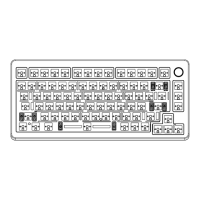
PAIRING BLUETOOTH
Long Press for 3 seconds to pair Bluetooth device
FN + Q/W/E
FN + Q/W/E Short Press to switch to last paired device
PAIRING WIRELESS 2.4GHz
Long Press for 3 seconds to pair Wireless 2.4G
FN + R
Switch to Wireless Mode
FN + R
CHECK THE BATTERY LEVEL
After turning on the keyboard, please switch to Bluetooth mode by pressing the designated button. Use the
FN+Q/W/E keys to enter the desired Bluetooth channel (1, 2, or 3). To initiate device pairing, press and hold
the FN+Q/W/E keys for 3 seconds. When the keyboard starts searching for a connectable device, the
indicator light will flash red, blue, or yellow. Once the keyboard is successfully connected to a device, the
indicator light will remain on for 2 seconds. If the keyboard fails to connect to a device, the indicator light
will turn off.
After turning on the keyboard, switch to 2.4G mode using the power switch, and then long press the FN+R
keys to enter pairing mode. After inserting the receiver, the indicator light will flash rapidly to indicate that
the keyboard is searching for a compatible device to pair with. Once the pairing is successful, the mode
light will remain on for 2 seconds. If the keyboard cannot find a pairing device within 30 seconds, the
pairing mode will exit, and the mode light will turn off. At this point, the keyboard will enter sleep mode.
Pressing the FN+Backspace key combination will turn off the backlight on the keyboard in order to
check the battery level. To display the remaining battery percentage, press the number keys 1 through
0. For example, if the 1 key is lit, it indicates that the battery has 10% remaining. If both the 1 and 2 keys
are lit, it indicates that the battery has 20% remaining, and so on. The number keys will light up with
different colors to indicate the battery level: red for 30% or less, yellow for 50% or less, and green for
over 50%.
DO YOU NEED ANY MORE HELP?
For technical assistance, please email to support@kiiboom.com with your purchase
order number and a detailed description of your issue.


 To Next Page