Document No. 480WD+MLW.ß01 Kingston MobileLite Wireless (ßeta) Page 5 of 12
Configuring MobileLite Wireless
Using the MobileLite Wireless App, you can customize the wireless network settings for MobileLite Wireless. The
default settings are: Device Name: Wi-DrivePlus, Visibility Status: ON, Wireless Channel: 11, and Security:
None.
To access MobileLite Wireless’s Network Settings, please follow these steps:
1. Select the Kingston MLW icon on your iPad, iPhone, or iPod touch device.
2. Select the Device Name link, i.e. Wi-DrivePlus (192.168.200.254).
3. Select the settings icon (gears symbol.)
4. Select the MobileLite Wireless Settings button.
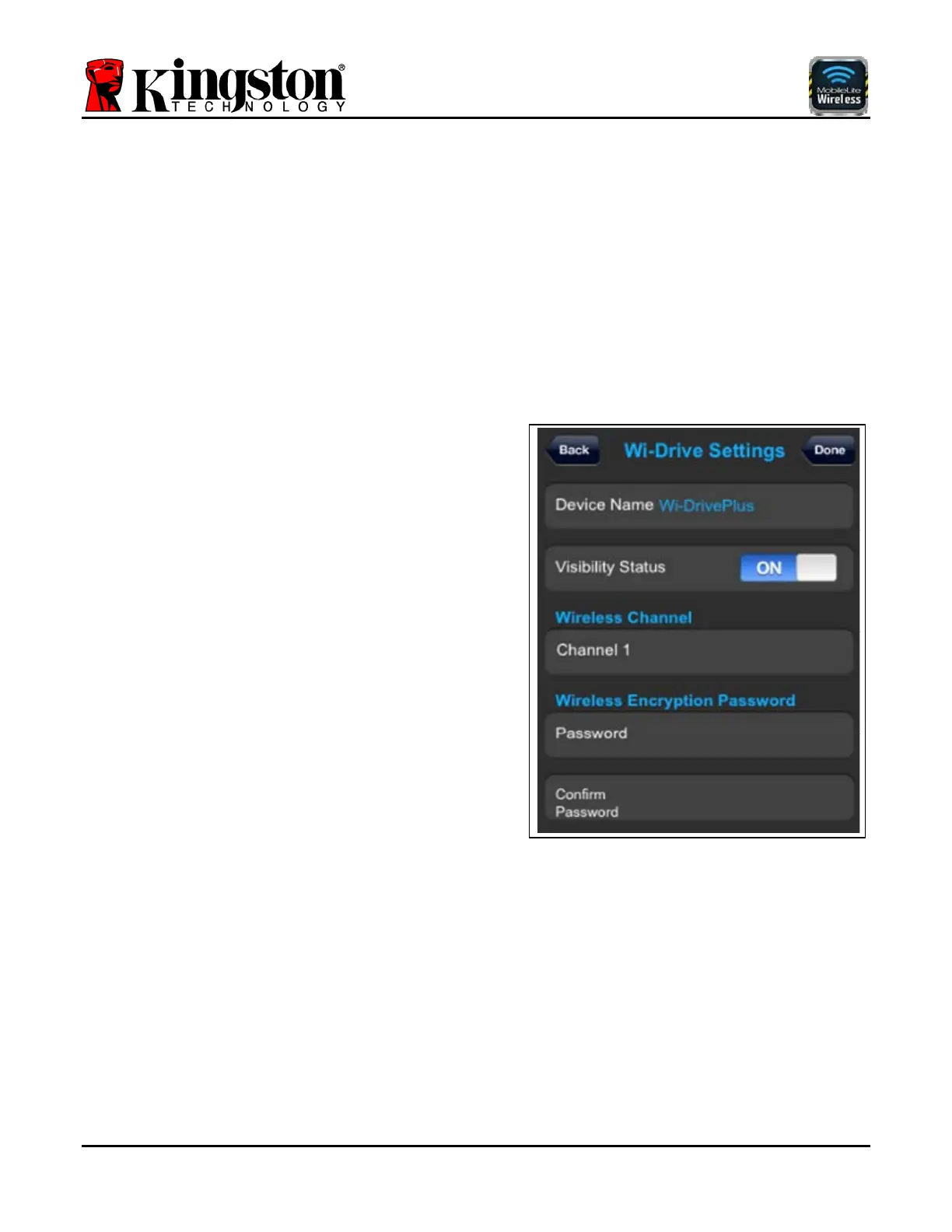
A. Device Name – commonly referred to as an
SSID, or Service Set IDentifier, this field allows
you to specify a device name (between 1 and
32 characters) that will broadcast
in the list of
available wireless networks
on your iPad, iPhone,
or iPod touch device. The default name is
MobileLite Wireless as seen in Figure 5.1.
B. Visibility Status – this gives you the option to
hide or unhide the SSID specified in the ‘Device
Name’ field. By default, the visibility status is
turned ‘ON’. If you wish to turn this feature
‘OFF’, the device name will NOT be
broadcasted
1
in the list of available wireless
networks on your iPad, iPhone, or iPod touch
device; however, you can still join the Wi-Fi
network by entering the device name manually
using the menu option, ‘Other…’.
C. Wi-Fi Channel – this setting allows you to
select a specific frequency channel used to
communicate with other devices on your
wireless network. The default setting is Channel
11 (2.462 GHz.)
A
B
C
D
Figure 5.1 – Wi-Drive+ Network Settings
D. Wireless Encryption Password – this option helps prevent unauthorized access to your MobileLite Wireless
device by prompting users for a password. Simply enter a password in the 'Password' field and confirm it by
re-typing it in the 'Confirm Password' field and tap the 'Done' button to save the Wi-Drive+ settings.
1
If the visibility status has been turned off, you can still join the MobileLite Wireless network by entering the SSID manually on your iPad,
iPhone, or iPod touch, as long as you know the ‘Device Name’ (Step A). Please note that a password will be required if the security option is
enabled.



 To Next Page