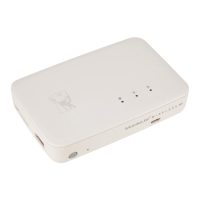
Need help?
Do you have a question about the Kingston Technology MLWG2 and is the answer not in the manual?
Connects external USB storage devices or charges mobile devices.
Accepts memory cards (SD/SDHC/SDXC or microSD with adapter).
Indicates current battery status and power state.
Shows the current status of the Wi-Fi broadcast.
Indicates bridging to an Internet gateway via Wi-Fi or Ethernet.
Turns the device on/off; short press for power bank, long for Wi-Fi mode.
Resets the device to its original default configuration.
Charges the device or connects to a computer for data transfer.
Connects an Ethernet cable to create a Wi-Fi hotspot for Internet access.
Lists audio, video, image, and document file types supported by the app.
Indicates remaining battery life: Green (51-100%), Orange (25-50%), Red (<25%).
Details options accessed via the menu button, including settings and content views.
Shows information about connected USB/SD devices, or indicates if none are present.
Explains how the app uses the iOS device's storage for offline data access.
Allows users to browse all files and folders stored within the Offline Files section.
Displays visual previews of files stored on the device for quick identification.
Allows users to choose specific photos or folders for management operations.
Filters displayed photos by location (USB Drive, SD Storage, Offline Files).
Organizes photos by name, size, date, or file type for easier browsing.
Plays all photos within the currently opened folder as a slideshow.
Enables sharing photos via social media, email, or saving to the Camera Roll.
Transfers selected photos to a different location on the device or connected media.
Permanently removes selected photos from the storage.
Enables selection of files/folders for various management actions.
Allows creation of new folders to organize content on the storage media.
Switches between list view and thumbnail view for files and folders.
Arranges files and folders by name, size, date, or type.
Updates the displayed file list to reflect any recent changes.
Locates specific files or folders using a search bar.
Displays metadata such as file name, type, size, and creation date.
Allows users to choose specific videos or folders for management operations.
Facilitates the creation of new folders for organizing video content.
Toggles between list view and thumbnail view for video files.
Organizes video files by name, size, date, or type.
Updates the displayed video list to show current content.
Allows sharing videos via email, saving to Camera Roll, or using other apps.
Transfers selected video files to a different storage location.
Permanently removes selected video files from the storage.
Downloads unsupported videos to the iOS device for playback with compatible third-party apps.
Allows sharing of unsupported videos via email, up to a 10MB limit.
Copies the video's URL for pasting into compatible third-party applications.
Enables playback of unsupported videos using the VLC player app.
Saves unsupported videos to the iOS device's Camera Roll.
Aborts the current file sharing or export operation.
Specifies the device's network name (SSID) for Wi-Fi connections.
Displays the current battery level of the MobileLite Wireless G2.
Sets an automatic shutdown time for the device to conserve power.
Displays the current firmware version installed on the device.
Controls whether the device's network name is broadcasted.
Chooses the frequency channel for optimal wireless communication.
Configures password protection to secure the wireless network.
 General
| Brand | Kingston Technology |
|---|---|
| Model | MLWG2 |
| Category | Card Reader |
| Language | English |

 To Next Page