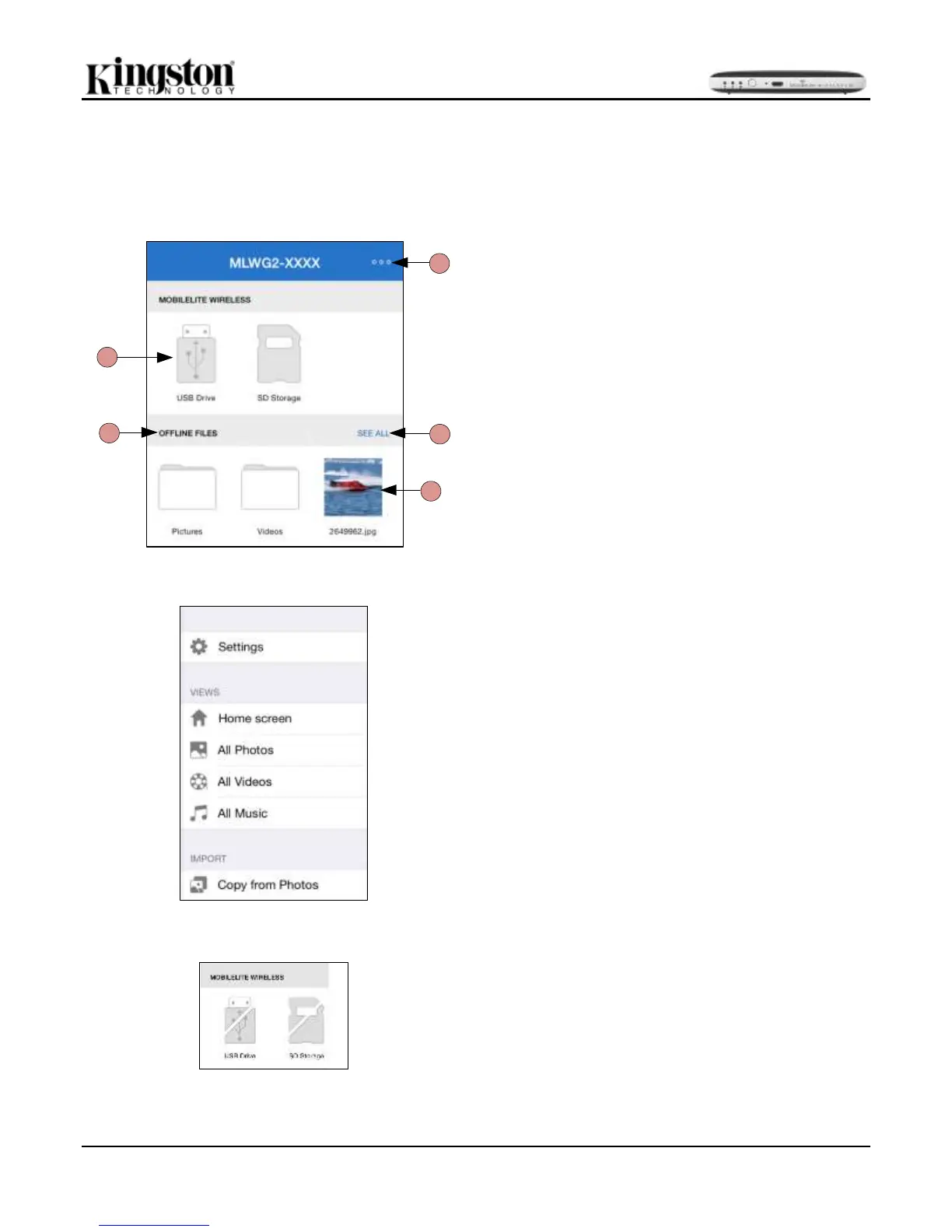
A. The ‘Menu’ button opens a side panel with the
following options: See Figure 11.2.
Settings: Will navigate to the device
settings page
Home screen: Returns the user to the
home screen
All Photos: Filters all photos files only,
regardless of location
All Videos: Filters all videos files only,
regardless of location
All Music: Filters all music files only,
regardless of location
Copy from Photos: Allows the user to
import pictures from the iOS Camera
Roll to any USB/ SD Card.
B. The devices connected to the MLWG2. If no
devices are connected, then the media will not be
accessible. See Figure 11.3.
C. The ‘Offline Files’ section uses the iOS device’s
storage to store data that can only be accessed
through the Kingston MobileLite app.
D. ‘See all’ will allow you to view all the files/folders
stored in the Offline Files.
E. Thumbnail preview of files stored on the device. If
multiple files exist, the user can scroll for a quick
glance of files stored.
NOTE: Multiple partitions are a supported. If a USB device with
multiple partitions is connected, it will be displayed as USB Drive
#1, USB Drive # 2, and so on. The same principle is applied to
SD cards. If an SD card with multiple partitions is inserted then
it will be displayed as SD_Card1, SD_Card2, and so on.


 To Next Page