Document No. 480-16FUM-002.A00
Kingston MobileLite Wireless G2
Streaming Video
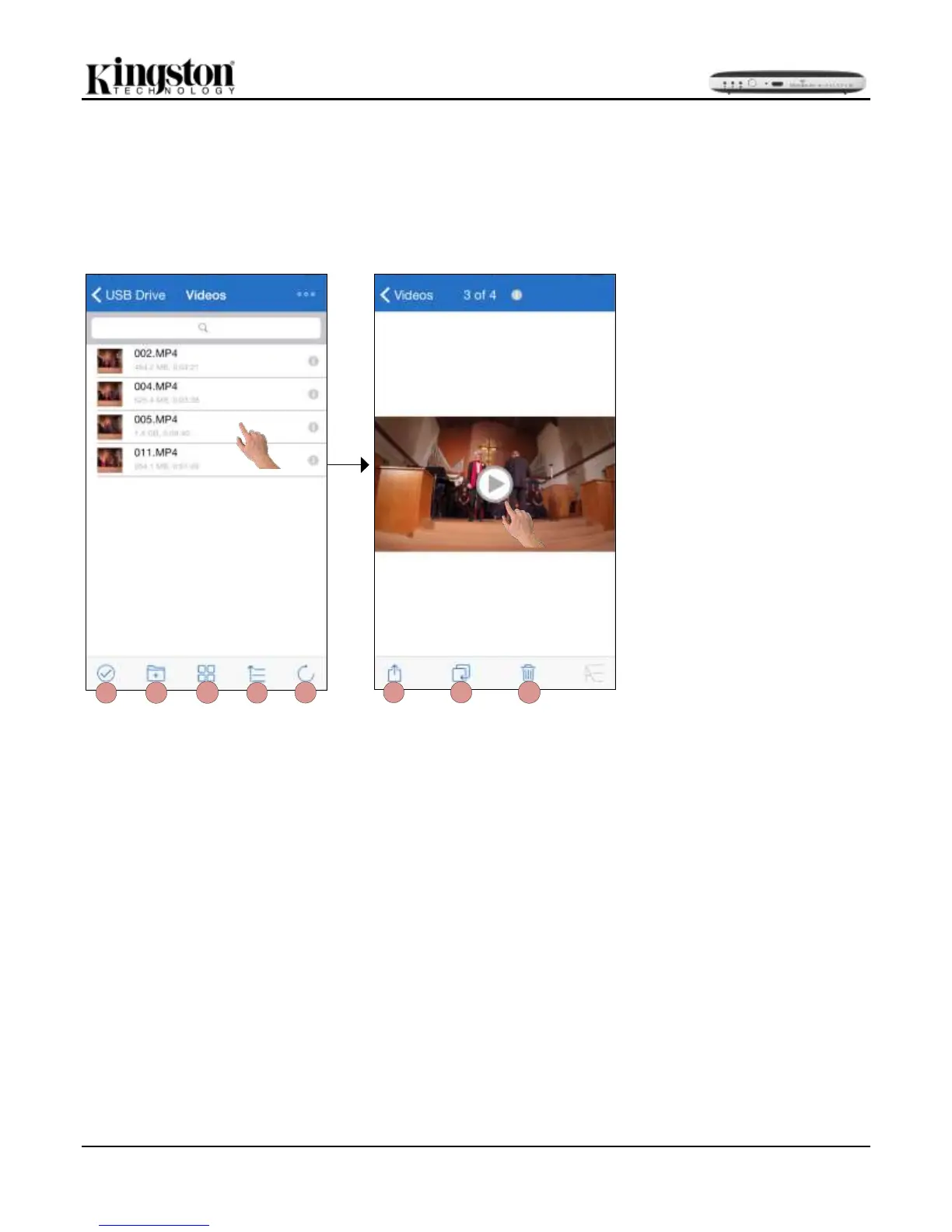
The Kingston MobileLite App allows users to view their videos regardless of whether they are in a plane heading
to a business trip or a good old fashion road trip. Simply begin by tapping on a video file. Upon getting to the
next screen, the user will notice a few options available to them. If the desired task is to watch the video, then
simply selecting the play icon will commence video playback. If the user would rather manage the video file, there
are options available within this screen. See Figure 19.1.
A. Select: Allows user to select
multiple files/folders.
B. New Folder: Allows the user
to create new folders to
organize files
C. View: Changes the current
view to list or thumbnail.
D. Sort: Sorts the files/folders
using Name, Size, Date, or
Type.
E. Refresh: Reloads the
current location.
F. Share: Has the option to
‘Open in’, ‘Email’, ‘Copy
URL’, ‘Play in VLC’, and
‘Camera Roll’.
G. Copy/Move: Will copy or
move the file to the target
location
H. Delete: Permanently deletes
the current file.
Note: Digital rights management (DRM) content is not supported by the Kingston MobileLite App. Apple
has removed the option to play DRM content in the Safari browser with the update to iOS 8. Apple's iOS 7
and iOS 6 still have the option to play DRM content and the MobileLite App will play the files in the Safari
browser.


 To Next Page