Document No. 480-16FUM-002.A00
Kingston MobileLite Wireless G2
Charge Your Smartphone
Battery Backup
In addition to being its own Wi-Fi network, MobileLite Wireless
can also be used as a battery backup.
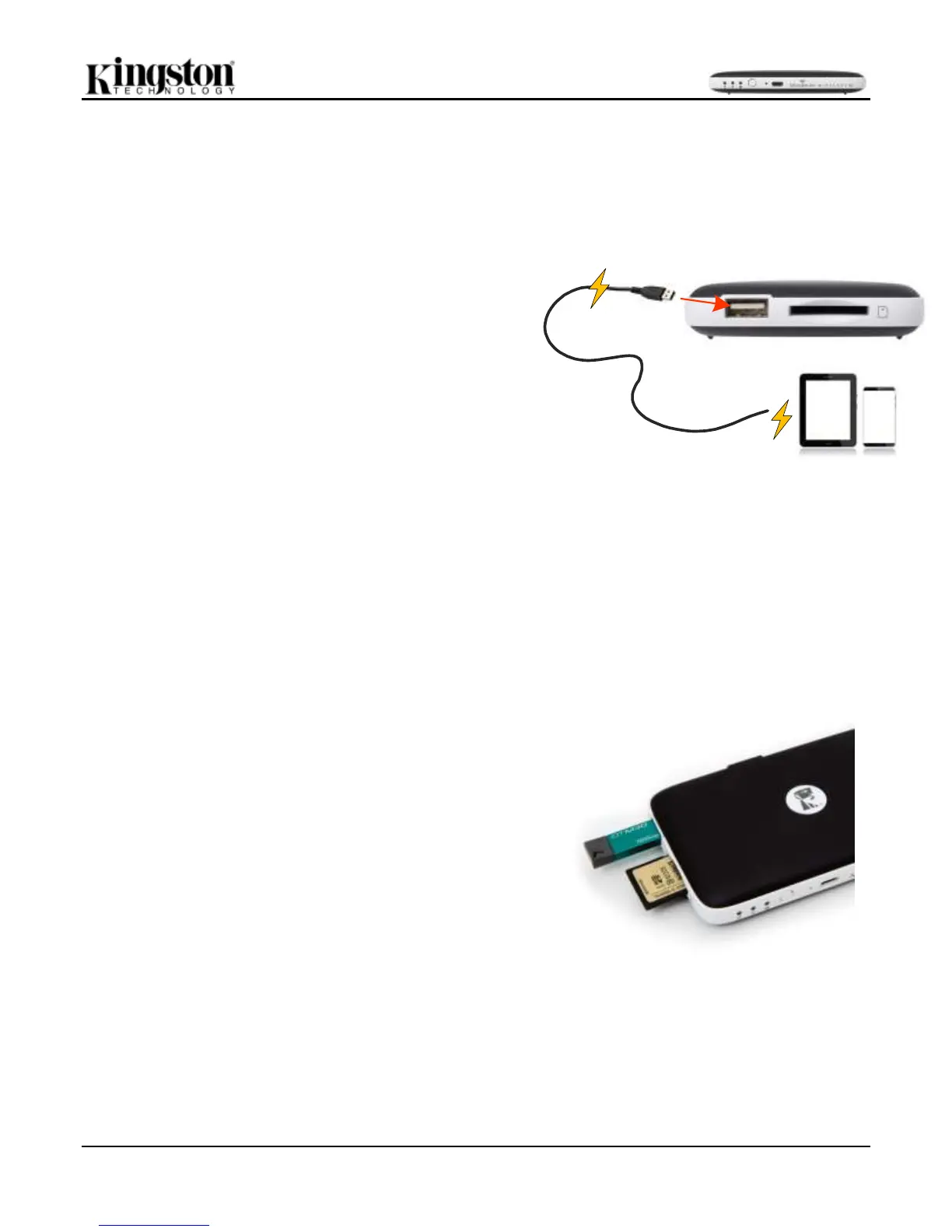
This feature allows you to charge an iOS device using the built-
in USB port.
To use this function, follow these steps:
• If the device is powered on, press and hold the power button
for three seconds or until power LED turns off.
• Attach your mobile device to the USB port on the MobileLite
Wireless G2
(Using the iOS device’s own USB power cable).
• With MobileLite Wireless G2 powered off, press the power
button for 1 second and release; do NOT press and hold the
power button, as this will turn the wireless broadcast function
on.
Once the power LED begins to flash, the unit is ready and the
mobile device should be charging.
Connecting MobileLite Wireless G2 as a Local SD Card/USB Reader
To add content to the MLWG2, you can connect it to a computer using the USB cable that came with the device
(with a card or USB device connected to the MLWG2) or you can copy content directly to a USB, SD, or MicroSD
(using the accompanied adapter) and inserting the media into the appropriate slot on the MLWG2.
When connected to a computer, MLWG2 has to be powered
off, so it can behave like any standard media reader device,
creating a data volume on your PC or Mac for any media type
you have inserted on the MLWG2 (i.e. USB, SD, MicroSD). You
can populate each volume with digital content that you can later
share or access wirelessly via the Kingston MobileLite
Application.
When copying content to the media, it is highly recommended
that you create folders on each volume to help you organize and
quickly locate files each time you update and/or change the
content of MLWG2 (as opposed to dumping all of your files onto
the root volume or into a single folder). For example, you may
want to store all of your music files in a folder called “My Music”,
or keep all of your photos in a separate folder called “My
Pictures”, and so on.
When you are finished loading content, please safely disconnect
the MLWG2 from your computer. This will keep the power of
the device off. To turn it back on, press and hold the power
button for 3 seconds.


 To Next Page