Document No. 480-16FUM-002.A00
Kingston MobileLite Wireless G2
Updating the Firmware on the MLWG2
The MobileLite Wireless Application will check for firmware updates automatically. Firmware updates to the
MLWG2 will add features along with fix any issues encountered after release of the hardware. It is always
recommended to update the firmware to make sure to get the best experience out of the MLWG2.
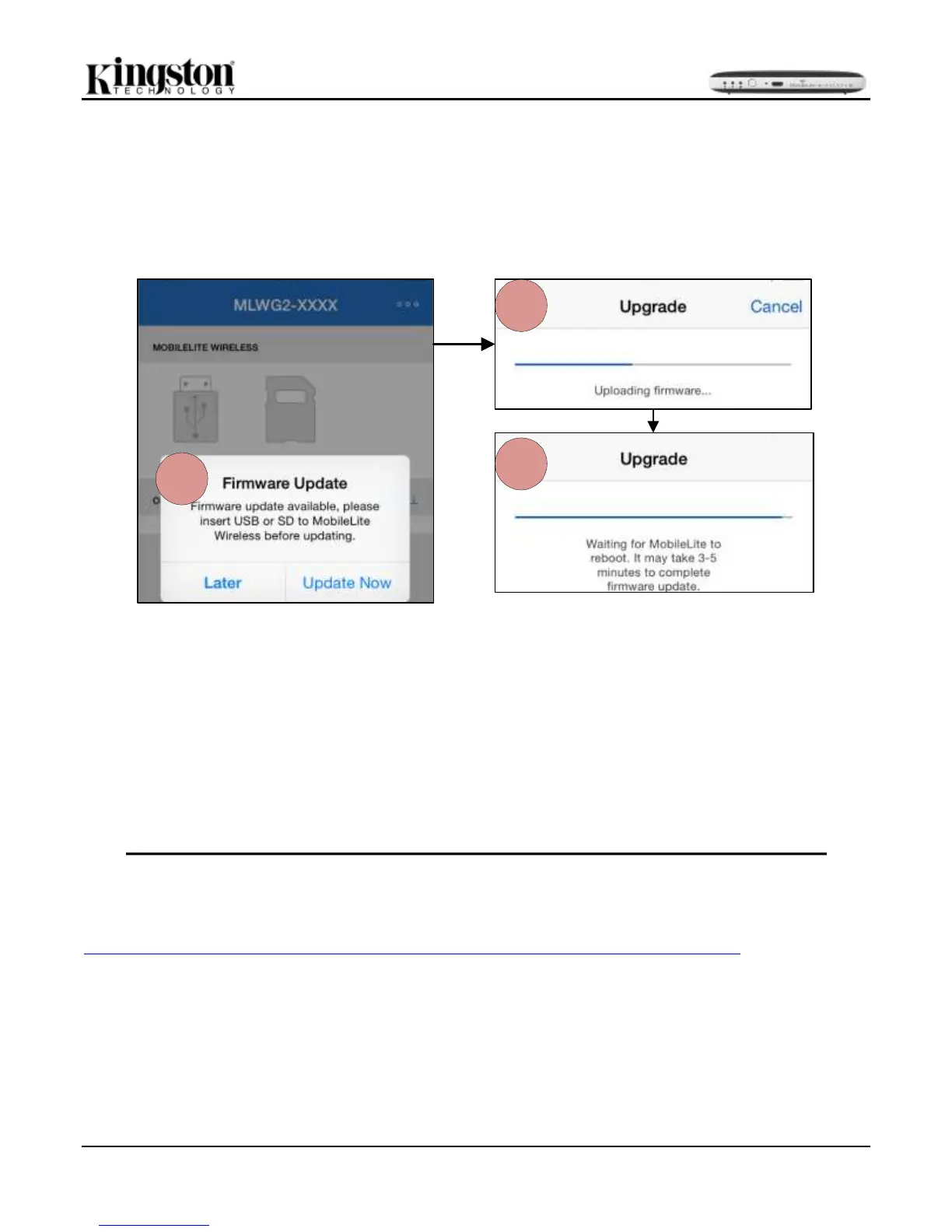
1. The following will appear once the app is refreshed and if a new firmware is available.
Figure 9.1 – Firmware Update
2. If ‘Update Now’ is selected, then the firmware will upload to the USB or SD connected to the MLWG2.
Note: Once the firmware update is complete, the file will be deleted from the USB/SD.
3. Once the firmware is uploaded to the USB or SD, the firmware update will begin. The update takes 3-5
minutes, during which you cannot access the content on the MLWG2.
When the update is complete, the MLWG2 will restart, and the user has to reconnect to the MLWG2.
To check the firmware version, connect to the MLWG2, open the MLW app and select settings.
The firmware update can also be done manually using the Kingston support site to download the file and for
instructions.
http://www.kingston.com/us/support/technical/downloads?product=mlwg2&filename=mlwG2_v2


 To Next Page