Document No. 480-16FUM-002.A00
Kingston MobileLite Wireless G2
Settings and Configuring the MobileLite Wireless G2
Using the Kingston MobileLite App, you can customize the wireless network settings for MobileLite Wireless G2.
The default settings, if nothing was changed during the initial setup, are: Name: MLWG2-XXXX, Auto Shutdown:
Off, Visibility Status: ON, Wireless Channel: 11, and Security (WPA2): Off.
To access the MobileLite Wireless G2 Network Settings, please follow these steps:
1. From the ‘Home screen’, select ‘Menu’
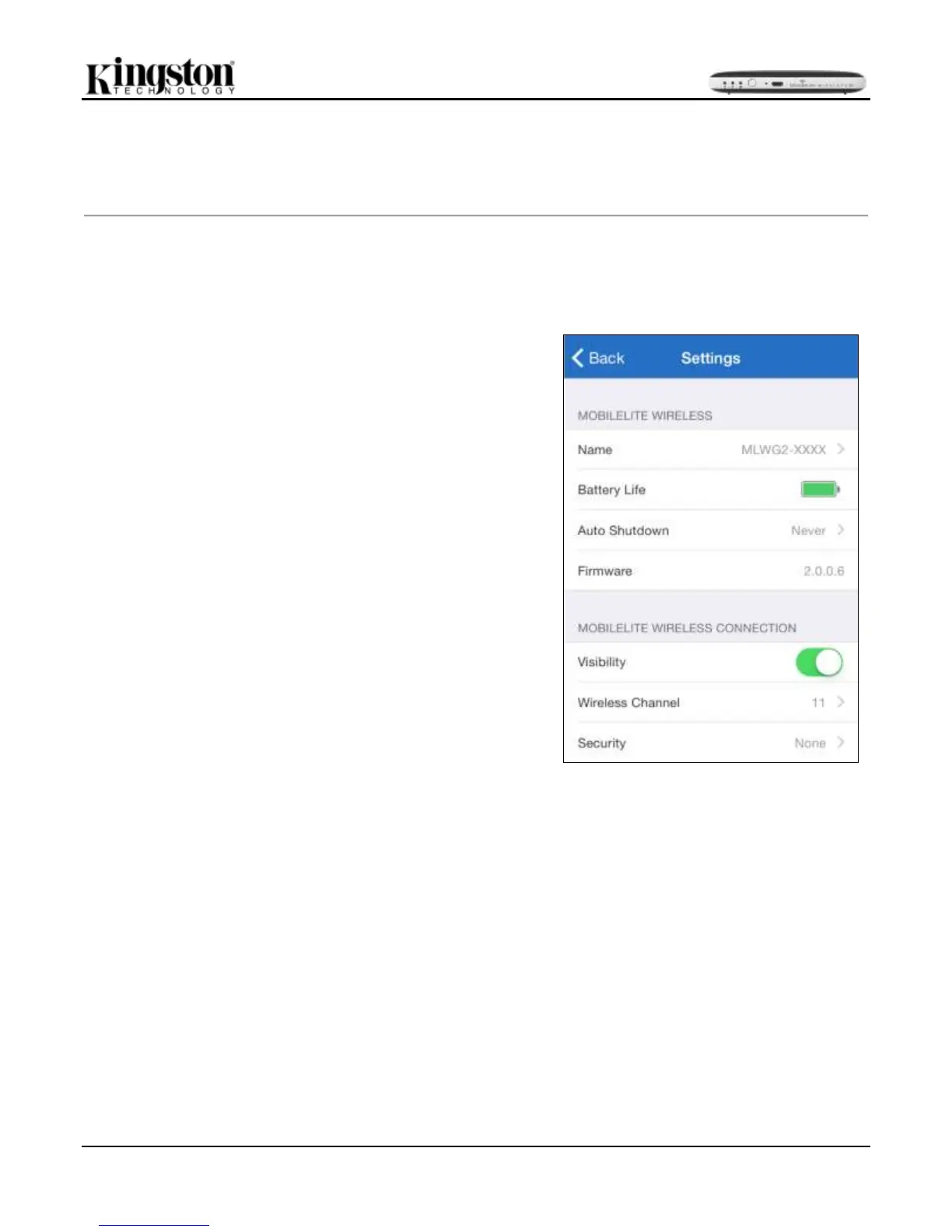
Name – commonly referred to as an SSID, or Service Set
Identifier, this field allows users to specify a device name
(between 1 and 32 characters) that will broadcast in the list
of available wireless networks on your iPad, iPhone, or iPod
touch device. The default name is MLWG2-XXXX as seen
in Figure 23.1
Battery Life - indicates amount of charge left in battery
Auto Shutdown – if enabled, the MLWG2 will
automatically shutdown at the selected time given. (30
Minutes – 300 min)
Firmware – MLWG2 device firmware
Visibility – this gives you the option to hide or unhide the
SSID specified in the ‘Name’ field. By default, the visibility
status is turned ‘ON’. If you wish to turn this feature ‘OFF’,
the device name will NOT be broadcasted
1
in the list of
available wireless networks on your iPad, iPhone, or iPod
touch device; however, you can still join the Wi-Fi network
by entering the device name manually using the menu
option, ‘Other…’.
Wireless Channel – this setting allows you to select a
specific frequency channel used to communicate with other
devices on your wireless network. The default setting is
Channel 11 (2.462 GHz.)
Security (WPA2) – this option helps prevent unauthorized
access to your MobileLite Wireless G2 device by prompting
users for a password. Simply enter a password in the
'Password' field and confirm it by re-typing it in the 'Confirm
Password' field and tap the 'Done' button to save the
MobileLite Wireless G2 settings.
Figure 23.1 – MobileLite G2 Wireless
Network Settings
1
If the visibility status has been turned off, you can still join the MobileLite Wireless G2 network by entering the SSID manually on your iPad,
iPhone, or iPod touch, as long as you know the ‘Name’ (SSID). Please note that a password will be required if the security option is enabled.


 To Next Page