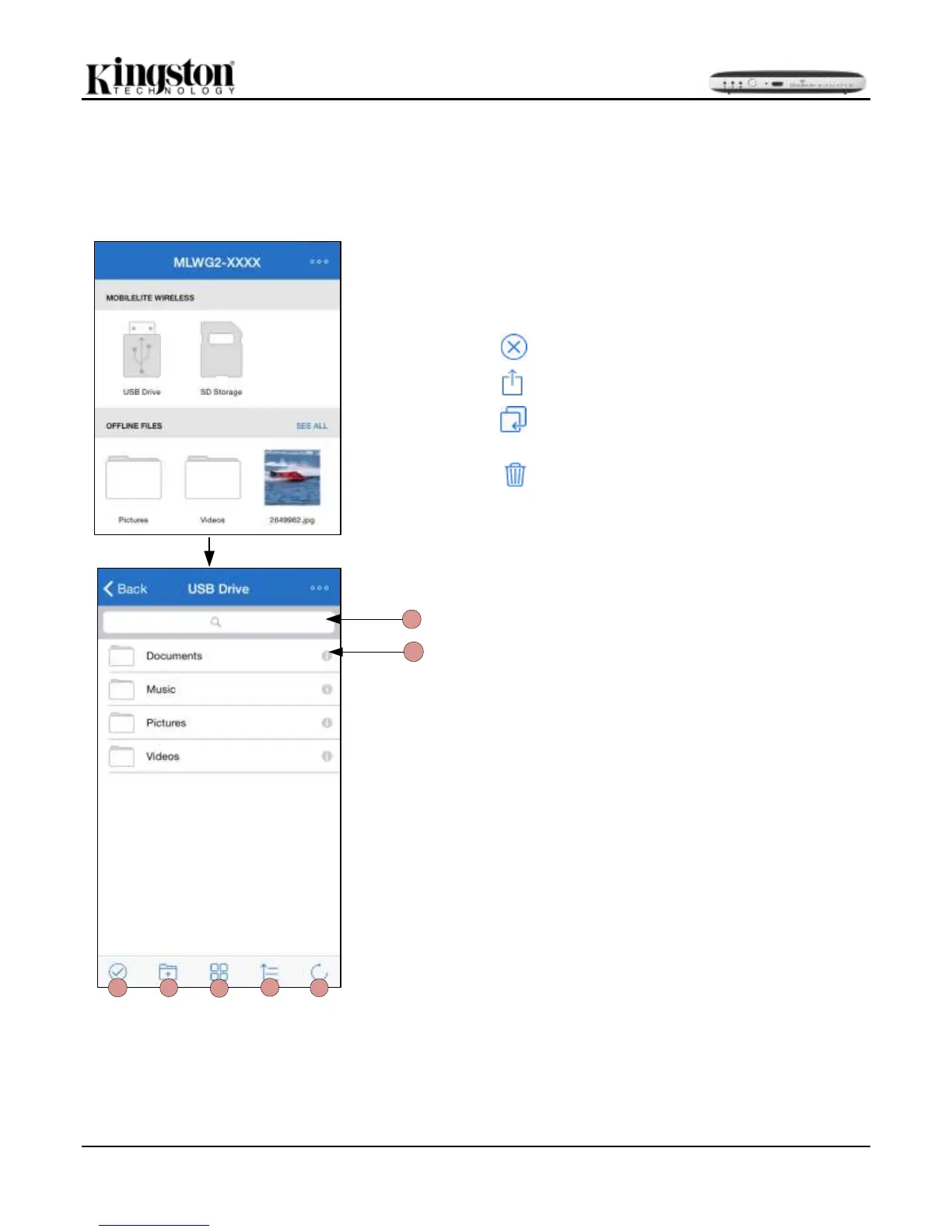
content. To get started, simply tap on ‘See All’; doing so will enable various options to get you started. See
Figure 18.1.
Options once a media device (USB/SD) is selected
A. Select: This option allows the user to select file(s) and will
also enable the following options below:
- Cancel selection
- Enables share options
- Copy/Move file/folder(s)
to another location
- Delete the selected file(s)
B. New Folder: Allows the user to create new folders to
organize files
C. View: Will switch from list view to thumbnail view
D. Sort: Will allow the user to the sort the photos based on
Name, size, date or file type
E. Refresh: Reloads the user’s page in case any changes
that were made are not reflected
F. Search: By default, the search bar is not visible. The user
can display the search bar by dragging the page down
G. Info: Displays file properties and Metadata. This is also
where the user can change the file/folder name
Note: Attempting to open unsupported file types will direct the
user to the file’s Info page. If the file is tagged with Metadata,
the information such as file name, type, size, date created,
date modified, and storage location will be available to the
user. See page 20 for more options with unsupported video
files


 To Next Page