Document No. 480WD+MLW.ß01 Kingston MobileLite Wireless (ßeta) Page 4 of 12
Getting to Know MobileLite Wireless
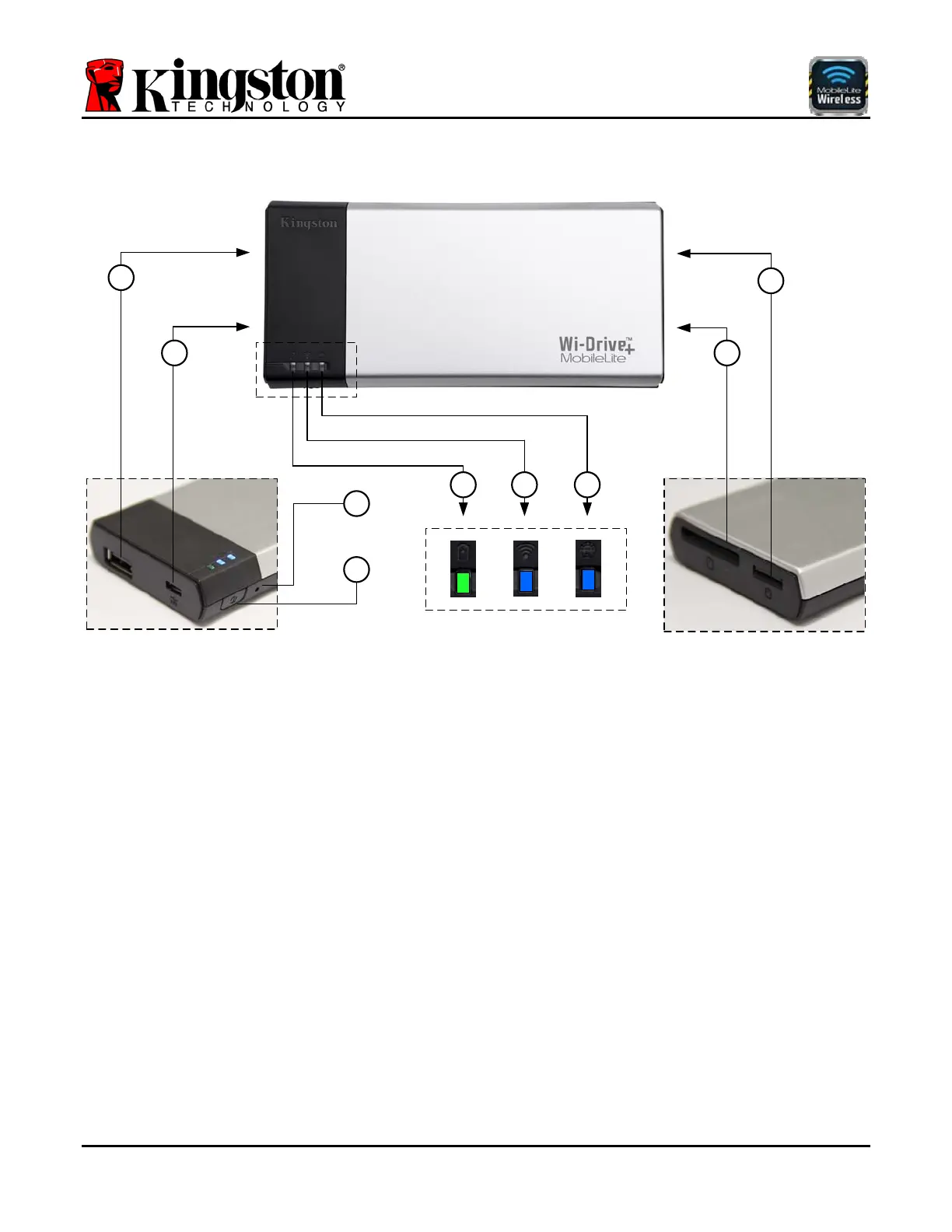
A
B
I
H
D
C
E F G
A. USB 2.0 Port - Allows you to expand the storage capacity of MobileLite Wireless by connecting an external
USB storage device.
B. Mini-B USB Port - Allows you to charge Wi-Drive+ or connect it to a standard USB port for fast, easy data
transfer. Each media expansion port will require its own drive letter if media is inserted.
C. Pwr Button - Powers on or powers off the MobileLite Wireless device (requires a press and hold for 3
seconds.)
D. Reset Button - Allow you to reset the MobileLite Wireless device back to its original (default) configuration.
E. Battery LED/Power* - Indicates current battery status and current power state.
F. WiFi LED - Indicates current status of WiFi broadcast
G. Bridged LED - Indicates whether or not Wi-Drive+ is bridged to an Internet gateway.
H. SD Slot - Allows you to expand the storage capacity of Wi-Drive+ by inserting a compatible SD card.
I. MicroSD Slot - Expands the storage capacity of Wi-Drive+ by inserting a compatible MicroSD card.
*
The battery LED also indicates how much battery time is left while the MobileLite Wireless is powered on. Green indicates 51% - 100%
battery charge remaining; amber indicates 25% - 50% battery charge remaining; and red indicates less than 25% or less battery charge
remaining.



 To Next Page