4 5
Pairing to a wireless device
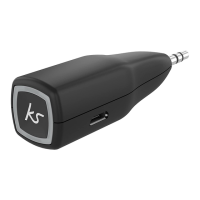
Before you can use the MyJack wirelessly, it will need to be paired to your device.
1. Press and hold the MFB (1) for 6 seconds. This will turn the MyJack on and will
automatically enter pairing mode. The MFB (1) will then ash red and blue to indicate
it’s in pairing mode
2. Turn your device’s Bluetooth
®
ON and search for new devices
3. Select ‘KS MyJack’ from the list of found devices
4. If asked for a passcode, enter ‘0000’and the MyJack will then be paired with your device
5. The MyJack will automatically pair to the last device it connected to when turned on
Note: ‘Bluetooth’ is a trademark of Bluetooth SIG, Inc. This product is in no way aliated
with or endorsed by Bluetooth SIG Inc.
Note: Pairing mode will be active for 3 minutes. After this, the light will slowly ash blue.
To re-activate pairing mode, turn the MyJack o and follow the instructions as above.
Please note you can have two devices paired to the KS MyJack at any time.
Instructions for use
Getting started
• To turn the MyJack on/o, press and hold the MFB (1) for 3 seconds
• The MyJack will turn o automatically if not active for 10 minutes
Charging
Note: It is recommended that you give the MyJack a full charge before its rst use.
1. Plug the micro USB end of the charge cable into the MyJack micro USB charge port (2)
2. Plug the standard USB end into a computer or a USB mains charger
3. The MFB (1) will be solid red whilst charging
4. When charging is complete, the MFB (1) will be solid blue
Note: It is recommended that you give the MyJack a full charge before its rst use.



 To Next Page