261
9.22 QR Code
• A Quadratic Response Code is a machine-readable optical label that contains information about the item
to which it is attached. They have become quite commonplace in product advertising. One can download
free apps for smart phones and tablets to scan these codes with a camera to obtain that additional item of
information about the product. For example, if a web site link is encoded, then the app will pop up that link
and you can then click on it to be taken to the web site.
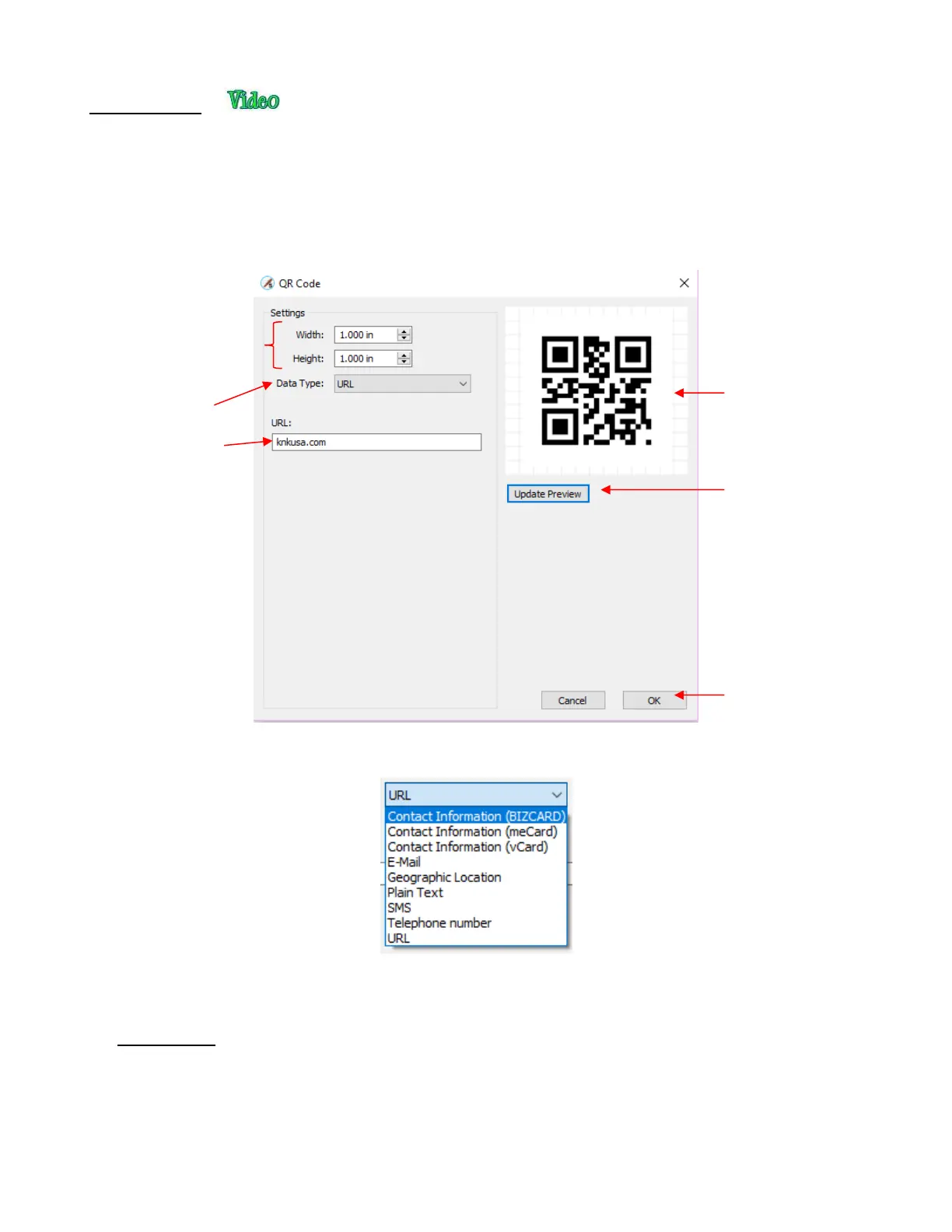
• SCAL offers the ability to create a QR code. Go to Effects>QR Code and the following window will open:
• Enter the dimensions for the code and select the Data Type, which includes the following options:
• Each Data Type has its own specific fields to complete. In some cases, like the URL option, there is only
one field. In a case such as the Contact Information options, more data fields are provided.
• IMPORTANT! Once data is entered, you must click on Update Preview to generate the correct QR code.
Note that if you have a QR code app on your phone you can launch it, hold the phone up to your monitor so
that the camera can scan the code, and immediately verify that the information you entered correctly
appears.
• After clicking on OK, the QR code appears on the Cutting Mat. It can now be used as needed, including
being exported in any of the available file formats.


 To Next Page