KLIM Impact User Manual www.klimtechs.com
MacOS
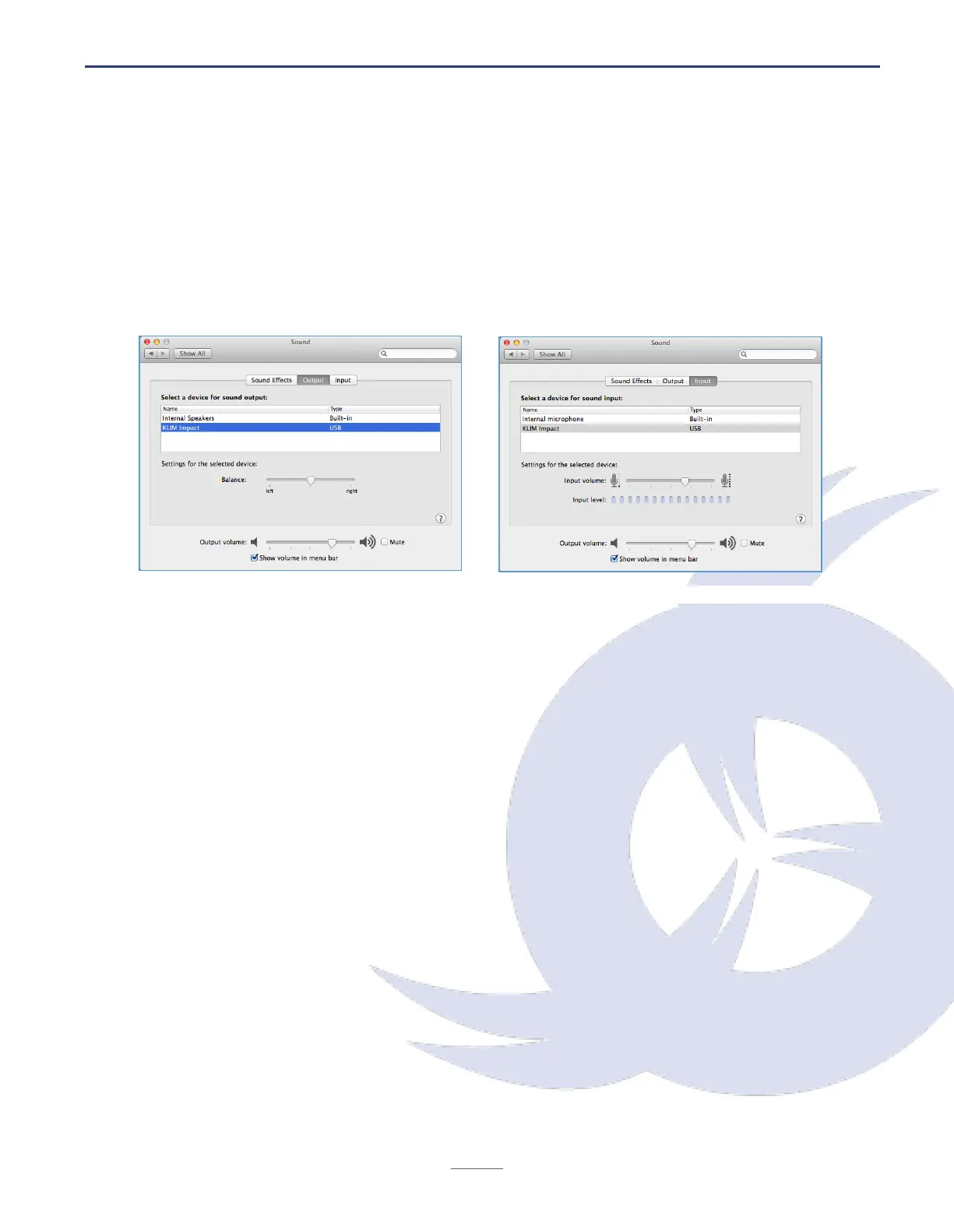
1. Access your System Preferences > Sound. Go to the Output tab and select the KLIM
Impact headset from the list. Use the slider to adjust the volume.
2. In the same menu, click on the Input tab and select the KLIM Impact microphone
from the list. Adjust the volume using the Input volume slider until the Input level
bar fills up when you speak into it.
PS4
1. With the headset unplugged, access the Settings screen of the PS4.
2. Access the Devices menu.
3. Access the Audio Devices menu.
4. Once you are in that menu, plug in your headset to a USB port on your PS4.
5. The PS4 should recognize the headset. If they are not selected automatically, you may
select them under Input device and Output device.
6. Under Output to Headphones, select whether you want All Audio or Chat Only to come
out of the speakers.
7. You may now adjust the volume of the earphones (Headphones Volume slider) and
microphone (Adjust Microphone level).
8. Your headset is ready to be used on the PS4.
When in a Party, remember to set up the Audio Mix under Party Settings to control the
balance between game and party chat volume.
1. Sound Settings > Output screen
2. Sound Settings > Input screen


 To Next Page