1
ENGLISH
PRODUCT SPECIFICATIONS
- Dimensions:
- Weight:
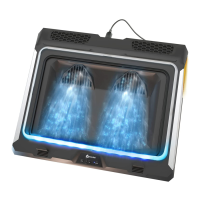
- Fan dimensions:
- Maximum fan speed:
- Fan noise:
- Current:
- Voltage:
- Power connection:
- Compatibility:
- Material:
425 x 315 x 43 mm
960 g
200 x 200 x 18 mm
750 ± 10% RPM
23 dB
1.3 A
5 V
USB cable
10 to 17 inch laptops
Plastic & metal grid
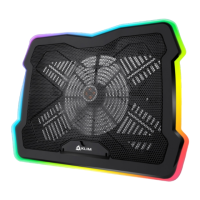
Thank you for acquiring our KLIM Ultimate laptop cooler! We hope that you enjoy
this product and that it helps you keep your laptop at an optimal temperature.
If you need any help or if you simply want to share your feedback, please contact
us at support@klimtechnologies.com. Our specialists reply within 24 hours!
THANK YOU! COLORS & EFFECTS
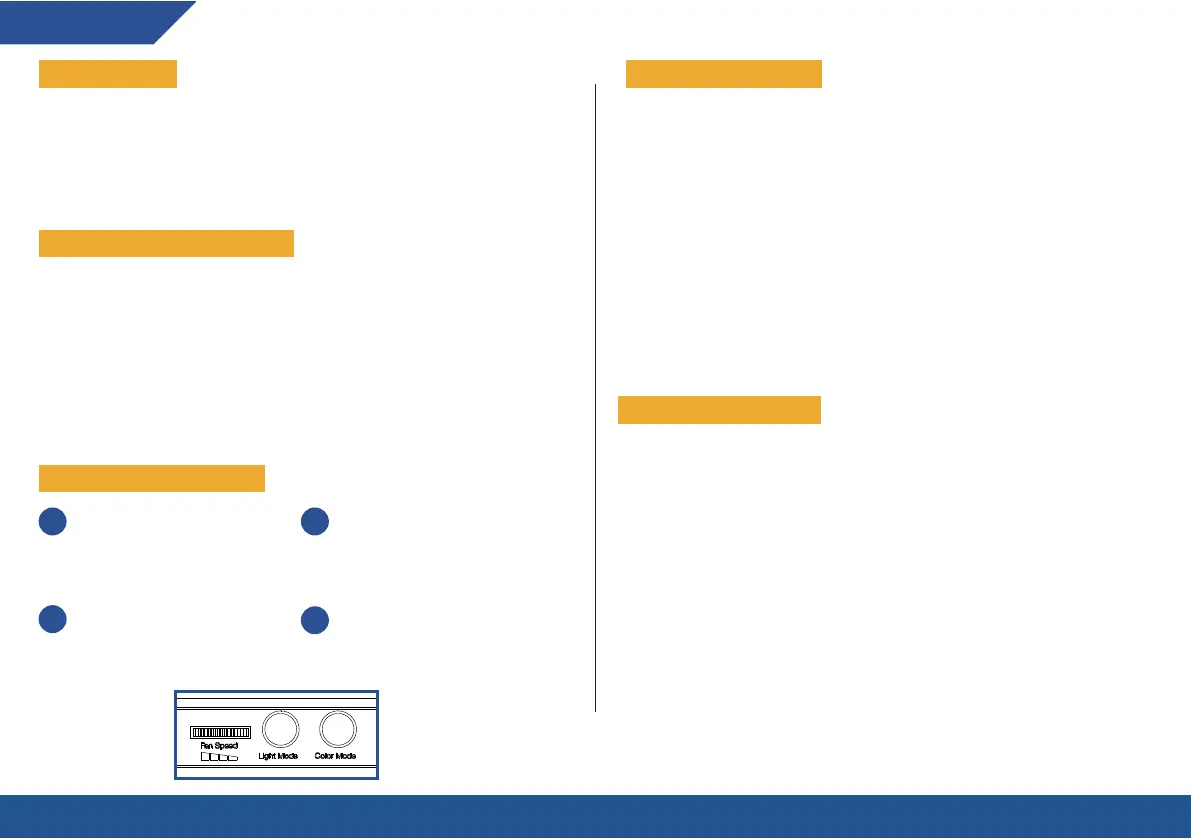
Press the Light Mode button to switch between lighting patterns.
Press the Color Mode button to switch colors, cycling through red, yellow, green,
turquoise, blue, white and purple (available modes only).
The available effects are explained below:
Quick transition: colors change in quick succession. In this mode, the color Mode
button is disabled.
Slow transition: 7 colors transition slowly. Press Color Mode while a specific color is
being shown to “lock” the color. Press it again to unlock it and return to Slow
transition mode.
Breathing mode: lighting turns on and off in a rhythmic pattern
Flashing mode: colors will flash on and off at a quicker rhythm
Solid color mode: only 4 colors will be displayed in this mode (red, blue, white and
green). Press Color Mode to switch between these 4 colors.
INSTALLATION AND USE
Set your preferred inclination by
inserting the bracket in the slots.
Check that both sides are at the
same level.
Place the laptop on the cooling
pad and connect the USB cable to
the cooling pad and laptop. If
needed, lift the frontal tab to keep
it in place.
221
3
Turn the speed dial behind the
cooler to activate the fan and
control its speed.
4
Use the Light Mode and Color
Mode buttons to adjust the colors
and effects of the RGB rim.
The fan has stopped working
1. Check that the fan speed dial is turned all the way.
2. Try connecting the cable to another USB port on your computer or to a wall outlet.
The lights have stopped working
1. Try connecting the cable to another USB port on your computer or to a wall outlet.
The fan makes too much noise
1. Check for dust or debris inside the unit.
2. Clean the fan with an air spray or vacuum cleaner.
TROUBLESHOOTING


 To Next Page