
 Need help?
Do you have a question about the Klipsch G-17 Air and is the answer not in the manual?
Welcome message, reminder to note network name/password, web setup option, and iOS app recommendation.
Details iTunes and iOS version requirements for AirPlay functionality.
Disconnect internet, connect unit, observe LED status.
Press and hold Wireless Button until LED turns purple.
Open utility, find Klipsch G-17 Air Setup, click connect.
Open browser and enter IP address http://192.168.1.12.
Change device name, select SSID, enter password, and apply.
Verify LED status, reconnect devices to home network, reconnect internet cable.
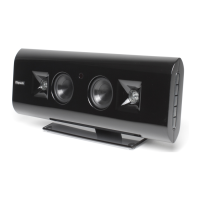
The Klipsch Gallery G-17 Air is a wireless network audio system designed to stream music wirelessly from various devices. Its primary function is to provide high-quality audio playback through a wireless connection, leveraging Apple's AirPlay technology. This allows users to enjoy their music library from a Mac, PC, or iOS device without the need for physical cables connecting the source to the speaker system.
The G-17 Air acts as a receiver and speaker for audio streamed over a wireless network. It integrates seamlessly into an existing home Wi-Fi network, enabling users to play music from iTunes on a computer or directly from an iOS device such as an iPhone, iPod touch, or iPad. The system is designed for ease of setup and use, aiming to provide a straightforward way to bring wireless audio into any room.
At its core, the G-17 Air utilizes AirPlay, a technology developed by Apple, to receive audio streams. This means that any device capable of running iTunes 10.1 or later, or an iOS device with iOS 4.2 or later, can serve as a source for the G-17 Air. The system is engineered to deliver the audio with clarity and fidelity, consistent with Klipsch's reputation for sound quality. The wireless connectivity eliminates the clutter of cables, offering a clean and flexible audio solution for modern living spaces.
Setting up the Klipsch Gallery G-17 Air involves a few key steps, whether you're using a computer (Mac or PC) or an iOS device. The recommended setup for iOS devices involves downloading the Klipsch Air app from the Apple App Store, which simplifies the configuration process. For computer-based setup, the process typically involves connecting the G-17 Air to your computer temporarily to configure its network settings, and then reconnecting your computer to your home network.
The initial setup phase requires users to identify their wireless network's name (SSID) and password. This information is crucial for the G-17 Air to join the home Wi-Fi network. The device features a Wireless Button with an LED indicator that changes color to signal different operational states, such as red for initial power-up, rapidly blinking blue for network search, slowly blinking blue for ready-to-connect, purple for configuration mode, and solid blue for a successful connection to the home network.
To initiate the setup, the internet cable (if connected) should be disconnected from the computer. Once the G-17 Air is plugged in, its Wireless Button LED will cycle through red, then rapidly blinking blue, and finally slowly blinking blue, indicating it's ready for the next step. Pushing and holding the Wireless Button until the LED turns purple puts the device into connect mode, where it will rapidly flash purple for about 30 seconds before slowly flashing purple.
During the configuration, users will open their computer's wireless connection utility to find and select "Klipsch G-17 Air Setup" from the list of available networks. Once connected, the LED on the G-17 Air will turn solid purple. At this point, users open a web browser and enter a specific IP address (e.g., http://192.168.1.12) into the address bar to access the G-17 Air's configuration page.
On the configuration page, users can customize the device's name, which is helpful for identifying it among other AirPlay devices. After applying the name change, they navigate to the "Network Configuration" section. Here, they select their home wireless network (SSID) from a drop-down list and enter the corresponding password if the network is protected. Confirming these settings will prompt a warning dialog box, which users acknowledge by clicking "OK."
After the network settings are applied, the G-17 Air's wireless LED will blink blue once, turn red for two seconds, and then the unit will restart. It will then flash blue rapidly, then slowly, and finally turn solid blue once it successfully connects to the home router. It's important to reconnect the setup device (computer or iOS device) to the home wireless network if it doesn't automatically do so. If an internet cable was disconnected from the computer, it should be reconnected at this stage.
Once the G-17 Air is successfully connected to the home network and the source device (Mac, PC, or iOS device) is also on the same network, AirPlay streaming can begin. Users can then select the G-17 Air as their audio output device within iTunes or from the AirPlay menu on their iOS device. The system supports various iOS devices, including iPhone 3G, 3GS, 4, iPod touch 2nd, 3rd, and 4th generation, as well as iPad and iPad 2. For optimal performance, it is recommended to update both iOS and iTunes to their latest versions.
The G-17 Air is designed to be a plug-and-play solution once configured. Its wireless nature allows for flexible placement within a room, as long as it's within range of the home Wi-Fi network. The system's aesthetic design is intended to blend into various home decors, offering a sleek and unobtrusive presence while delivering powerful sound.
The Klipsch Gallery G-17 Air is designed for minimal maintenance. As an electronic audio device, it primarily requires a stable power source and a reliable wireless network connection to function optimally. There are no user-serviceable parts inside the unit, and it is not intended for disassembly.
Regular maintenance typically involves keeping the unit clean. Dusting the exterior with a soft, dry cloth is usually sufficient to maintain its appearance. Avoid using liquid cleaners, aerosols, or abrasive materials, as these could damage the finish or internal components. Ensure that the ventilation openings, if any, are not obstructed to prevent overheating.
Software updates, particularly for the source devices (iTunes and iOS), are crucial for maintaining compatibility and optimal performance with AirPlay. Klipsch recommends keeping these software components up to date to ensure the best possible user experience and to benefit from any improvements or bug fixes related to AirPlay functionality. While the manual does not explicitly detail firmware updates for the G-17 Air itself, it is generally good practice for network-connected devices to have access to such updates, which would typically be managed through the device's web-based configuration interface if available.
In case of connectivity issues, troubleshooting often involves checking the home wireless network, ensuring the G-17 Air is within range of the router, and verifying that the network password has not changed. Restarting the G-17 Air, the wireless router, and the source device can often resolve minor connectivity glitches. If persistent issues arise, re-running the setup process as detailed in the quick start guide can help re-establish the connection.
The G-17 Air is built to be a durable audio component, and with proper care, it should provide many years of wireless music enjoyment. Its design focuses on delivering a high-quality audio experience with the convenience of wireless streaming, making it a low-maintenance addition to a home entertainment system.
 General
| Bass reflex | Yes |
|---|---|
| Product color | Black |
| Recommended usage | Universal |
| Suitable for outdoor use | - |
| Speaker enclosure | Reflex |
| Speaker placement | Tabletop/bookshelf, Wall-mountable |
| Audio output channels | 1.0 channels |
| Number of tweeter drivers | 2 |
| Woofer diameter (imperial) | 2.5 \ |
| Tweeter diameter (imperial) | 1 \ |
| Subwoofer driver diameter (imperial) | - \ |
| Amplifier output power | 60 W |
| Impedance | - Ω |
| Sensitivity | 102 dB |
| Frequency range | 57 - 23000 Hz |
| Crossover frequency | 3000 Hz |
| USB 2.0 ports quantity | 1 |
| Connectivity technology | Wired |
 Weight and Dimensions
| Depth | 88.8 mm |
|---|---|
| Width | 428.6 mm |
| Height | 152.3 mm |
| Weight | 3401 g |
| Depth (with stand) | 101.6 mm |
| Height (with stand) | 177.7 mm |





 To Next Page