The KOAMTAC KDC280NA QG is a Bluetooth barcode scanner designed for efficient data collection, supporting both 1D Laser/CCD and 2D Imager barcode types, with Bluetooth Low Energy (BLE) v5.0 connectivity. This quick guide provides essential information for setting up and using the device, including pairing, basic operation, and advanced features like social distancing.
Function Description
The KDC280NA QG acts as a portable data collector that can connect to various smart devices (Android, iOS, Mac, Windows) via Bluetooth. Its primary function is to scan barcodes and transmit the data to a host device or application. The device supports different Bluetooth profiles, including Human Interface Device (HID) for one-way data transmission directly into applications, and Serial Port Profile (SPP) for two-way communication, often used with the KOAMTAC KTSync® application or custom SDK-integrated applications. For Windows PCs, a dedicated HID Windows Profile is available.
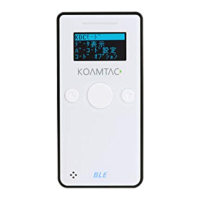
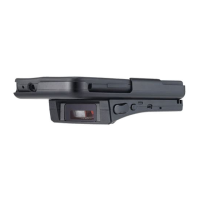
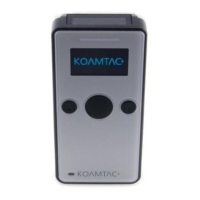
The scanner is equipped with a Scan Window, an OLED Display for visual feedback, a Green/Red/Orange LED for status indications, and physical buttons including SCAN, UP, and DOWN for navigation and operation. A Micro USB Port is provided for charging and data transfer. The device's main label on the back includes the model name and serial number, which are crucial for identification during pairing and troubleshooting.
Usage Features
Turning On and Off: To power on the KDC280NA QG, users simultaneously press and hold the SCAN and DOWN buttons for 3 seconds. The device will emit a beep to confirm it's on. The same action is performed to turn the device off.
Bluetooth Pairing: The KDC280NA QG offers multiple methods for Bluetooth pairing.
- Special Barcodes: Users can scan specific pairing barcodes corresponding to their desired Bluetooth profile (HID-BLE for Android, iOS, Mac; HID-Windows for Windows; SPP-BLE for Android, iOS, Mac, Windows). After scanning, the KDC280NA QG appears in the host device's Bluetooth settings, where it can be selected. For HID profiles, the device will beep and display "BLE HID Connected" upon successful connection. For SPP, the device displays "BLE SPP Connected," but further connection within KTSync or a custom application is required.
- NFC Pairing (Android Only): For Android devices, pairing is simplified by enabling NFC on both the host device and the KDC280NA QG (via KDC MENU → BLE Config → NFC Pairing). Users then select the desired pairing profile (HID or SPP) through the KDC menu (KDC MENU → BT Config → Connect Device) or by scanning a specific barcode. Finally, approaching the KDC to the NFC area of the host device completes the pairing.
- Keyboard Wedge (HID Keyboard): When paired via HID profile, the KDC280NA QG acts as a keyboard. Scanned barcode data is directly input into any text field on the host device, eliminating the need for additional software.
- KTSync Application (Android/iOS): For SPP connections, the KOAMTAC KTSync® app (available on Google Play Store and Apple App Store) is used. Users open KTSync, tap "Connect," and select their KDC280NA QG from the list of available devices. Once connected, KTSync displays "Connected" and shows scanned barcode data on its screen.
- KTSync Keyboard (Android/iOS): KTSync also offers a keyboard functionality. On Android, users enable "KTSync Keyboard" in device settings (Settings > Language & Input > Virtual Keyboard > Manage keyboards) and set it as the default. On iOS, users add "KTSyncKeyboard" in settings (Settings > General > Keyboard > Keyboards > Add New Keyboard) and grant full access. Once enabled and selected as the active keyboard, scanned data is input directly into applications.
- SDK-Developed Applications: For more customized solutions, KOAMTAC provides a Software Development Kit (SDK) for Android and iOS. This allows developers to integrate the KDC280NA QG's functionality seamlessly into their own applications, enabling advanced data handling and workflows. The SDK includes libraries, documentation, and sample applications.
Social Distancing Feature: This advanced feature helps maintain social distance among users, particularly relevant in environments requiring such measures.
- Functionality: The KDC280NA QG can detect other KDC devices within a specified distance range and provide alerts.
- Configuration: Settings can be adjusted via the KDC menu (KDC BLE Config → Social Dist.), by scanning special Social Distance barcodes, or through the KTSync application (KDC Menu → Social Distance Finding).
- Parameters: Configurable parameters include:
- Distance: Sets the acceptable social distance range (1 to 10 meters).
- Host Alert: Forwards distance alerts to the connected host device.
- KDC Alert: Enables/disables audible beeps, vibrations, and data storage for distance violations on the KDC itself.
- Security Key: Allows devices to detect only other KDCs using the same key, enhancing privacy and control. Options include Disabled, Fixed Key (predefined), or Custom Key (set via KTSync).
- Alerts: When a social distance violation occurs, users may receive:
- A warning on the KDC's OLED display, accompanied by a beep/vibration if enabled.
- A pop-up alert in KTSync on the host device, showing the KDC's serial number, date/time of violation, the detected KDC's serial number, and the distance.
- An email alert if "Enable Email Sending" is configured, providing similar violation details.
Maintenance Features
The KDC280NA QG is designed for ease of use and durability. While the quick guide doesn't detail specific maintenance steps, the general design suggests a focus on user-friendliness. The presence of a Micro USB Port indicates standard charging capabilities, likely compatible with common USB power sources. The device's robust build, as implied by its function as a portable data collector, suggests it's built to withstand daily use in various environments. For more detailed maintenance information, users are directed to the full Reference Manual and the KOAMTAC website, where additional products and accessories can also be purchased. This implies that KOAMTAC offers support and resources for keeping the device in optimal condition.

 Need help?
 General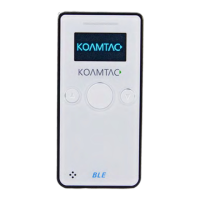

 To Next Page