EasyManua.ls Logo

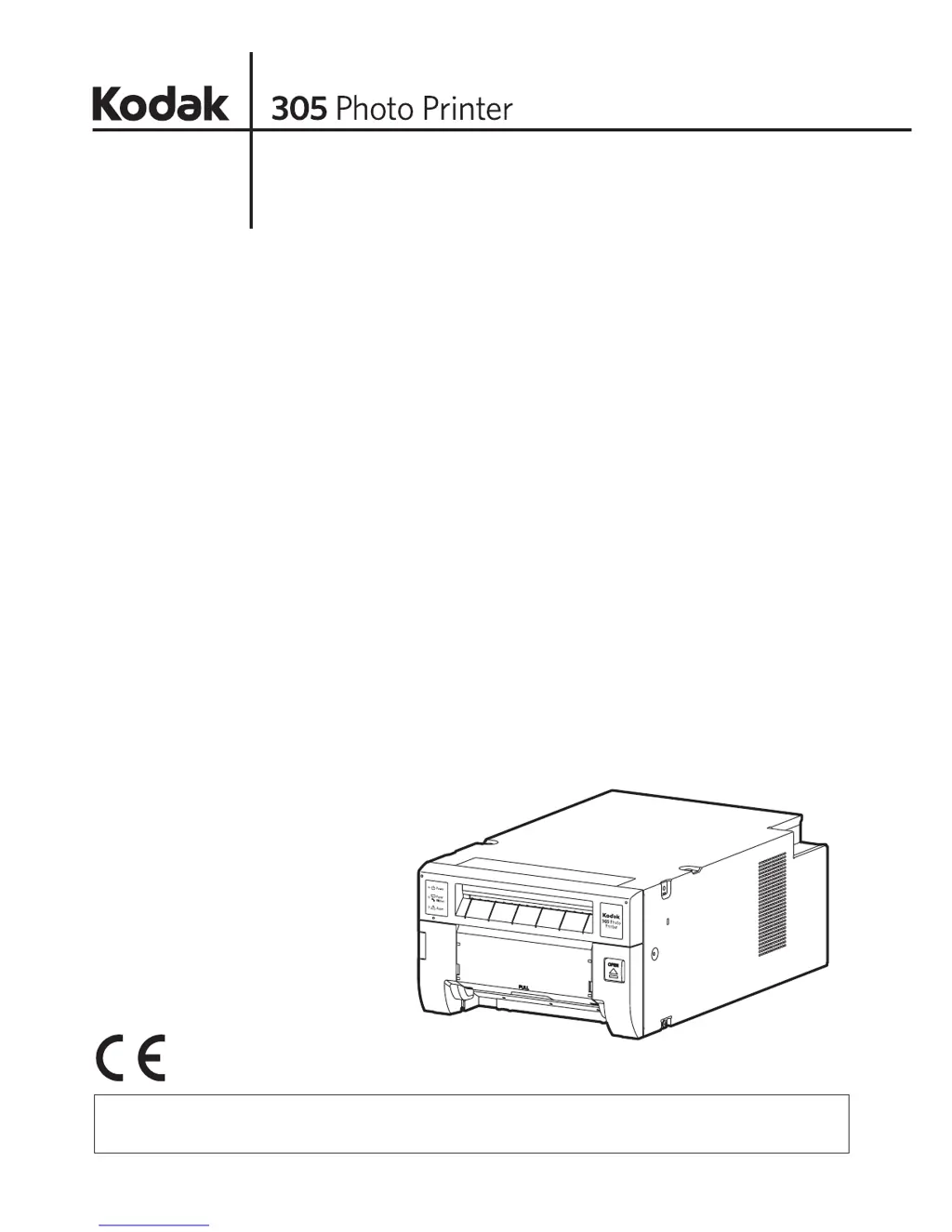
Kodak 305 - User Manual

Kodak 305
26 pages
Print Icon
To Next Page IconTo Next Page
Loading...
User’s Guide
Hereby, EASTMAN KODAK COMPANY, declares that this Digital Photo Printer is in compliance
with the essential requirements and other relevant provisions of Directive 1999/5/EC.

Other manuals for Kodak 305

Questions and Answers

  • K
    Katherine FosterAug 19, 2025
    How to fix Kodak 305 not connected?
    • S
      Sara AdamsAug 20, 2025
      If the Kodak printer is not connecting, it may be because the printer driver cannot connect to the printer. Ensure that the printer power is on and that the printer is connected to your computer.
  • M
    Matthew FoxAug 21, 2025
    What to do if my Kodak 305 has a paper jam?
    • J
      Judith DennisAug 22, 2025
      If your Kodak printer indicates a paper jam, check the operator control panel for additional information and clear the paper jam.
  • V
    veronicagonzalezAug 25, 2025
    What does 'Paper end' mean on Kodak printer?
    • J
      Jennifer FranklinAug 25, 2025
      If your Kodak printer indicates 'Paper end,' it means the printer is out of paper. Load paper into the printer.
  • A
    Adrian ClarkAug 26, 2025
    Why does my Kodak 305 Printer say 'Paper empty'?
    • C
      Casey Miranda DVMAug 26, 2025
      If your Kodak printer displays 'Paper empty,' it means the printer is out of paper, partially loaded, or ran out of paper while loading. Load paper or check that the paper is installed properly.
  • A
    Andrew GreenAug 27, 2025
    What to do if Kodak printer was turned off while printing?
    • W
      William KimAug 28, 2025
      If the Kodak printer was turned off during printing, move the power switch for the printer to the on ( | ) position.
  • H
    hodgesseanAug 29, 2025
    Why is the ribbon not correctly installed in Kodak printer?
    • R
      Robert HancockAug 30, 2025
      If the ribbon is not correctly installed in your Kodak printer, it may be due to the ribbon being out of ribbon or partially loaded. Load ribbon or check that the ribbon is installed properly.
  • M
    Michael PalmerAug 31, 2025
    What does 'Ribbon end' mean on Kodak 305 Printer?
    • D
      Daniel NewtonAug 31, 2025
      If your Kodak printer displays 'Ribbon end,' it indicates that the printer is out of ribbon. Load ribbon or check that the ribbon is installed properly.
  • S
    Shawna BakerSep 2, 2025
    How to fix ribbon error on Kodak 305?
    • E
      Edward SimsSep 2, 2025
      If your Kodak printer displays a ribbon error, it may be due to the ribbon being out of ribbon or partially loaded. Load ribbon or check that the ribbon is installed properly.
  • M
    Margaret PayneSep 5, 2025
    Why does my Kodak 305 Printer say ribbon and paper type do not match?
    • C
      Clayton WaltersSep 5, 2025
      If the ribbon and paper type do not match on your Kodak printer, it is due to a ribbon and paper mismatch. Load the correct ribbon and paper.
  • W
    waltersjohnSep 7, 2025
    What to do if paper size and ribbon type do not match on Kodak 305?
    • R
      Russell MartinSep 7, 2025
      If the paper size of the printer driver and ribbon type do not match on your Kodak printer, it is due to a ribbon and paper mismatch. Load the correct ribbon and paper.

Summary

General Safety Information

Detailed Safety Precautions

Operational Safety Guidelines

Covers safety measures for printer operation, including power, liquids, and internal access.

Key Printer Features

Printer Unpacking Guide

Removing Printer from Packaging

Steps for opening the box, lifting the printer, and removing protective materials.

Front Panel Overview

Tray and Rear Panel Details

Printer Setup Process

Step-by-Step Setup Guide

Overview of the printer setup procedure, including paper, ribbon, and PC connection.

Installing the Print Paper

Paper Flange Attachment and Power Up

Steps for attaching paper flanges, powering on, and opening the printing unit.

Loading and Feeding Print Paper

Inserting Paper Roll

Instructions for correctly inserting the print paper roll into the printer.

Feeding Paper and Closing Door

Steps for feeding the paper through rollers and closing the printer door.

Installing the Ribbon Cassette

Loading Ribbon into Cassette

Procedure for loading the ribbon correctly into the ribbon cassette.

Cassette Insertion into Printer

Steps for properly inserting the ribbon cassette into the printer unit.

Finalizing Printer Setup

Closing the Printing Unit

Instructions for securely closing the printing unit after installation.

Computer Connection and Driver

USB Connection to PC

Steps for connecting the printer to a personal computer using a USB cable.

Understanding Error Indicators

Front Panel Indicator Lights

Explains the meaning and status of the ALARM, PAPER RIBBON, and POWER indicators.

Clearing Paper Jams

Paper Jam Removal Procedure

A step-by-step guide to safely remove jammed print paper from the printer.

Repairing a Torn Ribbon

Troubleshooting and Transportation

Printer Cleaning Procedures

Thermal Head Cleaning

Detailed steps and precautions for cleaning the thermal print head.

Kodak 305 Specifications

General IconGeneral
BrandKodak
Model305
CategoryPrinter
LanguageEnglish

Related product manuals