
 To Next Page

B
Bradley GarciaAug 16, 2025
What to do if Kodak Digital Camera does not turn on?
- KKelli EsparzaAug 17, 2025
If your Kodak Digital Camera does not turn on, ensure that the batteries have power and are installed correctly.

What to do if Kodak Digital Camera does not turn on?
If your Kodak Digital Camera does not turn on, ensure that the batteries have power and are installed correctly.
What to do if my Kodak Digital Camera picture is not clear?
If your Kodak Digital Camera picture is not clear, try these steps: * Press the Shutter button halfway to automatically set exposure and focus. Ensure the framing marks turn green before pressing completely. * Clean the lens. * Make sure the camera is not in Macro mode if you are more than 27.6 in. (70 cm) from your subject. * Place the camera on a flat, steady surface or use a tripod, especially in high-zoom settings or in low light. * Use a larger picture size. * If manually adjusting the ISO speed, be aware that high ISO settings may cause grainy pictures.
What to do if my Kodak Digital Camera picture is too dark?
If your Kodak Digital Camera picture is too dark, try these suggestions: reposition the camera for more available light. Use Fill flash in Program mode, Backlight in SCN mode, or change your position so light is not behind the subject. Move so that the distance between you and the subject is within the effective flash range. Press the Shutter button halfway to automatically set exposure and focus. When the framing marks turn green, press the Shutter button completely down to take the picture. In Program mode, increase the Exposure Compensation.
What to do if my Kodak Digital Camera picture is too light?
If your Kodak Digital Camera picture is too light, reposition the camera to reduce the amount of available light. Turn the flash off. Move so that the distance between you and the subject is within the effective flash range. To automatically set exposure and focus, press the Shutter button halfway. When the framing marks turn green, press the Shutter button completely down to take the picture. In Program mode, decrease the Exposure Compensation.
What to do if I cannot take a picture with my Kodak Digital Camera?
If you cannot take a picture with your Kodak Digital Camera, try the following: * Turn the camera off, then on again. * Depress the Shutter button all the way. * Make sure the batteries have power and are installed correctly. * If the memory is full, transfer pictures to the computer, delete pictures, or insert another card.
What to do if Kodak EASYSHARE C1530 memory card is full?
If the memory card in your Kodak Digital Camera is almost or entirely full, you can transfer the pictures to the computer, delete pictures from the card, or insert a new card. If the card may be corrupted, format the card in the camera. Ensure you are using a supported memory card, only SD or SDHC Cards are supported.
Why Kodak EASYSHARE C1530 Digital Camera flash does not fire?
If the flash on your Kodak Digital Camera does not fire, check the flash setting, and change as needed. Note that the flash does not fire in all modes.
How to fix Kodak Digital Camera slide show if it does not run on an external display device?
To fix a Kodak Digital Camera slide show that does not run on an external display device, adjust the camera Video Out setting to NTSC or PAL. Make sure the external device settings are correct. Turn off the camera, then turn it back on. Ensure the batteries have power and are installed correctly. Make sure the KODAK Camera USB Cable, Micro B / 5-Pin is connected to the camera and the computer. Then turn on the camera.
What to do if the pictures remaining number does not decrease after taking a picture with Kodak EASYSHARE C1530?
If the pictures remaining number does not decrease after taking a picture on your Kodak Digital Camera, continue taking pictures. The camera is operating normally. The camera estimates the number of pictures remaining after each picture is taken, based on picture size and content.
How to adjust Kodak Digital Camera LCD if it is too dark?
To brighten a Kodak Digital Camera LCD that is too dark, adjust the LCD Brightness setting.
Instructions for inserting batteries into the camera.
Instructions for inserting an SD or SDHC memory card.
Procedure to configure camera language, date, and time settings.
Basic steps for capturing photos and recording videos.
Guidance on installing camera software for sharing photos.
Detailed steps for correctly inserting batteries into the camera.
Procedure for powering on the Kodak EasyShare camera.
Guide to configuring the camera's language, date, and time.
Step-by-step instructions for capturing still photographs.
Guide on how to record video clips with the camera.
Steps to share photos and videos directly to social media sites.
How to browse through captured photos and videos.
Steps for removing unwanted photos and videos from the camera.
Enhancing photo quality using Kodak's Perfect Touch feature.
Navigating camera menus to adjust various settings.
Customizing various camera settings via the setup menu.
Instructions for formatting memory cards or internal memory.
Steps to connect the camera and transfer photos/videos to a PC.
Methods for printing photos directly from the camera.
Connecting and printing using a compatible Kodak printer.
Solutions for common issues like camera not turning on or controls not working.
Troubleshooting connection issues between the camera and computer.
Solutions for issues when printing via PictBridge.
Troubleshooting tips for unclear or dark photos.
Resources for online support, FAQs, and firmware downloads.
Technical details and specifications of the camera.
Instructions for cleaning and maintaining the camera.
Guide to downloading and installing the latest software updates.
Crucial safety warnings and precautions for using the product.
Details on battery types, replacement, and expected life.
Information regarding the product's warranty terms and coverage.
 General
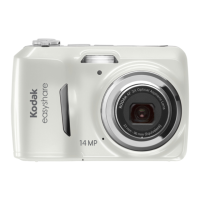
| Megapixel | 14 MP |
|---|---|
| Camera type | Compact camera |
| Sensor type | CCD |
| Image stabilizer | Yes |
| Total megapixels | 14.5 MP |
| Image sensor size | 1/2.3 \ |
| Supported aspect ratios | 3:2, 4:3, 16:9 |
| Still image resolution(s) | 2048 x 1536, 2880 x 2160, 4288 x 2416, 4288 x 2848, 4288 x 3216 |
| Digital zoom | 5 x |
| Optical zoom | 3 x |
| Focal length range | - mm |
| Video out | AV |
| Digital SLR | No |
| Minimum RAM | 1024 MB |
| Minimum processor | Pentium 4 (2.8 GHz) |
| Aperture range (F-F) | - |
| Camera shutter speed | 1/4–1/1400 s |
| Video memory capacity | 2GB |
| Minimum storage drive space | 300 MB |
| Minimum system requirements | IE 6.0+ Safari 1.1+ CD-ROM 1024x768px |
| Compatible operating systems | Windows XP/Vista/7+ Mac OS X 10.4/10.5/10.6+ |
| Focal length (35mm film equivalent) | 32 - 96 mm |
| Focus | TTL |
| Focus adjustment | Auto |
| Normal focusing range | 0.6 - ∞ m |
| Auto focusing (AF) modes | Continuous Auto Focus, Single Auto Focus |
| Macro focusing range (tele) | 0.35 - 0.7 m |
| Macro focusing range (wide) | 0.1 - 0.7 m |
| ISO sensitivity | 64, 80, 100, 125, 160, 200, 250, 320, 400, 800, 1000, Auto |
| Light exposure correction | ± 2EV (1/3EV step) |
| Flash modes | Auto, Fill-in, Flash off, Red-eye reduction |
| Flash range (tele) | 1 - 2.3 m |
| Flash range (wide) | 0.3 - 4.1 m |
| Scene modes | Backlight, Candlelight, Children, Close-up (macro), Fireworks, Night, Night landscape, Night portrait, Panorama, Portrait, Self-portrait, Sports, Sunset, Landscape (scenery) |
| Image editing | Crop, Trimming |
| Photo effects | Black&White, Sepia, Vivid |
| White balance | Auto, Daylight, Fluorescent, Shade, Tungsten |
| Shooting modes | Movie, Program, Scene |
| Camera playback | Movie, Single image, Slide show, Thumbnails |
| Self-timer delay | 2, 10 s |
| Sharpness levels | Normal |
| Camera file system | Exif 2.3 |
| Image quality adjustment | Sharpness |
| Motion JPEG frame rate | 30 fps |
| Maximum video resolution | 640 x 480 pixels |
| Analog signal format system | NTSC, PAL |
| Internal memory | 32 MB |
| Compatible memory cards | SD, SDHC |
| Display diagonal | 3 \ |
| Display resolution (numeric) | 230000 pixels |
| USB version | 2.0 |
| Product color | Red |
| Battery type | AA |
| Battery technology | Alkaline |
| Number of batteries supported | 2 |
| Cables included | USB |
 Weight and Dimensions
| Depth | 31.4 mm |
|---|---|
| Width | 96.1 mm |
| Height | 62.3 mm |
| Weight (including battery) | 180 g |