EasyManua.ls Logo

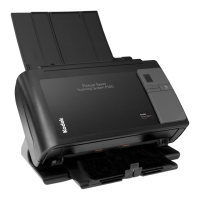
Kodak Picture Saver Scanning System - User Manual

Kodak Picture Saver Scanning System
2 pages
Print Icon
To Next Page IconTo Next Page
Loading...
EASTMAN KODAK COMPANY
343 State Street
Rochester, New York 14650 U.S.A.
A-61636 / Part #5K1322 June, 2012
© Eastman Kodak Company, 2012
TM: Kodak
Picture Saver Scanning System
Reference Guide
Cleaning the imaging area
Supplies and Accessories
CAT No. Description
148 4864 Kodak Feed Rollers
169 5097 Kodak Gentle Photo Separation Module
196 0426 Kodak Picture Saver Standard Separation
Module
853 5981 Kodak Roller Cleaning Pads
169 0783 Kodak Transport Cleaning Sheets
826 6488 Brillianze Detailer Wipes
119 9470 Kodak A4 Legal Flatbed Accessory
818 2271 Kodak A3 Flatbed Accessory
Indicator Lights and Error Codes
Code Message/Remedy
0
Check USB cable
Indicates that there is no USB connection or
the USB cable is not securely attached.
Power saver mode
No action required.
Scanning....
The scanner is scanning documents.
U5, E3 Rescan documents
USB cable has been disconnected while the
scanner was running.
U6 Clear paper path and close cover
Open the scanner cover and verify that all
documents are removed from the paper
path. Then close the scanner cover.
U8
Multifeed
A multifeed document has been detected.
Clear the multifeed condition.
The document you are trying to scan is too
long.
U9 Paper jam
Document jam or the paper path is blocked.
Clear the documents from the paper path.
E1, E2
Be sure all cables are connected properly
Turn power off and then on again. If the
problem persists, call Service
E2,
E4, E7
Turn power off and then on again. If the
problem persists, call Service.
Kodak Service & Support
www.kodak.com/go/disupport
1.800.822.1414
(US&C only; all other regions, contact your local
Kodak Support Center)
When contacting support, have the following available:
A description of your problem
Scanner model and serial number
Computer configuration
Software application you are using

Questions and Answers

  • W
    Wayne NelsonAug 12, 2025
    What to do if images are not being cropped correctly by Kodak scanner?
    • F
      Frederick AcostaAug 12, 2025
      If the cropping options are enabled, Automatically Detect and Straighten or Automatically Detect, and your images are not being cropped correctly by Kodak scanner, clean the imaging area.
  • K
    Kevin JamesAug 16, 2025
    What to do if my Kodak Picture Saver Scanning System will not scan or feed documents?
    • P
      pamelafrederickAug 16, 2025
      If your Kodak scanner isn't scanning or feeding documents, ensure that: the power cord is securely plugged into both the scanner and the wall outlet; the power supply's green LED is lit; the power switch is turned on; the wall outlet isn't defective; the PC was restarted after software installation; and the document(s) are making contact with the feed rollers.
  • K
    Kathy ShawAug 19, 2025
    How to fix documents jamming or multiple documents feeding in Kodak Picture Saver Scanning System?
    • D
      Dr. Katherine Lamb DDSAug 19, 2025
      To resolve documents jamming or multiple documents feeding in your Kodak scanner, make sure that: the side guides are adjusted to the width of your documents; the output tray is adjusted to the length of the documents; all documents meet the size, weight, and type specifications; the scanner and tires are clean; the spring on the pre-separation module is properly adjusted; and the feed and pre-separation modules are correctly installed. To remove a jammed document: Open the scanner cover and carefully remove any jammed documents from inside the scanner. Then, close the cover and resume scanning.
  • K
    Karl SullivanAug 23, 2025
    Why is my Kodak scanner running slow?
    • J
      Jennifer DavisAug 23, 2025
      Your Kodak scanner might be running slowly because your PC doesn't meet the minimum system requirements. Also, while the scanner is designed for USB 2.0, it can function in a USB 1.1 port, but updating to USB 2.0 can improve performance.
  • B
    brandon47Aug 27, 2025
    How to fix black background bleed-through on images from Kodak scanner?
    • J
      James LopezAug 27, 2025
      When scanning translucent documents with your Kodak scanner, black bleed-through may appear. To minimize this, adjust the Contrast value or select Draft (Fixed) in TWAIN or Fixed Processing in ISIS to improve the image or use the Kodak White Background Accessory.
  • P
    petersondanaAug 30, 2025
    How to remove roller marks on documents after scanning with Kodak Picture Saver Scanning System Scanner?
    • A
      Anne PinedaAug 30, 2025
      To remove roller marks appearing on documents after scanning with your Kodak scanner, clean the rollers.
  • B
    Barbara CainSep 3, 2025
    Why are there red, green, or blue streaks in color photos scanned with my Kodak scanner?
    • L
      lisa34Sep 3, 2025
      If you see red, green, or blue streaks running through a color photo scanned with your Kodak scanner, it indicates that the scanner is dirty and needs to be cleaned.
  • J
    Jesse GarciaSep 7, 2025
    How to scan using Microsoft Office Document Imaging 2007 with Kodak Picture Saver Scanning System Scanner?
    • M
      Michael YoungSep 7, 2025
      To scan using Microsoft Office Document Imaging 2007 with your Kodak scanner, select the scanner named: KODAK Scanner: i2000 from the Scanner drop-down list.

Kodak Picture Saver Scanning System Specifications

General IconGeneral
ConnectivityUSB
Software IncludedKodak Picture Saver Software
ModelPicture Saver Scanning System
Supported MediaPhotos
InterfaceUSB
CompatibilityWindows

Related product manuals