
EasyManua.ls Logo

Kolibri Domino - User Manual

Kolibri Domino
26 pages
Print Icon
To Next Page IconTo Next Page
Loading...

Questions and Answers

Summary

Introduction to Kolibri Domino

Important Safety Notes

Outlines essential safety precautions for operating the currency discriminator.

Device Components and Interface

Control Panel Overview

Explains the function of each button on the Kolibri Domino's control panel.

Getting Started

Powering Up the Device

Instructions on how to connect and turn on the Kolibri Domino.

Loading the Currency Hopper

Guidelines for correctly placing banknotes into the hopper for optimal performance.

Operating Modes

Device Functions

After-Count Functions and Reporting

Maintenance, Troubleshooting, and Support

General Maintenance Procedures

Guidelines for cleaning and maintaining the currency discriminator for longevity.

Adjusting the Feed Gap

Step-by-step guide to adjust the feed gap for optimal bill feeding.

Calibration Procedure

Instructions for calibrating the unit's sensors using the provided card.

Troubleshooting Common Issues

Explains how to resolve common error messages and operational problems.

Overview

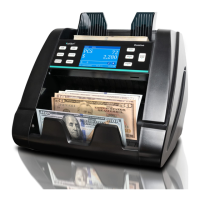
The Kolibri Domino is a professional, powerful, one-pocket currency discriminator designed for value counting and sorting. It features a user-friendly interface, intuitive control panel, and various counting modes, all supported by robust built-in counterfeit detection technology and high-level performance.

Important Safety Notes:

  • Avoid using the product in areas exposed to water or other liquids.
  • Unplug the unit before cleaning; use a damp cloth or air duster.
  • Do not disassemble the unit to avoid electrical shock and other safety risks. Incorrect reassembly can lead to electrical shock.
  • Use only the provided power cord and plug it into a properly grounded wall outlet. Do not remove the grounding pin.
  • Place the device on a flat surface and avoid operating it in areas with high temperature, humidity, or smoke, as these conditions may impede performance.
  • Designed for indoor use in a well-ventilated environment. Keep away from direct sunlight and strong magnetic fields that may interfere with counterfeit detection sensors.
  • Disconnect the power cord from the wall outlet when not in use for extended periods.
  • CHOKING HAZARD. SMALL PARTS: Not for children under 3 years old.
  • WARNING: RISK OF ELECTRICAL SHOCK. This equipment must be serviced by trained personnel only.
  • DO NOT DISPOSE IN TRASH. Follow appropriate local electronics scrap procedures.
  • WARNING: HAZARDOUS MOVING PARTS. Do not place fingers, hair, clothes, lanyards near moving parts.
  • PROP 65 WARNING: This product may contain chemicals known to the State of California to cause cancer, birth defects, or other reproductive harm. For more information, visit https://oehha.ca.gov/.

Box Contents:

  • Kolibri Domino Currency Discriminator
  • Adapter Cable (for Printer*)
  • Power Cord
  • User Manual
  • Cleaning Brush
  • Calibration Card (White Paper Card)
  • Printer sold separately

Technical Specifications:

  • Counting speed: Adjustable 800, 1000, and 1200 bills/min
  • Hopper capacity: 500 bills
  • Stacker capacity: 200 bills
  • Weight: 12.8 lbs (5.8 kg)
  • Dimensions: 11.3" x 8.9" x 9.25" (287mm x 270mm x 235mm)
  • Power source: AC 100-240 V, 50/60Hz, ≤ 70W

Views of the Kolibri Domino:

  • Top View:
    1. Feed Gap Adjustment Knob
    2. Bill Guides
    3. Hopper
    4. Control Panel
    5. TFT Screen
    6. microSD Card Port
    7. Stacker
  • Back View: 8. Carrying Handle 9. Back Door 10. Back Door Handle 11. RJ11 Port (Printing) 12. USB Port 13. Power Switch 14. AC Power 15. Fuse

Control Panel Functions:

  • CUR Button: Changes currency type (USD, CAD, MXN).
  • BATCH Button: Activates/Deactivates Batch function.
  • REPORT Button: Shows the detailed Report Screen (press twice for Serial Report).
  • ADD Button: Activates/Deactivates Add function.
  • +1/+10 Button: Customizes batch in increments of 1 or 10 (press for +1, hold for +10).
  • PRINT Button: Prints the displayed report if a printer is connected.
  • Display: Shows total count and all settings (or all data).
  • MENU Button: Shows settings and acts as a "back button" in Menu.
  • MODE Button: Changes mode and moves cursor up in Menu.
  • CLEAR Button: Resets the count and moves cursor down in Menu.
  • START/STOP Button: Starts or stops the count (when not in auto-start function) or validates/confirms settings.

Home Screen Elements:

  1. Currency Selected
  2. Mode Selected
  3. ADD Function (Activated)
  4. Selected Batch Number (Activated)
  5. Number of Bills Counted
  6. Total Value Counted
  7. Auto/Manual Start Function
  8. Counterfeit Detection (ON)
  9. Time
  10. Date
  11. Serial Number of Last Bill Scanned
  12. Number of Rejected Bills

Getting Started:

  • Powering Up: Ensure hopper and stacker are empty. Connect the power cable to the power inlet on the back of the machine and a three-prong outlet. Turn on the power switch. The unit will self-check and display the home screen when ready.
  • Loading the Hopper: To avoid jams and ensure proper operation, place bills in a neat stack. Avoid counting wet, excessively dirty, spoiled, folded, curled bills, or those with foreign material. Adjust hopper bill guides slightly wider (0.10" on each side) than the bill width for smooth feeding.
  • Tips to Reduce Rejects:
    1. Make a Stack: Correct or remove severely wrinkled, damaged, or folded bills. Square the bill stack.
    2. Load the Stack: Place the squared stack neatly into the hopper.
    3. Feed the Bills: Ensure bills are fed smoothly without bending or misalignment.

Operating Modes:

  • Mix Mode: Counts a stack of mixed denominations. Place bills in the hopper, and the machine will count and move them to the stacker. Total bills and value are displayed. A detailed report can be viewed by pressing the REPORT button. To return, press MODE until "MIX" is displayed.
  • Sort Mode: Counts and sorts bills by one denomination, determined by the first bill scanned. Useful for verifying straps of single denominations. If a bill not conforming to the first denomination passes, it will be rejected with a "DIFFERENT DENOMINATION" message. Total bills and value are displayed. A detailed report can be viewed by pressing the REPORT button. To return, press MODE until "SORT" is displayed.
  • VSort Mode: Counts a mixed stack of bills and separates them by denomination, similar to a cash register. Identifies the first bill in the hopper; if a different denomination is detected, the machine stops and displays a message. The user must remove all bills from the stacker and separate them by denomination each time a change occurs. VSort works with ADD mode by default, tracking total bills and value. A detailed report can be viewed by pressing the REPORT button. To return, press MODE until "VSORT" is displayed.
  • Count Mode: Simply counts the total number of bills without recognizing or recording denominations. Only ultraviolet counterfeit detection is active in this mode. Detection can be turned ON or OFF manually in MENU under option 2. DETECTIONS. To return, press MODE until "COUNT" is displayed.

Functions:

  • Auto and Manual Function:
    • Defaults to AUTO (an "A" on the home screen), starting count automatically.
    • To switch to Manual: Press MENU, select 1. SETTINGS, then 2. AUTO/MANUAL START. Select 2. MANUAL and press START/STOP. Press MENU three times to return to the home screen; an "M" will be displayed.
    • In Manual mode, START/STOP must be pressed to begin each count.
  • Add Function: Activated by pressing the ADD button (displays "ADD" on the home screen). Allows counting multiple stacks of bills while keeping a running total of amount and value. Empty the stacker and add new stacks to continue counting. Press ADD again to exit.
  • Batch Function: Activated by pressing the BATCH or +1/+10 button (displays "BATCH" icon with batch number). Counts a preset number of bills and stops. Default batch sizes are 100, 50, 20, 10, Off. Adjust with +1/+10 or BATCH button. Displays "BATCH COMPLETE" when reached. If hopper runs out, "INCOMPLETE BATCH" is displayed. Press BATCH again to exit.
  • Add+Batch Function: Batches a desired quantity of bills and monitors the running total. Activate by pressing ADD and BATCH separately (both icons displayed). Exit by pressing ADD and BATCH separately again.

After-Count Functions:

  • Report: Available by pressing the REPORT button. Provides an on-screen report of the total amount and value of each denomination, and a grand total. Press MENU to exit.
  • Serial Report: Available by pressing the REPORT button twice. Provides an on-screen report of each bill counted with its serial number and denomination. Press MENU to exit.
  • Print: Available by pressing the PRINT button while on the report screen. If a printer is connected, a detailed printout of the counting report (or serial report) will be produced. Connect a printer using the provided adapter cable into the RJ11 Port.
  • 1. SETTINGS: Includes Speed, Auto/Manual Start, Beep, Date & Time, Printing, Interface Color, Display Brightness, Sleep Mode.
  • 2. DETECTIONS: Activate or deactivate serial number recognition, printer connection, and detection features like Magnetic "MG", Dimension "DD", Double "DB", Ultraviolet "UV", Infrared "IR", etc.
  • 3. MODES: Activate or deactivate modes (COUNT, MIX, SORT, VSORT) for selection from the home screen. "ON" modes can be selected; "OFF" modes cannot. Use START button to switch "ON/OFF".
  • 4. SERVICE: Provides options to update and calibrate the unit, change detection levels, set/change data, and reset to factory settings.
  • 5. PRODUCT INFO: Displays information about the product and software version.

Maintenance and Troubleshooting:

  • Maintenance:
    • Always turn off and disconnect from power before cleaning. DO NOT use solvents (thinner, alcohol).
    • Regular care increases lifetime. Avoid metal clips or rubber bands in bills. Follow proper hopper loading.
    • Use an air duster and soft bristle brush to remove dust/debris from the interior. Cover with a dust cover when not in use.
    • Clean sensors daily (delicate components). Dust on sensors can cause problems.
    • Clean back door, inner, hopper, and stacker sensors frequently with the provided brush or a dry cloth.
    • Clean rubber rollers with a slightly damp cloth and a small amount of liquid soap, ensuring soap residue is properly removed.
  • Sensor Locations:
    1. Hopper Sensor
    2. Stacker Sensors
    3. Upper Sensors Block
    4. Lower Sensors Block
  • Adjusting Feed Gap:
    • Loose feed mechanisms can cause DOUBLE/CHAIN errors. The feed gap should be tuned to the thickness of a single bill. Too wide causes multiple bills to enter; too tight prevents bills from passing or tears them.
    • Procedure:
      1. Ensure machine is off.
      2. Position rollers so no teeth are visible (smooth section visible).
      3. Place one crisp, rigid bill lengthwise in the hopper (right or left side).
      4. Guide the bill between inner rollers; you should feel moderate resistance.
      5. Adjust the knob at the top:
  • Slight turn at a time, then retest.
  • If bill feels too loose, tighten clockwise.
  • If resistance is too strong, loosen counterclockwise.
    • Important Note: Feed gap adjustment is sensitive. Do not overturn. Test with a stack of bills after each adjustment.
  • Calibration Procedure:
    • CIS, UV, and IR sensors are factory-calibrated. Decreased sensitivity can lead to ID errors. Re-calibrate using the white calibration card.
    • Procedure:
      1. Ensure machine is ON.
      2. Press MENU, navigate to 4. SERVICE, then 2. CALIBRATION. CIS will be highlighted, and instructions displayed.
      3. Turn the machine backside front.
      4. Pull the back door handle. Push the metal latch down to access upper and lower sensor blocks. Place the laminated calibration card between the two sensor blocks. Bring the lower sensor block back to its initial position by pushing the metal latch down and lifting the lower sensor block. Ensure it's hooked properly.
      5. Close the back door with the calibration card inside.
      6. Turn the machine face side to yourself and press START/STOP to begin calibration.
      7. "CIS check wait" will display.
      8. "CIS check ok" should display when done. If "CIS check fail" displays, readjust the card and repeat steps 3-6.
      9. Once "CIS check ok" is displayed, remove the calibration card.
      10. Reset the machine (turn off, then on).
      11. Repeat for UV + IR calibration.
  • Troubleshooting (Error Message Display):
    • UV SUSPECT: Suspect bill detected by UV. Solution: Remove top bill from stacker. Not added to count. Press start to continue.
    • MG SUSPECT: Suspect bill detected by magnetic detection. Solution: Remove top bill from stacker. Not added to count. Press start to continue.
    • IR SUSPECT: Suspect bill detected by infrared detection. Solution: Remove top bill from stacker. Not added to count. Press start to continue.
    • IMAGE SUSPECT: Image of the bill is not genuine. Solution: Remove top bill from stacker. Not added to count. Press start to continue.
    • ID ERROR: Banknote tilt or image not recognized. Solution: Remove top bill from stacker. Not added to count. Press start to continue.
    • DIFFERENT DENOMINATION: Machine in SORT mode, different denomination detected. Solution: Remove top bill from stacker. Not added to count. Press start to continue.
    • SIZE SUSPECT: Size of the bill is not genuine. Solution: Remove top bill from stacker. Not added to count. Check size of bill and ensure it's not bent.
    • DOUBLE SUSPECT: Last counted bill is a double note or has double detection issue. Solution: Ensure top bills in stacker are not stuck. Remove all bills. Not added to total. Recount.
    • HALF NOTE: Last counted bill doesn't confirm size or might be torn/folded. Solution: Ensure top bills in stacker are standard size and not folded. Remove all bills. Not added to total. Recount.
    • CHAIN ERROR: Two or more bills passed as one. Solution: Ensure bills are loaded properly. Remove all bills. Not added to total. Recount.
  • Troubleshooting (Other Error Messages):
    • LOWER LEFT COUNTING SENSOR: Issue with lower left counting sensor. Solution: Clean the sensor (see 6.1 Maintenance).
    • UPPER LEFT COUNTING SENSOR: Issue with upper left counting sensor. Solution: Clean the sensor (see 6.1 Maintenance).
    • ENCODER SENSOR: Issue with the encoder sensor. Solution: Restart machine. Ensure rollers are turning. If unresolved, contact Kolibri technical service.
    • START SENSOR: Issue with the start sensor. Solution: Clean the sensor (see 6.1 Maintenance).
    • BACK DOOR OPEN: Back door not securely closed. Solution: Ensure back door is closed. Press start to continue.
  • Troubleshooting (Other Possible Errors):
    • Machine does not turn on: Cause/Action: Power cord not connected. Check/replace fuse. Contact Kolibri's technical service center.
    • Machine fails to detect counterfeit notes: Cause/Action: Sensors may have collected dust. Clean sensors (see 6.1 Maintenance).
    • Inaccurate counting:
      1. Bills incorrectly inserted.
      2. Turn off/on machine.
      3. Feeding gap too wide (new notes may differ from used). Action: Narrow gap by turning feed gap adjustment knob counterclockwise (refer to 1.5). One slight turn at a time. Test after each adjustment. If resistance is too strong, loosen clockwise.
    • Bills are jammed: Cause/Action: Turn off machine. Remove jammed bills by opening back door, pushing metal latch down to access sensor blocks (refer to 6.3 step 4). Look for foreign objects. Remove foreign objects. Push up lower sensor block to initial position. Secure back door.

Warranty:

  • The Kolibri Domino is warranted for one year from the date of purchase. Malfunctions can often be corrected by thorough cleaning.
  • Customer must allow the manufacturer time to test and diagnose for warranty/non-warranty claims.
  • Keep original packaging and user manual. Warranties are canceled if the device is transported in non-original packaging or if operation/maintenance conditions are not met.
  • Company is not responsible for malfunctions due to improper maintenance, storage, transportation (including mechanical damage).
  • Manufacturer may introduce updated software not described in the current manual.

Non-Warranty Service:

  • Maintenance and cleaning can be performed for an extra fee. Contact Technical Support for non-warranty repair or maintenance quotations.
  • Warranty service is not available for:
    • Cleaning from dust and mud.
    • Non-compliance with operation/maintenance rules.
    • Mechanical damage or tampering with sealed portions.
    • Foreign objects or liquid inside the unit.
  • Warranty does not cover shipping to Kolibri's technical service center.

Contact Information:

  • Technical Support: http://kolibriusa.com/contact/
  • When contacting Technical Support, provide:
    • Product Model (bottom of machine).
    • Serial Number (bottom of machine).
    • Nature of the problem (what, when, error message?).
    • Steps already taken and results.

Kolibri Domino Specifications

General IconGeneral
BrandKolibri
ModelDomino
CategoryBank Note Validator
LanguageEnglish

Related product manuals