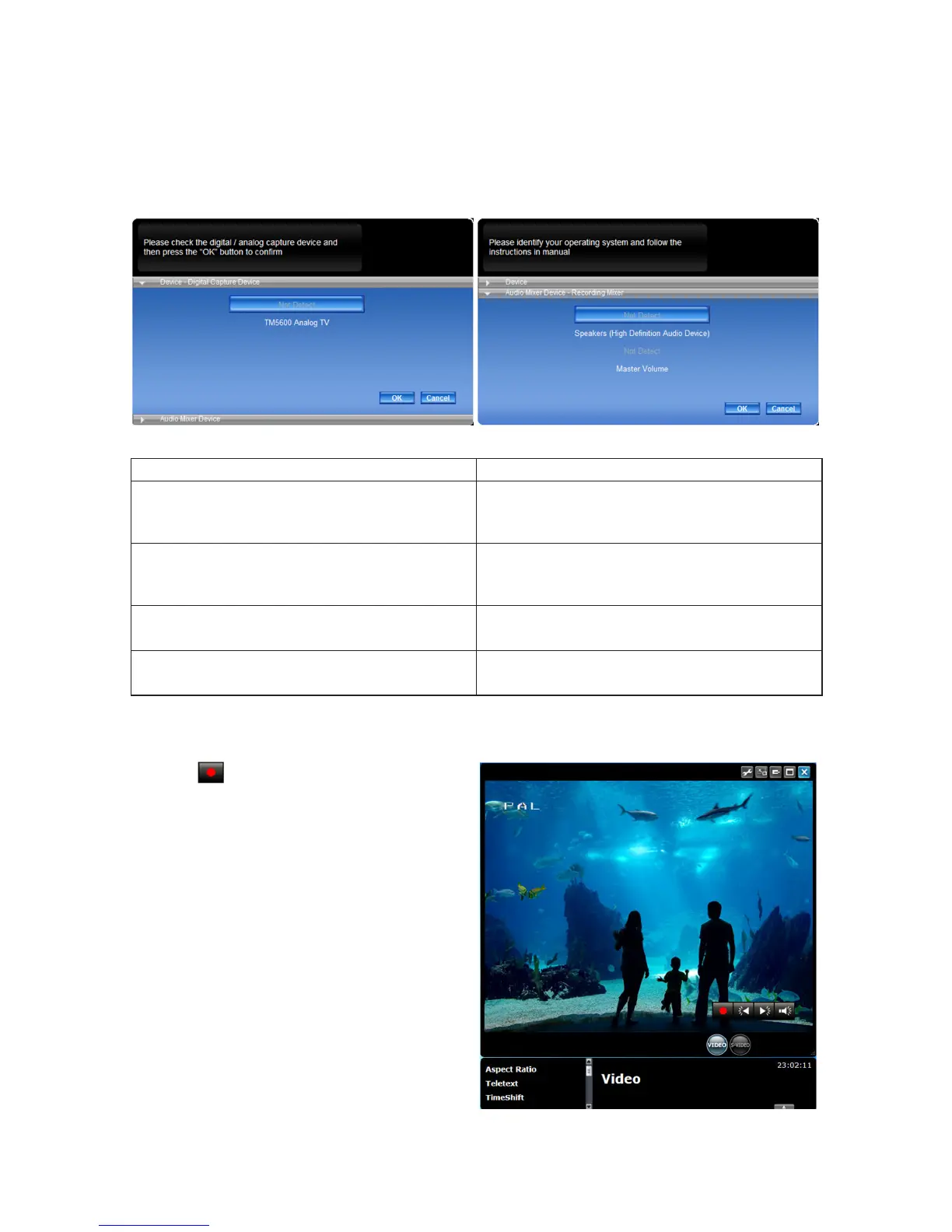
Step 4: When the program is activated for the first time, it will ask you to identify your device.
Press the “OK” button to confirm. (See picture D)
After you have identified your device, the program will ask you to set up the audio mixer device.
The information listed here is related to the recording and the playback audio settings. Identify your
operating system and follow the instructions as listed below. (See picture E)
picture D picture E
• For Windows XP AC 97 • For Windows Vista / Windows 7
Recording mixer Recording mixer
Shows the default value related to the volume
control of the input source.
Shows the default value related to the volume
control of the input source.
Playback mixer Playback mixer
Shows the default value related to the volume
control of the speaker.
Shows the default value related to the volume
control of the application.
Recording control Recording control
Select the “Line in” option. Select the “Line in” option.
Playback control Playback control
Select the “Wave” option. Select the “Wave” option.
3.) Navigate the function
3.1) Record
Click the
button to record the current program.
You can watch your programs and record them at
the same time to see them at a future date.
(See picture F)
picture F



 To Next Page