EasyManua.ls Logo

Konica Minolta PAGEPRO 5650EN - User Manual

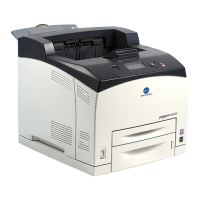
Konica Minolta PAGEPRO 5650EN
238 pages
Print Icon
To Next Page IconTo Next Page
Loading...
pagepro 4650EN/5650EN
User’s Guide
A0DX-9561-01A
1800850-001B
Downloaded From ManualsPrinter.com Manuals

Table of Contents

Other manuals for Konica Minolta PAGEPRO 5650EN

Questions and Answers

  • J
    Jesus WhiteAug 14, 2025
    Why won't my Konica Minolta PAGEPRO 5650EN turn on?
    • M
      Mrs. Cynthia ProctorAug 14, 2025
      If your Konica Minolta Printer isn't turning on, make sure the power cord is securely plugged into the outlet. Test the outlet with another device to ensure it's working. Verify the power switch is in the 'on' (I) position. Also, confirm that the power source matches the printer's specifications.
  • J
    jamie15Aug 17, 2025
    Why is my Konica Minolta Printer misfeeding?
    • A
      Anthony MayerAug 17, 2025
      If your Konica Minolta Printer is misfeeding media, it might be due to several reasons. First, ensure the media is correctly positioned in the tray. If there are too many sheets, remove the excess to match the allowed amount. Also, check if the media guides are properly adjusted to the media size. Warped or wrinkled media can also cause issues, so try smoothing it out or using different media. Lastly, a dirty media roller can be the culprit; in that case, clean the media supply roller.
  • K
    Kelly MartinAug 21, 2025
    Why is my Konica Minolta PAGEPRO 5650EN Printer printing blank pages?
    • A
      Angela NixonAug 21, 2025
      If your Konica Minolta Printer is producing blank pages, the toner cartridge might be empty or defective; check and replace if necessary. Also, verify that the media type selected in the printer driver matches the media loaded in the printer.
  • L
    Lindsay BakerAug 25, 2025
    What to do if the media misfeed message stays on for Konica Minolta PAGEPRO 5650EN?
    • M
      Misty HawkinsAug 25, 2025
      If the media misfeed message persists on your Konica Minolta Printer, try opening and closing the top cover to reset it. Also, double-check the media path to ensure all misfed media has been removed.
  • B
    brockdianeAug 27, 2025
    How to fix Konica Minolta Printer when it pulls multiple sheets?
    • J
      Justin ThomasAug 27, 2025
      If your Konica Minolta Printer is feeding multiple sheets at once, ensure the front edges of the media are even by removing and aligning them before reloading. If the media is moist, replace it with dry media. Also, avoid fanning transparencies to prevent static electricity buildup.
  • R
    Regina LarsenAug 30, 2025
    What causes duplex misfeeds on a Konica Minolta PAGEPRO 5650EN?
    • H
      Heather DavisAug 30, 2025
      If your Konica Minolta Printer is experiencing duplex misfeeds, ensure you are using KONICA MINOLTA-approved media. Also, recheck the media path inside the duplex option to ensure all misfed media has been removed.
  • M
    Michael HernandezSep 3, 2025
    What to do if my Konica Minolta Printer has a paper jam?
    • A
      Alicia SchneiderSep 3, 2025
      If your Konica Minolta Printer has a paper jam, open the indicated cover, remove the jammed paper, and then close the cover.
  • M
    Matthew RamosSep 6, 2025
    How to fix a paper jam in Konica Minolta Printer?
    • M
      Monica ThomasSep 6, 2025
      To resolve a paper jam in your Konica Minolta Printer, open the appropriate cover, carefully remove the misfed paper, and close the cover securely.
  • D
    Dillon AguirreSep 9, 2025
    How to clear paper jam on Konica Minolta Printer?
    • J
      jaclyn26Sep 9, 2025
      To fix a paper jam on the Konica Minolta Printer, open the corresponding cover, take out the jammed paper, and then close the cover.

Summary

Introduction

Getting Acquainted with Your Printer

Learn about the printer's physical components and installation requirements.

About the Software

Printer Driver CD-ROM

Details on PostScript, PCL, and XPS printer drivers included on the CD.

PPD Files

PostScript Printer Description files for driver compatibility.

Utilities and Documentation CD-ROM

Information on included software utilities and documentation.

System Requirements

Specifies the hardware and software needed to operate the printer.

Selecting Driver Options;Defaults (for Windows)

Windows Vista;XP;Server 2003;2000 Driver Settings

How to configure printer driver settings for specific Windows versions.

Uninstalling the Printer Driver (for Windows)

Windows Vista;XP;Server 2003;2000 Uninstallation

Steps to remove printer drivers from specific Windows operating systems.

Displaying Printer Driver Settings (for Windows)

Windows Vista Driver Settings Display

How to view printer driver settings in Windows Vista.

Windows XP;Server 2003 Driver Settings Display

How to view printer driver settings in Windows XP/Server 2003.

Windows 2000 Driver Settings Display

How to view printer driver settings in Windows 2000.

Using the Postscript and PCL Printer Driver

Common Driver Features and Buttons

Explanation of common buttons and the Favorite Setting feature.

Printer Driver Tab Settings Overview

Details on Basic, Layout, Cover Page, Watermark/Overlay, Quality, and Other tabs.

PostScript Driver Specifics and Limitations

Advanced options for PostScript driver and Point and Print restrictions.

Using the Status Monitor (Windows Only)

Working with the Status Monitor

Covers introduction, operating environment, and opening the Status Monitor.

Status Monitor Features and Tabs

Details on Status, Consumables, and Printer Alerts tabs.

Recognizing and Recovering from Status Monitor Alerts

How to interpret and respond to printer status alerts and errors.

Printer Control Panel and Configuration Menu

About the Control Panel

Explanation of control panel buttons, message window, and help screens.

Configuration Menu Overview

Structure of the main configuration menu and its sub-menus.

Key Configuration Menu Settings

Details on Print, Paper, Quality, and Memory Direct menu settings.

Memory Direct

Printing From a Connected USB Memory Device

Instructions for printing files directly from a USB memory device.

Using Media

Media Specifications

Table of supported media types, sizes, and duplex capabilities.

Custom Size and Media Type Guidelines

How to set custom sizes and general media type guidelines.

Loading Media into Trays

Step-by-step instructions for loading media into trays.

Replacing Consumables

Toner Cartridge Replacement

Information and steps for replacing the toner cartridge, including part numbers.

Replacing Other Consumables

Procedures for replacing the fuser unit, transfer roller, feed rollers, and backup battery.

Maintaining the Printer

Printer Maintenance Guidelines

General guidelines, cautions, and warnings for printer maintenance.

Cleaning Printer Components

Instructions for cleaning the printer's exterior and internal components.

Troubleshooting

Troubleshooting Overview and Basic Steps

Introduction, printing configuration page, preventing misfeeds, and understanding the media path.

Clearing Media Misfeeds

Procedures for clearing paper jams from various printer locations.

Solving Media Misfeeds and Other Problems

Solutions for media misfeeds, printing quality, and status/error messages.

Installing Accessories

Accessory Overview and Antistatic Protection

List of accessories, installation notes, and essential antistatic precautions.

Installing Storage and Performance Options

Procedures for installing DIMM, Hard Disk Kit, and CompactFlash card.

Installing Paper Handling Options

Steps for installing Duplex, Lower Feeder Unit, Offset Tray, and Face Up Tray.

Appendix

Safety and Technical Specifications

Lists safety standards, certifications, and technical data for printer performance.

Consumable Life Expectancy and Environmental Protection

Estimates consumable lifespan and printer's environmental compliance.

Konica Minolta PAGEPRO 5650EN Specifications

General IconGeneral
ColorNo
Duplex printingYes
Print technologyLaser
Maximum resolution1200 x 1200 DPI
Time to first page (black, normal)9.5 s
Print speed (black, normal quality, A4/US Letter)43 ppm
Internal memory128 MB
Processor frequency500 MHz
Maximum internal memory384 MB
Sound power level (standby)28 dB
Sound pressure level (printing)51.6 dB
Total input capacity550 sheets
Total output capacity500 sheets
Power requirements220 - 240 V, 50/60 Hz
Standard input trays150 sheet
Recommended media weight68 - 105, 106 - 216, 60 - 105 g/m²
Supported media weight(s)68/216 g/m²
Power consumption (active)812 W
Compatible operating systemsWin Vista/Server 2003/XP/2000 Mac OS X (10.2, 10.3, 10.4) Linux RedHat v9.0/SuSe v8.2 Netware 4/5/6
Standard output capacity for transparencies70 sheets
Envelopes sizesC5, C6, DL
Paper tray media typesBond paper, Glossy paper, Labels, Plain paper, Recycled paper, Transparencies
Non-ISO print media sizesExecutive (184 x 267mm), Folio (media size), Letter (media size), Statement (140 x 216mm), Legal (media size)
ISO A-series sizes (A0...A9)A4, A5, A6
ISO B-series sizes (B0...B9)B5, B6
JIS B-series sizes (B0...B9)B5
Maximum ISO A-series paper sizeA4
Maximum duty cycle200000 pages per month
Sustainability certificatesENERGY STAR
Power consumption (standby)119 W
Power consumption (printing)1300 W
Power consumption (PowerSave)19 W
Operating temperature (T-T)5 - 35 °C
Operating relative humidity (H-H)15 - 85 %
CertificationUL, cUL, FCC-B, DOC, VCCI, CE Marking, C-Tick, CDRH, WEEE, RoHS
Weight and Dimensions IconWeight and Dimensions
Dimensions (WxDxH)422 x 465 x 404 mm

Related product manuals