Need help?
Do you have a question about the Konica Minolta Ultra KDR and is the answer not in the manual?
Reference to KDR System Operation Manual for specifications, safety, and handling instructions.
In Ultra, select the Device Configuration tab and configure panel settings.
Prerequisites and initial steps for registering the KDR panel, including device identity list.
Detailed steps for panel registration using the KONICA MINOLTA AeroSDK Setting Tool.
Insert the installation CD and use the Aero Installer to configure the panel.
Verify panel status is 'Connected' in Ultra after acquiring a test patient.
Procedures for calibrating the KDR panel, including preparation and calibration steps.
Remove grid, adjust SID, ensure collimator light coverage, and check X-Ray field.
Exit Ultra, navigate to TechService, select Manual Calibration, and run the calibration sequence.
Test exposures using a test patient to verify calibration; refer to Ultra DR User Quick Guide.
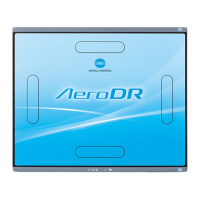
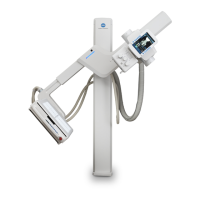
The Konica Minolta Ultra KDR is a digital radiography (DR) panel system designed for medical imaging. This guide outlines the essential steps for its registration, configuration, and calibration, ensuring optimal performance within the Ultra software environment. The system is engineered to integrate seamlessly with existing radiography setups, providing efficient and high-quality image acquisition.
The Ultra KDR panel serves as the primary image receptor in a digital radiography system, capturing X-ray images and converting them into digital data for display, analysis, and storage. It is designed to replace traditional film-based or computed radiography (CR) systems, offering immediate image preview and enhanced workflow efficiency. The panel works in conjunction with the Ultra software, which manages image acquisition, processing, and display. The core function involves detecting X-ray photons, converting them into an electrical signal, and then digitizing this signal to form a diagnostic image. This process is crucial for various medical imaging applications, from general radiography to specialized examinations. The system's ability to provide rapid image feedback significantly improves patient throughput and reduces the need for repeat exposures, thereby minimizing patient dose.
The KDR panel's operation is facilitated by an Interface (IF) cable and an XG-IFBox, which handle power management and data communication between the panel and the workstation. The IF cable connects the panel to the XG-IFBox, which then interfaces with the computer running the Ultra software. This setup ensures a stable and high-speed data transfer, critical for the quick display of images. The system supports various X-ray synchronization methods, including integrated and Aero Syno, allowing for flexible integration with different X-ray generators. The panel's design focuses on robust performance and reliability, making it suitable for demanding clinical environments.
The Ultra KDR system offers several user-friendly features that streamline the imaging workflow. Before initial use, the panel requires a precise registration and configuration process within the Ultra software. This involves setting up network parameters, such as the IPV4 address and subnet mask, to ensure proper communication between the workstation and the panel. The configuration also includes defining panel-specific settings like Maven type (e.g., Aero, 32 Bit), exposure index targets, edge crop parameters, AEC (Automatic Exposure Control) display, global orientation, and image processing preferences. These settings are crucial for tailoring the panel's behavior to specific clinical needs and preferences.
Panel registration is a key step, requiring the input of the panel's serial number and the IF cable's sub-device ID into the Konica Minolta Aero SDK Setting Tool. This tool is essential for registering all connected devices, including the IF cable, the panel itself, and the XG-IFBox. The process ensures that the Ultra software correctly identifies and communicates with all components of the KDR system. Once registered, the system allows for verification of successful panel configuration, where the panel status transitions from "Changing Power Modes" to "Connected" in the acquisition screen, indicating readiness for use.
The system supports both wired and wireless LAN connections for data transfer, providing flexibility in room setup and usage. The configuration guide details the default IP addresses and subnet masks for these connections, which are critical for network stability. The ability to configure various image parameters directly within the Ultra software allows radiographers to optimize image quality for different anatomical regions and diagnostic requirements. The system's intuitive interface aims to reduce the learning curve for new users and enhance overall operational efficiency.
Maintaining the Ultra KDR panel involves several calibration and verification steps to ensure consistent image quality and accurate diagnostic output. The calibration process is critical and must be performed periodically or after certain system changes. Before initiating calibration, specific preparatory steps are required, such as removing the grid, adjusting the Source-to-Image Distance (SID) to 72 inches, ensuring the collimator light extends at least 1 inch past the detector edges for full coverage, and verifying that nothing is in the X-ray field. These steps are essential to create a controlled environment for accurate calibration.
The KDR panel calibration itself is performed using a dedicated executable file, "AerosdkGainCalibrationSeq_Triggered.exe," accessed through the Sedecal TechService application. This process involves a series of X-ray exposures, typically eight trials, taken at specific technical settings (e.g., 80 KvP, 10ms, and 100 mA). The application guides the user through inputting the panel ID and XG-IFBox number, and then prompts for exposures. During this process, the system monitors the signal and may prompt for technique adjustments if the signal is too low or high, ensuring that the calibration exposures fall within an optimal range. This iterative process ensures that the panel's response to X-rays is accurately mapped, leading to consistent image brightness and contrast.
After the calibration exposures are completed, the system confirms the successful calibration. A crucial maintenance feature is the ability to verify calibration using a test patient. This step, detailed in the "Ultra DR User Quick Guide," ensures that the panel performs as expected in a real-world scenario, producing diagnostic-quality images. The system also emphasizes the importance of keeping the Panel CD in a safe place, as it is needed for reinstalling the DR panel driver in case of PC hardware or software failure, highlighting a recovery and troubleshooting aspect. Proper power-off procedures for the panel, involving flipping the switch on the XG-IFBox, are also outlined, ensuring the longevity and stability of the device. The system's design incorporates features that allow for easy troubleshooting and support, with customer support contact information readily available for assistance.
 General
| Type | Digital Radiography System |
|---|---|
| Detector Type | Flat Panel Detector |
| Detector Size | 17 x 17 inches |
| Grayscale | 16-bit |
| Exposure Latitude | Wide |
| Power Requirements | 100-240 VAC, 50/60 Hz |
| Compatibility | DICOM, PACS |

 To Next Page