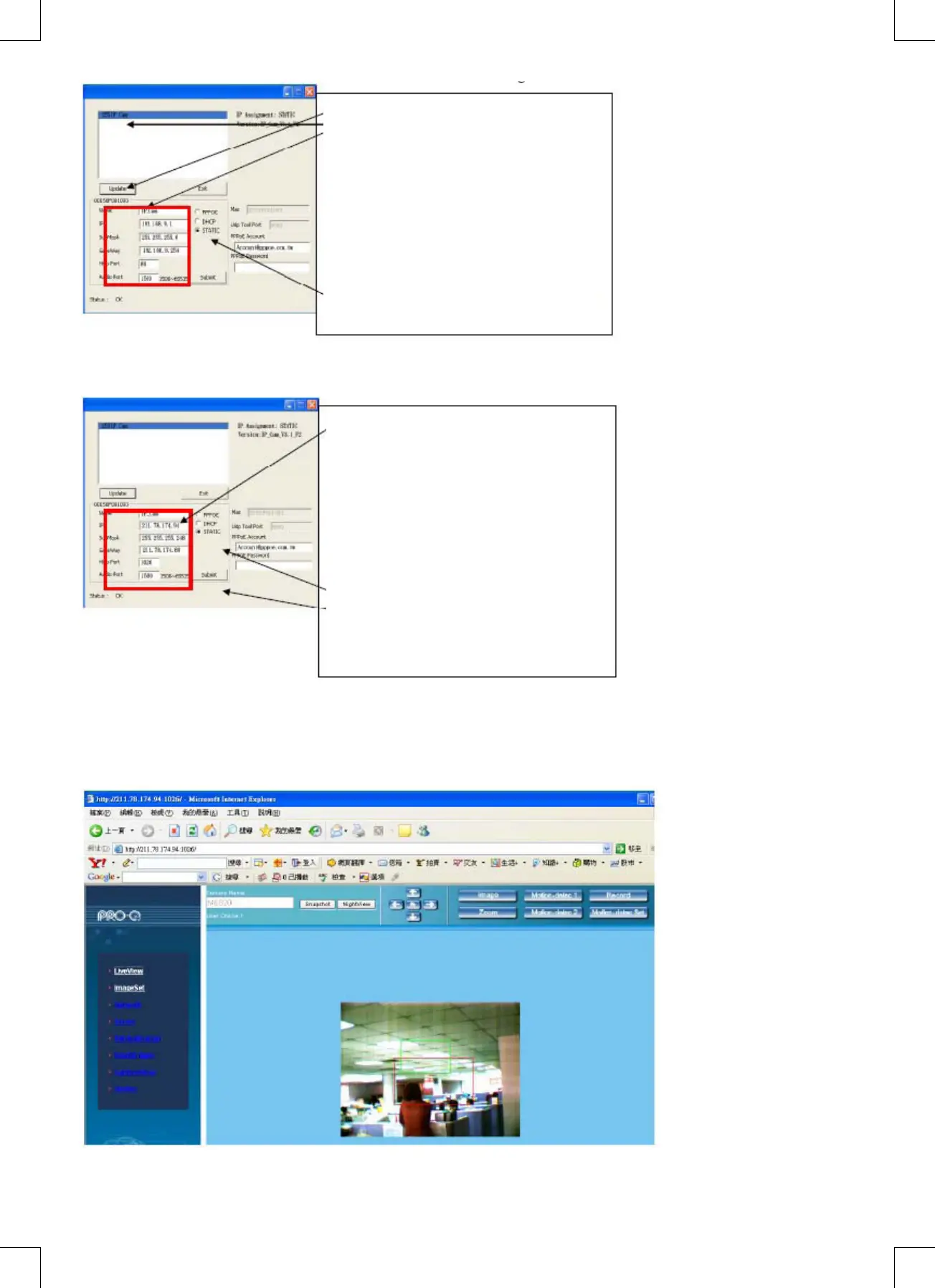
Figure 3
Step 1. Click Update. You can see 255IP CAM.
Step 2. Click 255IP CAM. You can see
Name : IP CAM
IP : 192 168.9.1
SubMask : 255.255.255.0
GateWay : 192.168.9.254
HTTP Port : Http communication port. The
default setting is 80.
(If you have multiple IP-CAMs installed in the
same network, you have to divide them with different
Port numbers, e.g, 1025; 1026; 1039....)
UDP Port : UDP port, Pre-setting is 1500
Step 3. Make sure the IP setting is STATIC.
• Fill in Fixed IP Address as below. (If you do not know your fixed IP address, please contact your ISP. Below is an
example of Fixed IP Address modification.)
Step 4. Type Fixed IP.
Name : IP CAM
IP : 211.78.174.94
SubMask : 255.255.255.248
Gateway : 211.78.174.89
HTTP Port : Http communication port. The
default setting is 80.
(If you have multiple IP-CAMs installed in the
same network, you have to divide them with different
Port numbers, e.g, 1025; 1026; 1039……)
UDP Port : UDP port, Pre-setting is 1500
Step 5. Choose STATIC.
Step 6. After finishing the settings, click Submit. The
network settings for IP CAM IP-CAM will be
Example:
1. Set up the IP CAM with fixed IP address.
2. Turn on your computer and open IE browser. Type 211.78.174.94: (1025` 1026` 1039….) in the Address line. Now you
can access the monitoring screen of the network.
3. Key in Account: admin Password: Password


 To Next Page