Introduction
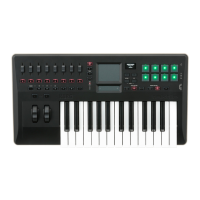
Thank you for purchasing the Korg taktile USB Con-
troller Keyboard.
In order to take full advantage of your new instrument,
please read this instruction manual carefully and use
the product as directed. You should also keep the in-
struction manual for future reference.
TIP For function details and parameters, please refer to
the taktile Parameter Guide. You can download the
taktile Parameter Guide from the Korg website (http://
www.korg.co.jp/English/Distributors/ or http://www.
korg.com/).
Connections
Computer
Commercial USB AC adapter
(USB 2.0 compatible)
MIDI equipment
MIDI IN MIDI OUT
Pedal switch
(PS-1 pedal switch,
DS-1H damper pedal, etc.)
Expression pedal
(EXP-2 foot controller,
XVP-10 expression pedal, etc.)
Standalone MIDI controller
TIP When you connect the unit to your Windows computer
for the first time, the driver included in the OS will be
installed automatically.
TIP The MIDI IN/OUT connectors can be used as MIDI in-
terfaces for the computer.
When the unit is turned on, the polarity of a pedal switch
(separately sold) is detected automatically. If you’re using the
pedal switch, it should be connected before the power is
turned on. At power-on, you should not touch the pedal switch.
The standard USB-MIDI driver included in the Windows OS
will not allow the taktile to be used by two or more applica-
tions simultaneously. To allow the taktile to be used by two
or more applications simultaneously, you need to install the
KORG USB-MIDI driver. Please download the KORG USB-
MIDI driver from the Korg website, and install it following the
instructions in the supplied document.
If you connect the taktile via a USB hub, it may not turn due
to insufficient power. In that case, you should directly con-
nect the taktile to the USB connector on the computer.
Use only the included USB cable.
About using the taktile as a standalone MIDI controller
When using a commercial USB-compatible AC adapt-
er (5 VDC and 550 mA or more), you can also use the
taktile as a standalone MIDI controller without using
any computer.
In this case, when you use a controller on the taktile,
MIDI messages will be output from the MIDI OUT con-
nector.
Please be sure to use a USB 2.0-compatible AC adapter. How-
ever, there may be cases where, depending on the USB AC
adapter used, it will not function normally even when compatible
with the standards.
If using an USB AC adapter, you cannot use the unit for control-
ling the DAW software.
Basic Operations
1. Turning the power ON
This unit has no power switch. The power is turned ON by
connecting the USB cable from this unit to the computer
USB terminal or USB AC adapter.
Turning the power OFF
The power is turned OFF when the USB cable that con-
nects this unit to the computer or USB AC adapter is re-
moved.
2. How to use the screen
1. Select a desired parameter with the page / but-
tons.
2. Specify a value for the parameter with the value slider.
TIP Press the EXIT button to return to the original screen.
1
2
3. How to use the value slider
When you move a finger along the
slider, a value will change continuous-
ly. To change the value one by one,
press the end of the slider.
Only a fingertip should be used to control
the value slider. You shouldn’t use any-
thing hard or pointed and you shouldn’t
be wearing gloves.
4. About a scene
Meaning of a scene
A group of settings in the taktile that suits software such as
a DAW is called a scene. Up to 16 scenes can be stored in
the main unit of the taktile. Settings that support represen-
tative software are incorporated in the taktile beforehand.
TIP You can also customize scene settings. For information on
how to customize them, please refer to the Parameter
Guide of the taktile.
How to select a scene
Choose the “Scene” parameter with the page / but-
tons, and select a desired scene with the value slider.
5. MIDI port
KEYBOARD/CTRL, CTRL
MIDI messages from each controller, such as the key-
board and trigger pad of the taktile will be input.
DAW IN, DAW OUT
These ports are used for controlling DAW software.
MIDI I/F IN, MIDI I/F OUT
These ports are used as MIDI interfaces. They are used
when you input MIDI messages into your computer from
external MIDI equipment or when you control external
MIDI equipment from your computer.
In the Windows environment, a port name, such as “taktile-49”
and “MIDIIN2(taktile-49),” will not be displayed. Since it is usu-
ally displayed in the above order, please specify the correspond-
ing port on the software. When you install the KORG USB-MIDI
driver, a MIDI port name will be displayed.
How to Set Up DAW Software
For detailed setup and use of third party DAW software, please
refer to the instruction manual of that came with your DAW
software.
If the scene settings in the taktile have changed from the factory
settings, it may not function as follows.
Cubase
1. Display the “Scene” parameter with the page /
buttons, and choose “Cubase” with the value slider.
2. Open the “Device Setup” window in Cubase, and add
Mackie Control to “Devices.”
3. Open the added Mackie Control page, and specify the
DAW ports of the taktile in the MIDI input/output section
that you want to be used by Mackie Control.
4. Open the “MIDI Port Setup” page, and uncheck “In ‘All
MIDI Inputs’” for the DAW IN/OUT ports of the taktile.
Digital Performer
1.
Display the “Scene” parameter with the page / but-
tons, and choose the scene for “DP” with the value slider.
Settings at “Audio MIDI Setup”
• Start “Applications”→“Utilities”→“Audio MIDI Setup” to open
“MIDI Studio,” and execute “Add Device.”
• Name the added device appropriately. (e.g., taktile DP)
• Connect the added device to the taktile as shown on the left.
TIP
When using the KORG USB-MIDI driver, con-
nect the INPUT/OUTPUT port of the added de-
vice to the “DAW IN” and “DAW OUT.”
2. Open the “Control Surface” window in Digital Perform-
er, and choose Mackie Control in “Driver” and “Unit.”
3. Choose the “DAW IN/OUT” ports of the taktile in the
“MIDI”section.
TIP For Digital Performer, the CYCLE button on the transport
buttons functions as an on/off button for the Memory Cy-
cle. However, even if you turn on the Memory Cycle, the
CYCLE button will not light up.
TIP For Digital Performer, the SET MARKER button does not
function.
Live
1. Display the “Scene” parameter with the page /
buttons, and choose “Live” with the value slider.
2. Open the “Preferences” window, and choose Mackie
Control in the “Control Surface” section.
3.
Specify the DAW IN/OUT ports of the taktile in the MIDI
input/output section that you want to be used by Mackie
Control.
GarageBand/Logic
Please download the taktile Control Surface plug-in for
GarageBand/Logic from the Korg website, and set it up
according to the supplied document.
Pro Tools
1. Display the “Scene” parameter with the page /
buttons, and choose “Pro Tools” with the value slider.
2. Open the “Peripherals” window in Pro Tools, and
choose HUI in “Type.”
3. Specify the DAW IN/OUT ports of the taktile in the
source and destination sections that you want to be
used by the HUI.
SONAR
1. Display the “Scene” parameter with the page /
buttons, and choose “SONAR” with the value slider.
2. Open the “Preferences” window in SONAR, check off
the KEYBOARD/CTRL,CTRL ports and DAW IN/OUT
ports of the taktile in both “Inputs” and “Outputs” on the
“Devices” page, and press the Apply button.
3. On the “Control Surfaces” page, open the “Control Sur-
face Settings” dialog with the button to add a control
surface, and specify “Mackie Control” in “Control Sur-
face,” and the DAW IN/OUT ports of the taktile in the
“Input Port” and “Output Port” sections.
Other software
1. Display the “Scene” parameter with the page /
buttons, and choose “Basic MIDI” with the value slider.
2. Set up your application so that it can be controlled
through the control change messages that are output
by the “KEYBOARD/CTRL,CTRL” port of the taktile.
TIP For information on how to set up your application, please
refer to the instruction manual of the application.
Playing a Software Synthesizer
1. Preparations
Once you connect the taktile to your computer, you may
need to load a software synthesizer and set up the record
state on your tracks in your DAW software before you can
begin to play sounds. For details, please refer to the in-
struction manual of your software.
2. Using the keyboard for your perfor-
mance
Let’s check that the software synthesizer plays when trig-
gered with the keyboard.
Please also try to check that the sound is modified when


 To Next Page
 Loading...